
The Related Post Thumbnails Plugin is a powerful tool for WordPress site administrators, allowing you to display related posts with thumbnail images at the end of your content.
This plugin helps enhance user engagement by showcasing additional content, improving site navigation, and keeping users on your site longer.
In this documentation, we will walk you through the General Settings tab of the Related Post Thumbnails Plugin, where you can configure the overall behavior and appearance of related post thumbnails across your WordPress site.
These settings control where related posts appear, which content types are included, how they are displayed, and how they behave across different devices.
RPT – General Tab Settings #
Below is a detailed explanation of each setting available under the General tab.
Accessing the Settings #
To access the settings, follow these steps:
- Log in to your WordPress Admin Dashboard.
- On the left menu, find and click on Related Posts.
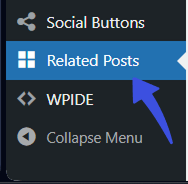
This will take you to the settings page, where you can customize how related posts will be displayed on your site.
Automatically Add to Post #
When enabled, this option automatically inserts related post thumbnails at the end of your blog posts without requiring any manual code. This means that whenever you publish a new post, the plugin will automatically add related posts at the bottom.
No coding required! Just enable the option, and it will work automatically.
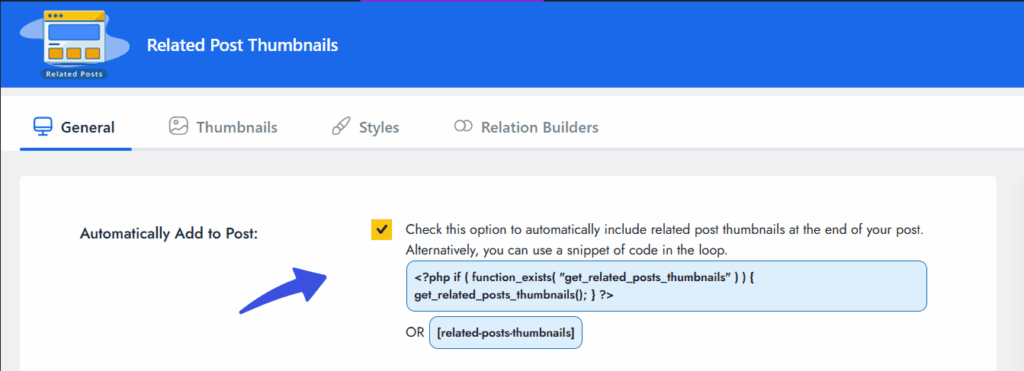
If you prefer to place the related posts section manually, you can do so by using either:
- PHP Function: This is for developers who want to place related posts in specific locations on the site. You’ll need to add this code inside the WordPress loop:
if ( function_exists( ‘get_related_posts_thumbnails’ ) ) {
get_related_posts_thumbnails(); }
- Shortcode: If you’re using a page builder or editor, you can simply insert the following shortcode where you want the related posts to appear:
This method is easier for non-developers as it does not require coding.
Developer Mode #
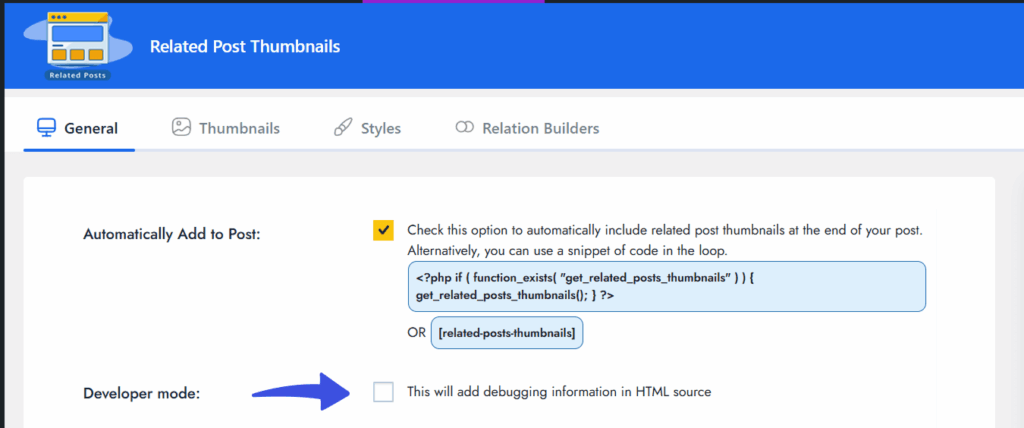
Enable this option to inject debugging details into the HTML source. This is helpful for developers while troubleshooting issues or inspecting how related posts are fetched and rendered in the background.
Why use it: This setting is only needed if you’re working with developers and need to debug issues related to related posts.
Display Related Posts #
Check this option if you want the plugin to show related posts only on single post pages (e.g., individual blog posts). This means related posts will not show up on other types of pages, like your homepage or custom post types.
If unchecked, related post thumbnails might appear on other post types or templates depending on your configuration.
Tip for Beginners: Enabling this setting ensures that related posts only show where they are most useful – on individual blog posts.

Post Types #
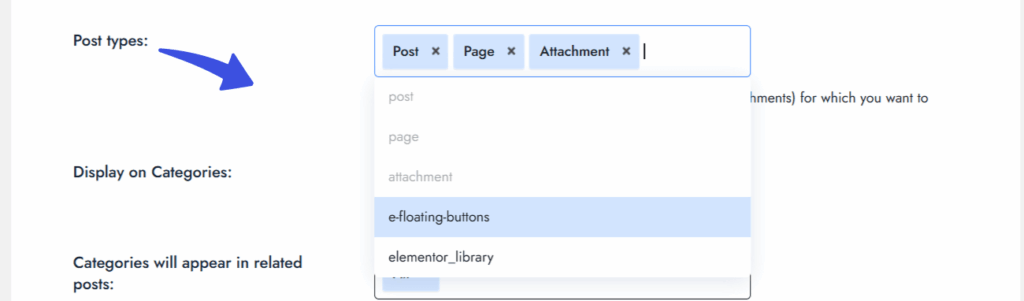
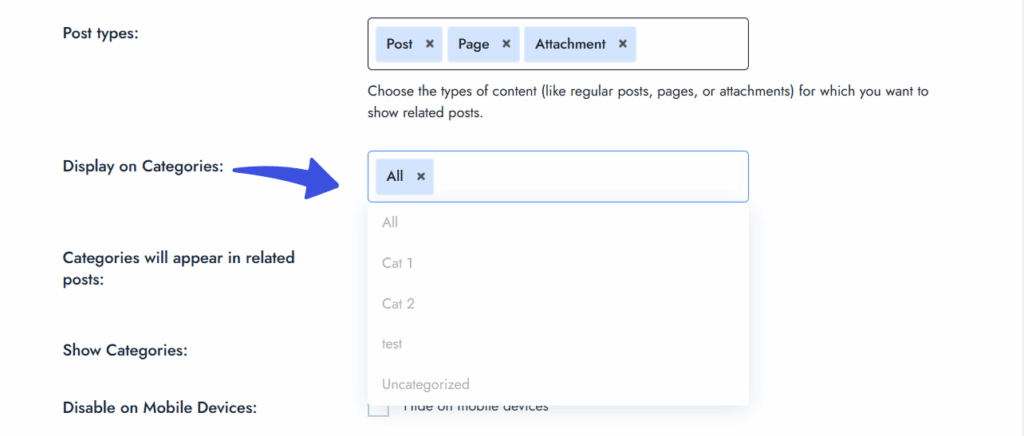
This setting allows you to choose which types of content will display related post thumbnails. By default, WordPress has blog posts and pages, but you may also have custom content types created by plugins (e.g., LearnDash or Elementor).
You can enable related posts on:
- Post – Standard blog posts.
- Page – Static pages such as “About Us” or “Contact”.
- Attachment – Media uploads like images or documents.
- Elementor Library – Templates or saved designs created in Elementor.
Display on Categories #
This setting defines which categories will trigger the display of related posts. By default, it is set to All, meaning related posts will appear on posts across all categories.
You can limit this by selecting specific categories where you want related posts displayed. For example, you might want related posts to appear only on your “Tech” or “Health” category pages.
Categories Will Appear in Related Posts #
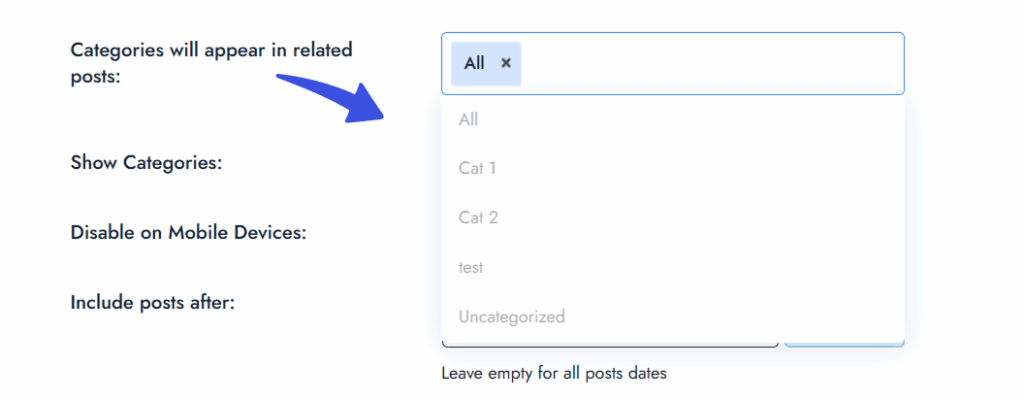
This option determines which categories affect the selection of related posts. For example, if you select specific categories, only posts from those categories will be considered when displaying related posts.
This ensures that the related posts are relevant and contextually connected to the content your reader is viewing.
Show Categories #
Enable this option to display the category names beneath each related post thumbnail. This helps provide additional context for visitors and aids content discovery.
For example, if a related post is about “Fitness,” you may display the “Health” category under the thumbnail to give the visitor more information.

Disable on Mobile Devices #
Check this option to hide the related posts section on mobile devices. This is useful for:
- Reducing load time for mobile visitors.
- Simplifying the user interface (UI) on smaller screens, so it’s less crowded and easier to navigate.
Tip for Beginners: Hiding related posts on mobile devices can improve mobile user experience and speed up the site’s load time.

Include Posts After #
Specify a date to exclude older posts from appearing in the related posts section. For example, if you set this option to January 1, 2023, only posts published after that date will appear as related posts.
Leave the field blank if you want to include posts of any publish date.
Example use case: Only show related posts published after Jan 1, 2023.

Sort By #
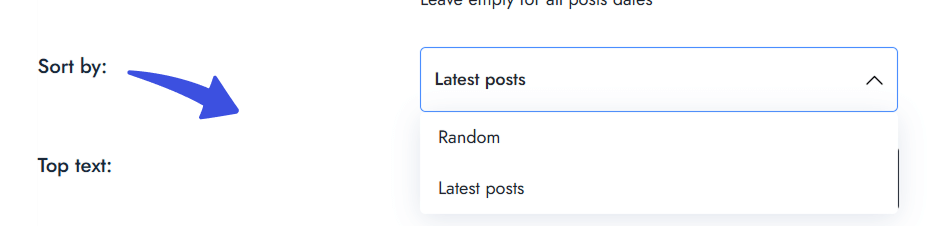
Choose how related posts should be ordered when displayed. The available options include:
- Latest Posts – Displays the most recently published related posts first.
- Random – Shows related posts in a random order each time the page loads, helping to vary content exposure.
This setting controls the user experience and can highlight posts based on recency or variety.
Top Text #
Add a custom heading or title that will appear above the related post thumbnails. This text supports HTML formatting, which means you can customize it with bold, italics, or other text styles.
Example: <h3>Related Posts:</h3>

Number of Posts to Display #
Specify the total number of related posts you want to show below each main post. By default, this is set to 3, but you can increase or decrease this based on your design preferences or available space.
Tip for Beginners: If you want fewer related posts to appear, reduce this number to 2 or 1. If you want to show more, increase it to 4 or 5.

Default Image #
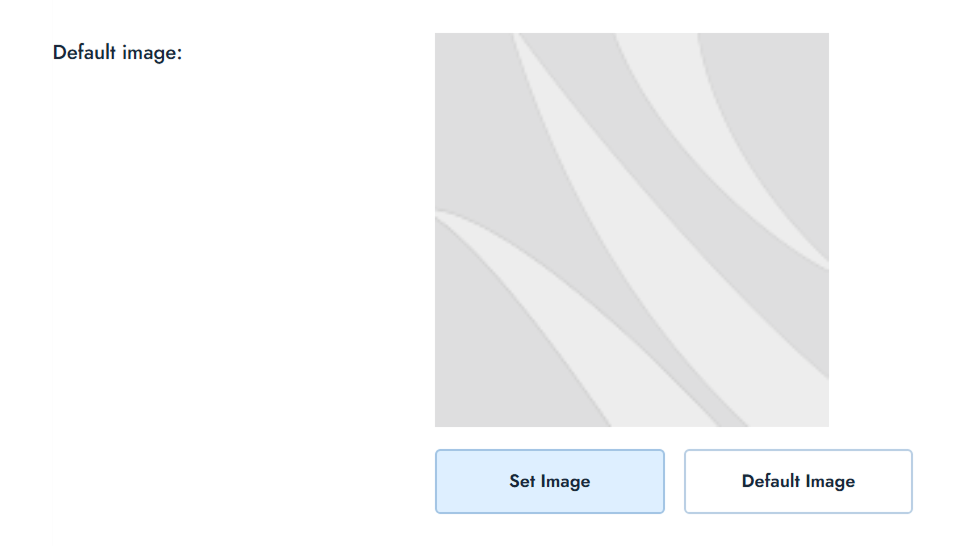
If a post lacks a featured image, the plugin can display a default image to maintain visual consistency. You have two options:
- Set Image – Select a custom image from your Media Library.
- Default Image – Use the built-in system placeholder.
This ensures your related posts layout remains consistent, even if some posts lack images.
Show Date #
Enable this setting to show the publish date of each related post beneath its thumbnail. This helps users see whether the related content is recent or outdated.

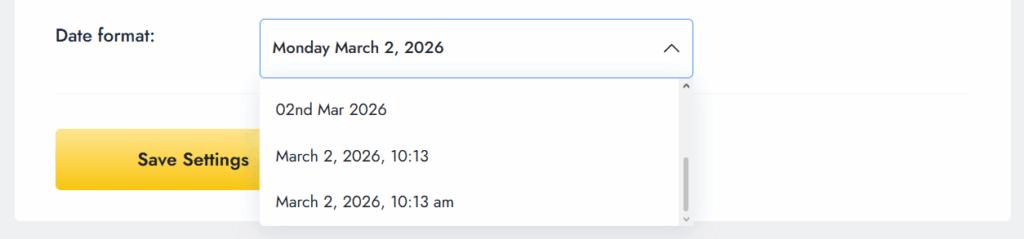
Date Format #
Choose the format in which the date should appear. The format is based on WordPress’s date formatting settings, such as:
- July 21, 2025
- 21/07/2025
- 07-21-2025, etc.
Save Your Changes #
Once you’ve adjusted your settings, make sure to click the yellow Save Settings button at the bottom of the page to apply them.
Final Thoughts #
The Related Post Thumbnails plugin offers a variety of settings to help you customize how related posts are displayed on your WordPress site.
By using the General Settings tab, you can easily control where and how related post thumbnails appear, whether on single post pages, specific categories, or even custom post types.
You can also enhance the user experience by adjusting display options, such as sorting, limiting posts by date, and showing additional details, like categories or dates.
By enabling or disabling features such as mobile visibility and default image inclusion, you can further tailor the plugin’s behavior to suit your site’s design and performance needs. Remember to save your changes after adjusting the settings, and use the options that best suit your site’s goals.


