


A common question we hear is: “How do I choose WordPress Plugins for my site?”
The WordPress ecosystem is vast, with the official plugin repository containing over 60,000 free plugins.
When premium tools are included, identifying the optimal solution can be challenging. However, most developers do not emphasize that expertise with all available plugins is unnecessary to maintain a fast website.
Instead, a more structured approach to evaluating and selecting plugins is necessary. A bloated plugin directory can increase load times, potentially reducing user engagement and conversions.
Do plugins slow down WordPress? Bad plugin management does.
In this guide, I’m going to show you exactly how to choose WordPress plugins like a pro.
We’ll look at the plugin weight, how to spot performance-killers before they ruin your SEO, and the 5-step framework we use at WPBrigade to keep our sites seamless.
Choose WordPress Plugins (TOC)
- How WordPress Plugins Actually Affect Site Performance
- What Bad Plugins Look Like in Real Life
- The Myth of “Too Many Plugins”
- A Performance-First Framework to Choose WordPress Plugins
- How to Test Plugin Performance Before and After Installation
- High-Risk Plugin Categories (That Hurt Performance Most)
- Why WPBrigade Builds Performance-Safe Plugins
- Real Examples: Smart Plugin Choices vs Bad Ones
- How to Build a Clean, High-Performance Plugin Stack
- Plugin Audit Checklist (Quick Reference)
- FAQs on How to Choose WordPress Plugins
- Conclusion: Choose Better Plugins
How WordPress Plugins Actually Affect Site Performance
A complete understanding of underlying processes is important for knowing how to choose WordPress plugins for site performance.
Each time a user accesses a WordPress site, the platform interacts with its installed plugins.
Here is how a single plugin may initiate the following actions:
- PHP functions: Server-side code that must be executed.
- Database queries: Requests to retrieve or store data, such as settings modifications or view counts.
- JS and CSS: Resources that must be downloaded by the user’s browser.
- API calls: Requests sent to external servers, such as to retrieve a Facebook feed.
A recurring challenge is that the performance impact of plugins is not always immediately apparent.
A plugin might look fine on your homepage, but it can add blocking scripts that stop the rest of your page from loading.
This is why high-function categories, like login, analytics, and social plugins, are often the biggest performance risks. They tend to load on every page, whether or not they are needed.
What Bad Plugins Look Like in Real Life
Let’s go through some of the warning signs that you installed the wrong plugin:
- Login page lag: Your login screen suddenly takes 5 seconds to load.
- Dashboard Spinning: The WordPress admin area feels sluggish.
- Hosting CPU spikes: Your host sends you a resource-usage warning.
- Bounce rate increase: Users are leaving because the “Frontend” feels heavy.
If you see these, you likely have a plugin optimization WordPress issue.
To identify the root cause of performance issues, it is important to track engagement and site speed using real data rather than guesswork.
Using GA4 and tools like Analytify, which we will cover later in this guide, can help you pinpoint the main causes of these problems.
The Myth of “Too Many Plugins”
You must be wondering, “How many plugins are too many?”
Often, the suggestions are arbitrary numbers, such as 15 or 20.
However, this approach is misguided. The total number of plugins is less important than the quality of their code.
For example, 50 lightweight, single-purpose plugins may perform more efficiently than five comprehensive but resource-intensive plugins.
The critical consideration is plugin weight, not plugin count.
For illustration, carrying 20 feathers is less burdensome than carrying a single 50-pound lead brick.
What Actually Matters: Quality Over Quantity
When evaluating a plugin stack, focus on the following four performance pillars rather than the total number of plugins installed:
- Code Quality: Assess whether the plugin is developed by a reputable author who adheres to WordPress standards. Well-structured code enhances performance, while poorly organized code can degrade server responsiveness.
- Database Usage: Determine if the plugin frequently reads from or writes to the database. Excessive database queries can significantly impair WordPress site performance.
- Asset Loading: Evaluate whether the plugin loads its CSS and JavaScript files on all pages or restricts them to only those where they are required.
- Feature Overlap: Identify whether multiple plugins provide similar functionalities, such as image optimization or redirect management. Functional overlap can lead to conflicts and reduced site performance.
A single poorly optimized plugin can have a greater negative effect than numerous lightweight plugins.
A Performance-First Framework to Choose WordPress Plugins

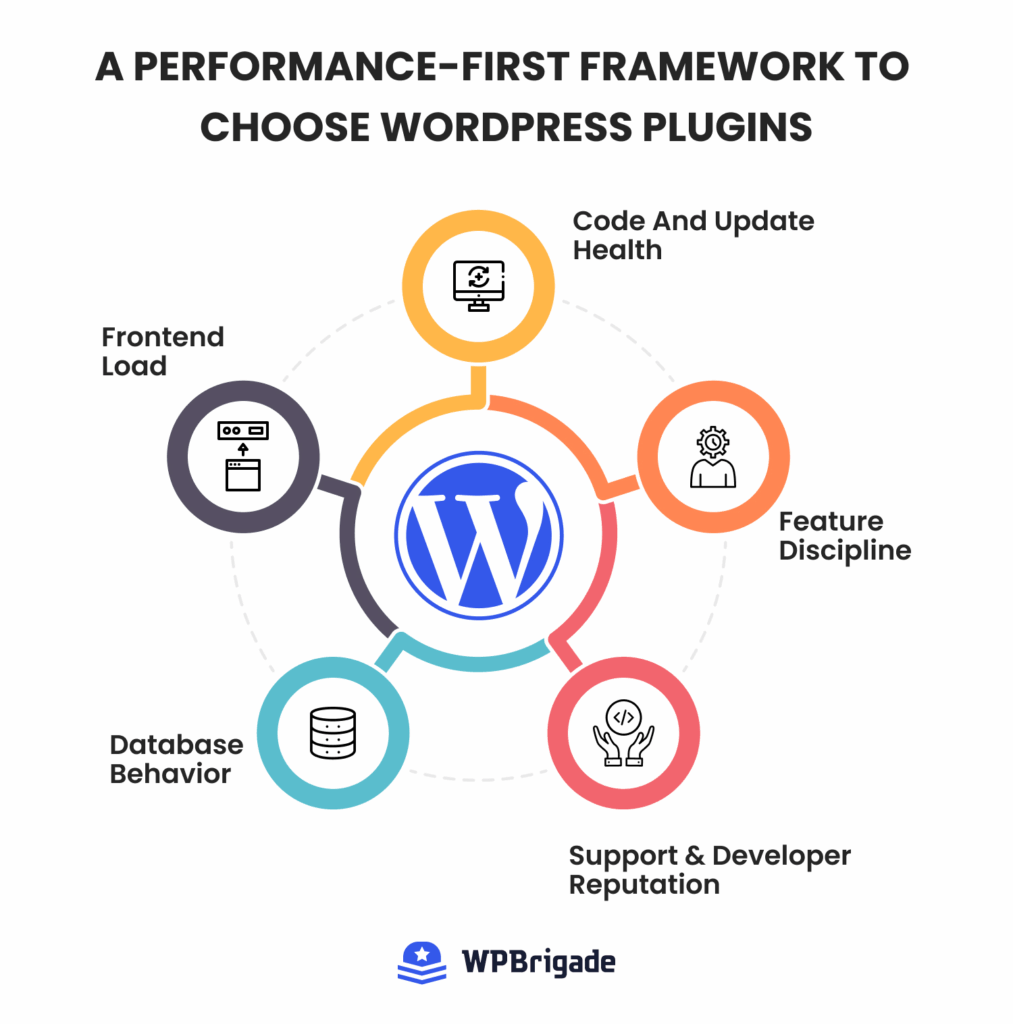
Identifying a functional plugin is straightforward; however, ensuring it does not negatively impact site speed is considerably more challenging.
At WPBrigade, we use a five-part evaluation system to ensure that each tool added to our stack improves performance rather than degrades it.
In 2025, security databases track the distribution of plugin vulnerabilities, accounting for 97% of all new WordPress vulnerabilities.
Adopt this comprehensive WordPress plugin evaluation strategy prior to installing any new plugin.
1. Code and Update Health
The WordPress repository contains numerous abandoned plugins.
If a plugin has not been updated in over six months, this is a significant warning sign.
However, it is important to assess update patterns rather than relying solely on the most recent update date.
- Active Installs: Does it have a healthy user base (10k+)? A large user base usually means the developer is incentivized to keep the code clean and compatible with the latest WordPress core.
- Update Frequency: Is the developer proactive? You want to see regular maintenance patches, not just major feature releases.
- Changelog Patterns: Read the changelog. Are they fixing bugs and security vulnerabilities, or just adding bloat features? If every update is major, be cautious; they may be prioritizing more over stability.
2. Feature Discipline
A significant risk in selecting WordPress plugins is the prevalence of “All-in-One” plugins.
- The Danger of Bloat: Installing a feature suite, such as a security, performance, and branding plugin, is unnecessary when only login page customization is required.
- The Power of Single-Purpose: Single-purpose plugins typically deliver faster performance due to their focused codebase. These plugins perform a specific function efficiently and avoid unnecessary features.
3. Frontend Load
Frontend load is responsible for most site slowdowns. Many plugins act as inefficient loaders, injecting CSS and JavaScript into every page, even when the plugin’s features are not used.
- Sitewide Test: For example, if a Contact Form plugin loads scripts on blog posts without forms, it negatively affects site performance.
- Selective Loading: Plugins should only enqueue scripts when a specific block or shortcode is detected.
4. Database Behavior
A plugin may perform efficiently on the frontend but impose strain on the database.
Each time a plugin saves a setting or logs an event, it interacts with the database.
- Orphaned Tables: Poorly coded plugins may create new tables and fail to delete them when they are deleted, leaving residual database entries that slow down site queries.
- Log and Tracking Bloat: Certain plugins record every visitor’s IP address or bot activity in the database. Without regular cleanup, these tables can rapidly increase in size, significantly degrading site performance.
5. Support and Developer Reputation
An abandoned plugin poses not only a performance risk but also a significant security vulnerability.
- The Reputation Check: Developers with multiple successful plugins, such as those from WPBrigade, are more likely to maintain ongoing support to protect their reputation.
- Support Forum Activity: Check the Support tab on WordPress.org. If the last 10 threads are unanswered, the developer has likely checked out. When a plugin is no longer supported, it won’t be optimized for newer versions of PHP, which directly hurts your site speed.
Achieving high site performance requires deliberate evaluation of each plugin using this framework.
If a plugin does not meet all criteria, alternative, more efficient options are likely available.
Summary: The WPBrigade Framework
To learn how to choose WordPress plugins, here is a quick summary you can verify:
- Maintenance: Updated within 6 months with clear bug fixes.
- Focus: Single-purpose tools over bloated “all-in-one” suites.
- Efficiency: Scripts load only when needed (no global injection).
- Cleanliness: No orphaned database tables or log bloat.
- Reliability: Active support forums and a reputable developer history.
How to Test Plugin Performance Before and After Installation
Many WordPress users adopt a risky approach while learning how to choose WordPress plugins often described as Install and Pray.
Users often enable plugins solely on initial appeal and assume functionality is adequate when the website does not fail immediately.
However, performance degradation is often gradual and can negatively impact conversion rates over time.
It is not possible to determine a plugin’s impact on performance without comparing engagement and speed metrics before and after installation.
The following outlines a transition from guesswork to a data-driven strategy for optimizing WordPress plugins.
What to Measure
Before you install any new tool, record your baseline for these four metrics:
- Page Speed: Use tools such as PageSpeed Insights to monitor Largest Contentful Paint (LCP) and observe any post-activation increases.
- Database Queries: Use tools such as Query Monitor to determine whether the new plugin significantly increases queries per page load.
- API Calls: Assess whether the plugin initiates external data requests, as this can increase server response times.
- Login and Dashboard Speed: Don’t just check the frontend. High-risk plugins often bloat the admin area, making your daily workflow a nightmare.
Analytify: Your Plugin Performance Analyzer
To understand how a plugin affects your site, compare engagement and speed metrics before and after installation.
Google Analytics 4 (GA4) collects this important information, but it can be hard to find because it is hidden in complex menus.
Analytify makes this data easy to see by bringing GA4’s features right into your WordPress dashboard. This way, you can quickly check how a plugin really affects your site.
How to Check a Plugin’s Impact Using Real Data:
Instead of just looking at speed scores, try this data-driven method to find out if a new plugin is causing problems for your business:
- Spot Page-Level Slowdowns: Use Analytify’s page-level analytics to see exactly which URLs saw a performance dip after an installation. Some plugins degrade only specific high-value pages, such as your checkout or blog.

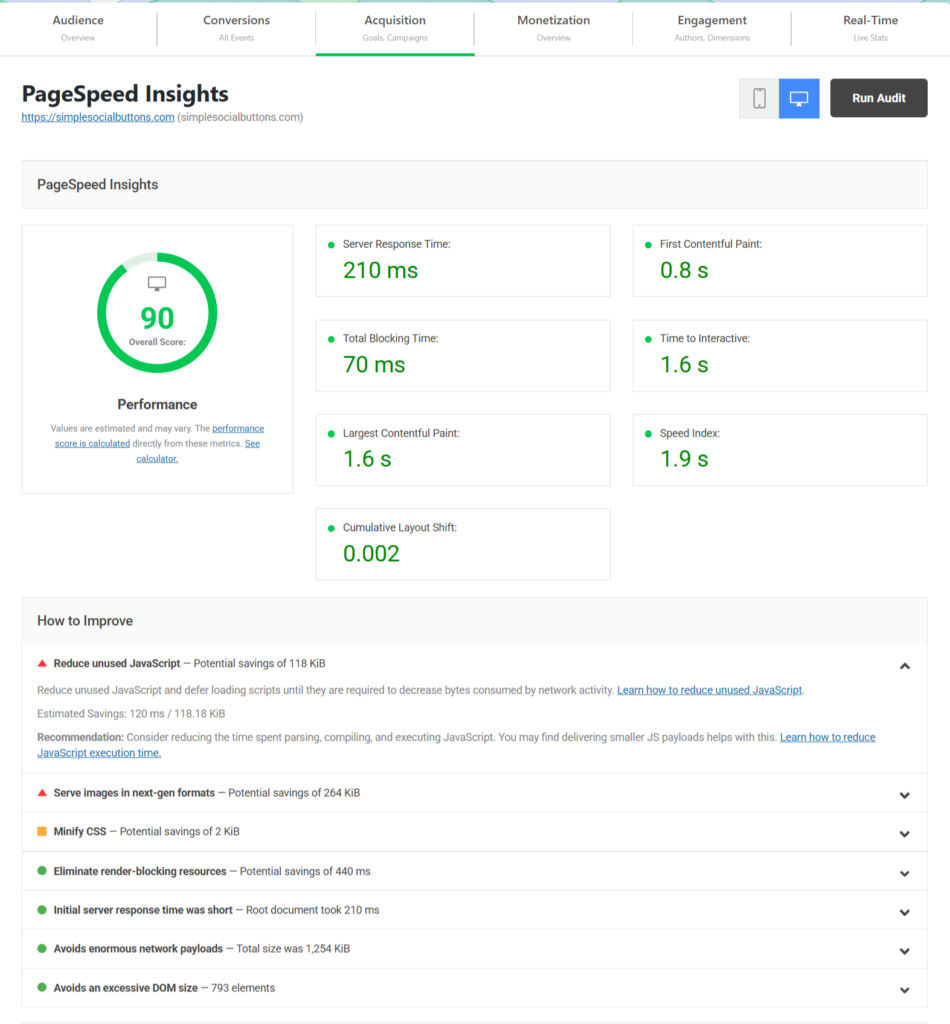
- Monitor Bounce Rate Spikes: If your bounce rate spikes after a new install, it is a direct signal of a performance issue. You can monitor these behavioral changes across your entire site from a single overview dashboard.

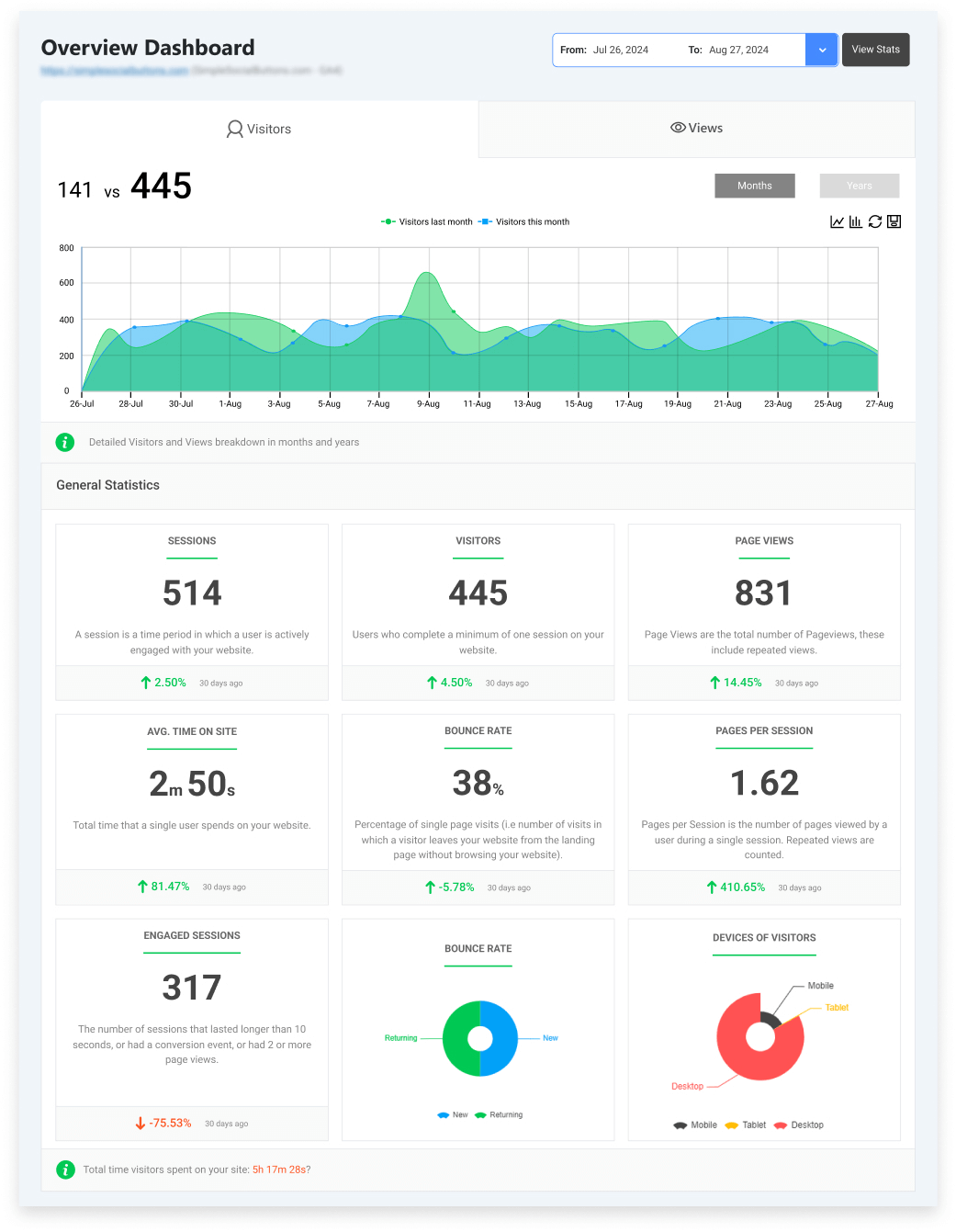
- Compare Before vs. After: Use the date comparison tool to compare the 7 days before an installation with the 7 days after. A drop in Average Engagement Time is a clear indicator that a plugin is creating friction for your users.
GA4 has the important data, but Analytify makes it easy to use and understand.
If you see that a new plugin causes traffic or engagement to drop, it’s best to remove it, no matter how many features it has.
High-Risk Plugin Categories (That Hurt Performance Most)
Plugin categories vary significantly in their impact on WordPress site performance.
Certain types are inherently more resource-intensive because they must monitor the entire site or maintain continuous communication with external servers.
Because these high-risk plugins often load on every page, choosing them carefully is more important than in any other category to avoid unnecessary script injection site-wide.
Here are some high-risk plugin categories that can damage your site’s performance:
1. Security and Login Plugins
While security remains essential, many security suites consume greater resources.
These plugins often run continuous background scans or use complex redirects. This can add extensive tracking scripts to login pages.
- The Risk: A large security plugin may degrade WordPress site performance by increasing CPU usage whenever automated bots access the login page.
- The Solution: Employ specialized tools such as LoginPress, which are designed to customize the login user experience and enhance security through features like custom slugs and social logins, without loading unnecessary frontend scripts on blog posts or landing pages.
2. Analytics Plugins
Analytics are the heartbeat of your business, but all-in-one stats plugins often process data on your server instead of Google’s.
- The Risk: This creates query bloat, where your database constantly processes visit counts, slowing the experience for real users.
- The Solution: Analytify offers a modular approach that integrates GA4 data into the dashboard while delegating intensive processing to Google’s servers, preserving WordPress plugin optimization.
3. Social Sharing Plugins
Social buttons seem simple, but many load heavy 3rd-party JavaScript (from Facebook, X, or LinkedIn) on every page.
- The Risk: These external requests cause render-blocking issues, preventing page content from displaying until the social icons have fully loaded.
- The Solution: Simple Social Buttons is designed to load only when and where the buttons are present, thereby avoiding global script injection and offering a performance-safe option for contemporary technology stacks.
Why WPBrigade Builds Performance-Safe Plugins
At WPBrigade, our philosophy is that a plugin should be a precise tool, performing a single task optimally without affecting other site components.
Rather than just selling products, we focus on a performance-first plugin design strategy that prioritizes the following principles:
- Lightweight Architecture: Our plugins contain no hidden features or unnecessary code beyond the requested functionality.
- Single-Purpose Design: We adhere to the “Power of One” principle, ensuring each plugin serves a single function without unnecessary complexity.
- No Global Script Loading: Our plugins are designed to be stackable, ensuring they do not create conflicts or degrade site performance as business needs expand.
Our commitment is to develop website code that prioritizes speed, user experience, and stability. We engineer our tools to minimize server impact.
Some of our best performance-based plugins include Analytify for analytics visibility, LoginPress for secure authentication and branding, and Simple Social Buttons for localized user engagement.
Real Examples: Smart Plugin Choices vs Bad Ones
The distinction between a high-performing website and a slow one frequently results from a few critical decisions.
The following analysis compares optimal choices with common errors that negatively impact WordPress site performance.
1. Analytics
- Not Recommended: Local tracking plugins that record each visitor’s interaction in the website’s database.
- Performance Impact: Significant database expansion and continuous background data writing.
- Recommended Option: Analytify delegates data processing to Google’s servers and retrieves analytics via API, thereby minimizing server resource usage.
2. Login and Branding
- Not Recommended: Massive security suites used just to brand a login page.
- What causes slowdown: Continuous background malware scans and global script injection.
- The Smart Choice: LoginPress uses native WordPress hooks to securely customize your login UX.
3. Social Sharing
- Not Recommended: Plugins that call external APIs (Facebook, X, etc.) on every page load to fetch share counts.
- Performance Impact: Render-blocking requests that delay page display for users.
- Recommended Option: Simple Social Buttons conditionally loads CSS only on pages where the buttons are present.
How to Build a Clean, High-Performance Plugin Stack
Building a high-performance site isn’t about having the fewest plugins; it’s about having the right ones.
When choosing WordPress plugins, think like an architect: every component must serve a structural purpose without adding unnecessary weight.
Here is our blueprint for a clean, professional-grade stack that prioritizes speed and stability.
For most websites, you only need one high-quality tool for each of these core categories for the best WordPress plugin strategy.
| Role | Strategy | Recommended Tool |
| Analytics | Data without database bloat | Analytify |
| Login | Custom branding and secure entry | LoginPress |
| SEO | Rankings and metadata control | Yoast |
| Social | Performance-safe engagement | Simple Social Buttons |
| Security | Firewall and threat protection | Wordfence |
| Optimization | Caching and code minification | WP Rocket |
1. Avoid Feature Overlap
A primary cause of performance degradation is plugin conflict.
When multiple plugins attempt to perform the same function, such as CSS minification or login page redirection, conflicts may arise.
These conflicts not only slow down the website but can also cause critical failures. This is why selecting a single plugin for each functional category is important to avoid such issues.
2. Avoid Feature Duplication
Many “All-in-One” plugins incorporate additional features, such as “Social Buttons” or “Basic SEO,” which may overlap with specialized tools.
When using a dedicated, high-performance plugin like Simple Social Buttons, it is essential to disable similar features in other all-in-one suites.
This helps to prevent multiple plugins from performing the same function.
3. The 90-Day Audit Rule
The plugin management page requires regular attention to learn about plugin performance impact.
Conduct a manual audit at least once every 90 days to ensure optimal performance and security.
- Is it active? If it’s deactivated, delete it. Deactivated plugins can still be security risks.
- Is it necessary? Has your business changed? If you no longer run a “Winter Sale,” delete that countdown timer plugin.
- Is it verified? If a plugin has not received recent maintenance from its developer, consider a modern, actively supported alternative.
Expert Tip: A clean stack is easier to manage, easier to secure, and significantly faster for your users.
Plugin Audit Checklist (Quick Reference)
Use this checklist to vet every plugin currently on your site, as well as any new ones, while learning how to choose WordPress plugins.
- Does it load only where it’s needed?
The Goal: Look for plugins that use conditional loading to keep the frontend lean.
- Is the database clean?
The Goal: Use tools like Analytify that leverage external processing (GA4) rather than local database storage.
- Is it a unique feature?
The Goal: Avoid feature overlap. One category, one plugin.
- Is it actively maintained?
The Goal: Only use plugins with active developer support to ensure compatibility with the latest PHP versions.
- Can it be replaced with a lighter tool?
The Goal: Switch to single-purpose tools like LoginPress or Simple Social Buttons that do one job without the bloat.
FAQs on How to Choose WordPress Plugins
Directly, no. Google doesn’t count your plugins. Google uses Core Web Vitals scores (like Largest Contentful Paint) as a ranking factor. If a bloated plugin adds 500ms to your load time, it doesn’t just annoy users; it signals to Google that your site provides a poor experience
Conclusion: Choose Better Plugins
Ultimately, plugins are fundamental to WordPress’s status as a leading content management system.
They should not be viewed as obstacles but as essential tools for scalability and plugin optimization in WordPress.
The key insight is that plugins themselves do not compromise site performance; rather, poor selection does.
Adopting a performance-first strategy consistently yields superior results.
Prioritizing plugin efficiency and code quality over simply minimizing plugin counts safeguards site speed, search engine optimization, and revenue.
At WPBrigade, we develop tools such as Analytify, LoginPress, and Simple Social Buttons for site owners who prioritize speed, user experience, and stability.
We maintain that plugins should facilitate growth rather than impede it.
Learn more about site optimization here:
- Top 10 Essential Plugins for WordPress (The 2026 Guide)
- 5 best SEO Plugins for WordPress
- WordPress Performance Optimization for Growing Businesses (Agency Checklist)
How many plugins are you running right now, and more importantly, do you know which ones are actually slowing your site down?