
The essential plugins for WordPress in 2026 cover analytics, login, sharing, SEO, speed and email. Our top 10 are Analytify, LoginPress, Simple Social Buttons, Related Posts Thumbnails, Bookings and Appointments for WooCommerce, UCMM, Headers and Footers, Yoast SEO, WP Rocket and WP Mail SMTP.
Each plugin solves one job. Together, they make a WordPress site easier to measure, safer and faster to manage. Start with the plugins that match your site type.
Five of these ten are our own plugins: Analytify, LoginPress, Simple Social Buttons, Related Posts Thumbnails and UCMM. The other five are third-party plugins that each do one job well.
Essential Plugins for WordPress (TOC):
- How to Choose Essential Plugins for Your WordPress Site
- The Top 10 Essential Plugins for WordPress
- 1. Analytify : Google Analytics Inside WordPress
- 2. LoginPress : Custom Login and Secure UX
- 3. Simple Social Buttons : Lightweight Social Sharing
- 4. Related Posts Thumbnails : Keep Readers on Your Site
- 5. Bookings and Appointments for WooCommerce by PluginHive
- 6. UCMM (Under Construction and Maintenance Mode)
- 7. Headers and Footers : Sitewide Code and Layout Control
- 8. Yoast SEO : Optimize for Search Engines
- 9. WP Rocket : Speed Up Your Website in Minutes
- 10. WP Mail SMTP: Fix WordPress Email Delivery
- How These Plugins Work Together: Real-World Setup Scenarios
- Best Practices When Installing Plugins
- Quick Comparison: Free vs Pro Versions
- FAQs About Essential Plugins for WordPress
- Conclusion: Essential Plugins for WordPress
TL;DR: The 10 Essential Plugins for WordPress in 2026
Running short on time? Here are the must-have plugins every WordPress site needs this year:
- Analytify: Track Google Analytics inside WordPress effortlessly.
- LoginPress: Create a secure, branded WordPress login experience.
- Simple Social Buttons: Add beautiful, lightweight social share buttons.
- Related Posts Thumbnails: Keep readers engaged with visual content related to the post.
- Bookings and Appointments for WooCommerce by PluginHive: Turn your store into a booking machine.
- UCMM (Under Construction and Maintenance Mode): Create your under-construction and maintenance-mode pages easily.
- Headers and Footers: Safely insert scripts and tracking codes across the site.
- Yoast SEO: Optimize content and metadata for better search visibility.
- WP Rocket: Make your site load faster with caching and one-click optimizations.
- WP Mail SMTP: Fix email delivery issues and ensure reliable notifications.
This table shows the job each essential plugin does.
| Plugin Name | Job | Best For | Free Version |
|---|---|---|---|
| Analytify | GA4 analytics inside WordPress | Bloggers, stores and marketers | Yes |
| LoginPress | Branded, secure login page | Agencies and membership sites | Yes |
| Simple Social Buttons | Social sharing buttons | Blogs and publishers | Yes |
| Related Posts Thumbnails | Related posts with thumbnails | Content sites | Yes |
| Bookings and Appointments for WooCommerce | Appointments and rentals | Service-based stores | No |
| UCMM | Maintenance and coming-soon pages | Launches and redesigns | Yes |
| Headers and Footers | Insert scripts without theme edits | Marketers and developers | Yes |
| Yoast SEO | On-page SEO | Every site | Yes |
| WP Rocket | Speed and performance | Freelancers, agencies and small businesses | No (premium only) |
| WP Mail SMTP | Reliable email delivery | Sites that send emails | Yes |
How to Choose Essential Plugins for Your WordPress Site
Choose essential WordPress plugins by matching each one to a real job on your site. Check compatibility, support and speed before you install anything. Use this checklist:
- Add plugins only if they are compatible with your current WordPress version and theme to avoid conflicts.
- Look for plugins with active support and regular updates.
- Consider using lightweight, well-coded plugins to help your site load faster and keep visitors engaged.
- Always review privacy compliance, especially with data-related tools. This helps your site meet user consent and legal requirements.
- Map each plugin to a core use case such as analytics, security, design, or optimization. This categorization helps you install only what truly adds value.
- Prioritize solutions that balance control, privacy, and performance, and give you a clean, fast, and compliant WordPress experience.
The Top 10 Essential Plugins for WordPress
These ten essential WordPress plugins cover the core jobs every site needs. Each entry shows what the plugin does, who it suits and one setup tip.
1. Analytify: Google Analytics Inside WordPress
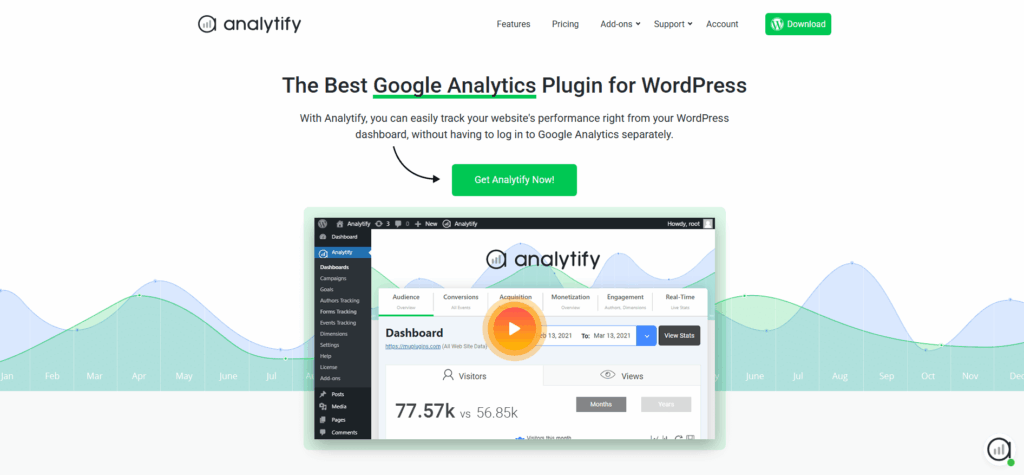
Analytify shows your Google Analytics 4 data inside the WordPress dashboard. You see real-time visitors, top pages, traffic sources and per-post stats. Analytify Pro adds WooCommerce and EDD revenue, form tracking and scheduled email reports.
- GA4 dashboard inside WordPress
- Per-post and per-page stats
- Search Console keywords
- WooCommerce and EDD revenue (Pro)
Best For: Bloggers, publishers, small business owners, and marketers tracking content performance.
Quick setup tip: Connect your GA4 property, enable page-level stats, and build a custom dashboard for instant analytics.
Analytify lets you track performance without switching tabs or reading raw GA4 reports. Read our guide to the best Google Analytics plugins for WordPress to compare options.
2. LoginPress: Custom Login and Secure UX
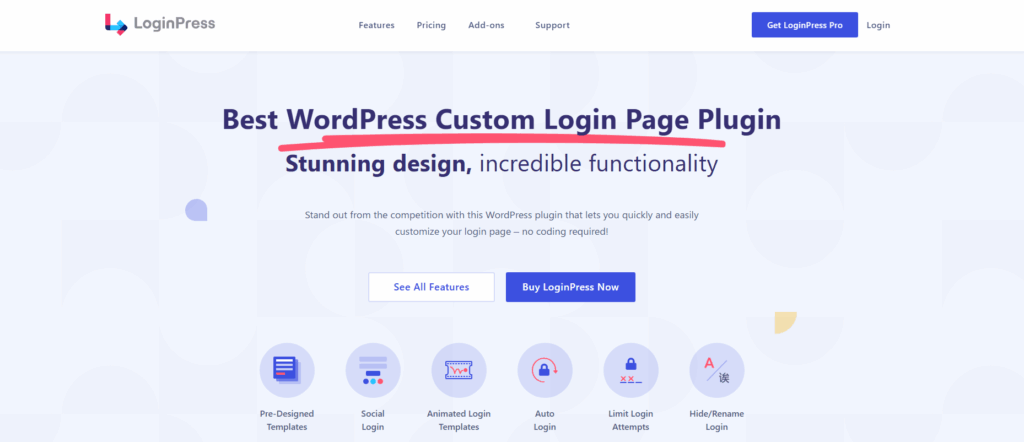
LoginPress brands and secures the WordPress login page with no code. You add your logo, colors and background in a live customizer. LoginPress Pro adds reCAPTCHA, login attempt limits and social login.
- Live login page customizer
- Custom error and welcome messages
- reCAPTCHA and login limits (Pro)
- Social login (Pro)
Best For: Agencies, membership sites, and multi-author blogs needing branded access points.
Quick setup tip: Use the built-in LoginPress Customizer to personalize branding and enable login protection for admin roles.
With LoginPress, you get a branded login page and stronger login security in one plugin. Compare options in our list of the best login plugins for WordPress.
3. Simple Social Buttons: Lightweight Social Sharing

Simple Social Buttons adds elegant, performance-friendly social sharing icons to your posts and pages. It supports all major networks and offers flexible placement options to match your design.
Best For: Bloggers, publishers, and news websites aiming to encourage easy sharing.
Quick setup tip: Choose minimal icons, enable lazy loading, and position buttons near CTAs or featured content.
Social proof drives engagement, and this social sharing plugin for WordPress delivers it with zero bloat.
4. Related Posts Thumbnails: Keep Readers on Your Site
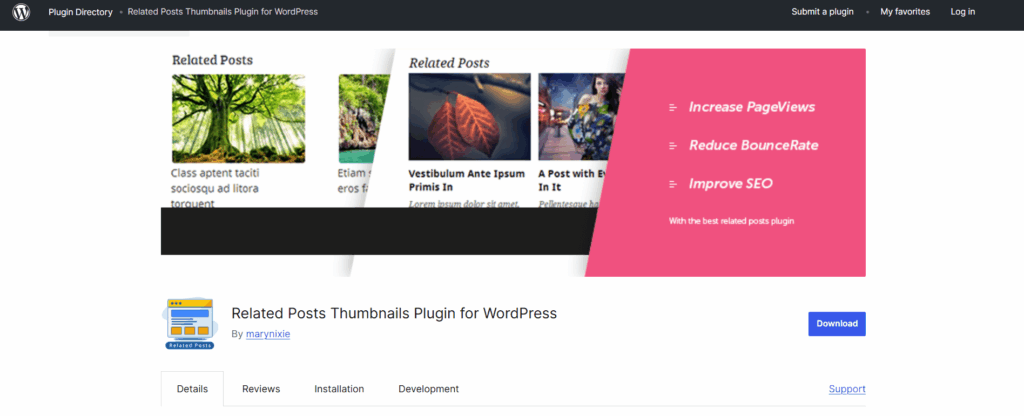
Related Posts Thumbnails shows related articles with thumbnails under each post. Readers find their next post faster, which raises pages per visit.
- Thumbnail size and column controls
- Relate by category, tag or author
- Block, widget and shortcode
- Built-in caching
Best For: Content-driven sites, recipe blogs, and news platforms.
Quick setup tip: Enable thumbnail caching for speed, and test placement below content for better visibility.
Related Posts Thumbnails turns one-post visits into longer sessions. See our list of the best related posts plugins for alternatives.
5. Bookings and Appointments for WooCommerce by PluginHive
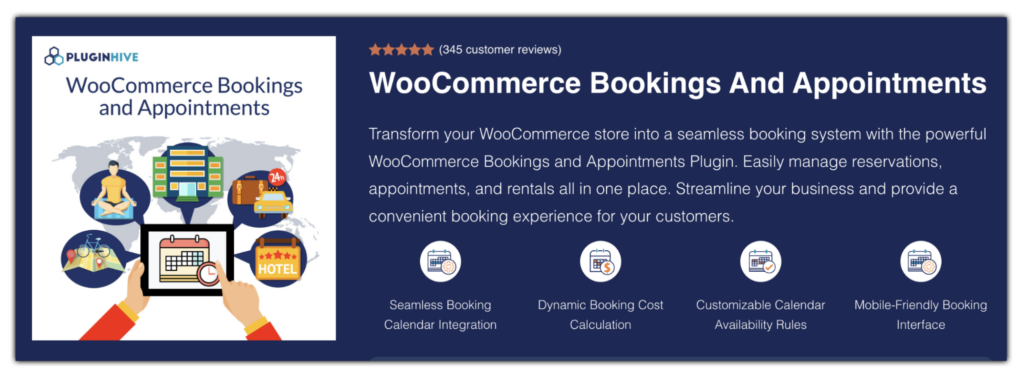
Your customers shouldn’t have to call or email just to book a slot. The Bookings and Appointments plugin by PluginHive lets you offer appointments, rentals, and reservations directly from your WooCommerce store. It uses a clean, interactive calendar that handles scheduling, pricing, and confirmations automatically. Whether you run a salon, a rental shop, or an online coaching service, this plugin replaces the manual back-and-forth with a system that works around the clock.
Best For: Salons, clinics, rental businesses, consultants, and any service-based WooCommerce store that takes appointments or reservations.
Quick setup tip: Set your booking type first (day-based or time-based), configure availability rules, and enable Google Calendar sync before going live.
With Bookings and Appointments for WooCommerce, you get a fully automated scheduling system built right into your store. No third-party tools or manual coordination needed.
6. UCMM (Under Construction and Maintenance Mode)
UCMM (Under Construction and Maintenance Mode) shows a branded coming-soon or maintenance page while you work on your site. Visitors see a clean holding page. Logged-in admins still see and edit the real site.
Best For: New site launches, redesigns and planned maintenance windows.
Quick setup tip: Add your logo, a short message and a launch date. Turn maintenance mode off as soon as the site is ready.
UCMM keeps unfinished pages away from visitors while you build or update your site.
7. Headers and Footers: Sitewide Code and Layout Control
Headers and Footers is a simple yet powerful plugin that lets you insert scripts, such as analytics tags and meta verification codes, without editing your theme files.
Best For: Developers, marketers, and non-tech users who need to manage scripts efficiently.
Quick setup tip: Use the plugin’s preview option before applying changes to your live site.
Headers and Footers is perfect for managing WordPress analytics integrations and other sitewide customizations.
8. Yoast SEO: Optimize for Search Engines
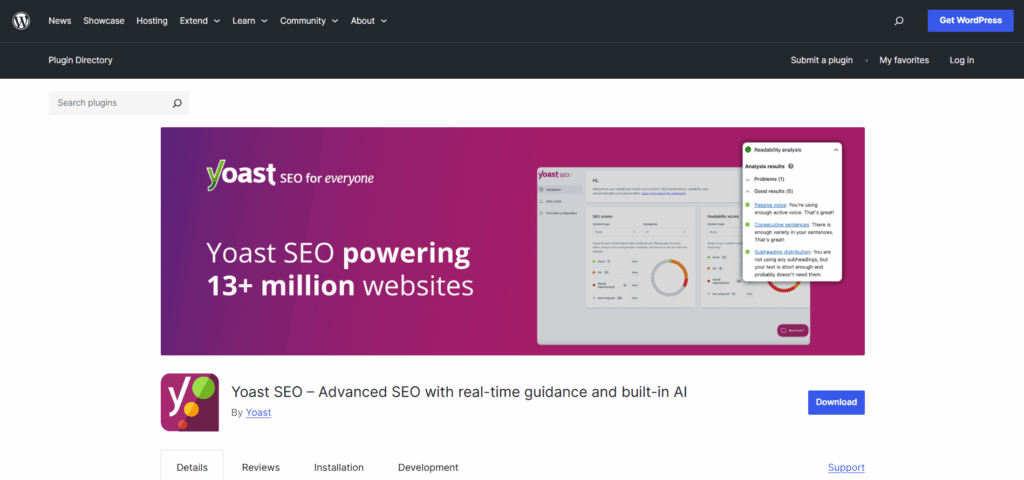
Yoast SEO checks every post for SEO and readability before you publish. It also builds your XML sitemap and adds schema. Yoast SEO has 10+ million active installs on WordPress.org.
- SEO and readability analysis
- Automatic XML sitemaps
- Schema structured data
- FAQ and HowTo blocks
Best For: Businesses, bloggers, and content creators focusing on organic growth.
Quick setup tip: Enable the readability analysis and add focus keywords for every page or post.
Pair Yoast SEO with Analytify to see which optimized posts gain traffic. Read our full list of the best SEO plugins for WordPress.
9. WP Rocket: Speed Up Your Website in Minutes

WP Rocket is a caching and performance plugin that makes WordPress sites load faster. It turns on page caching and cache preloading as soon as you activate it, and lets you add file optimization, lazy loading and delayed JavaScript with a few clicks.
Best For: Freelancers, agencies and small business owners who want to optimize website speed and performance hassle-free within minutes for one or multiple websites.
Quick setup tip: Run a performance test on your key pages using their built-in performance monitoring tool Rocket Insights, enable the recommended features with a single click, and launch a new test to see results right away.
WP Rocket is a speed plugin you can set up in minutes and then leave to do its job in the background.
10. WP Mail SMTP: Fix WordPress Email Delivery
WP Mail SMTP fixes WordPress emails that land in spam or never arrive. It sends mail through a trusted SMTP provider instead of the default PHP mail function.
Best For: Any site that sends notifications, contact form messages or order emails.
Quick setup tip: Connect a mailer like Gmail, SendLayer or Outlook with the setup wizard. No coding is needed.
WP Mail SMTP is a must-have for any WordPress site that depends on email.
How These Plugins Work Together: Real-World Setup Scenarios
These essential plugins for WordPress work best as a stack. Pick the stack that matches your site type.
| Site Type | Plugin Stack |
|---|---|
| Blog | Analytify, Simple Social Buttons, Related Posts Thumbnails, Yoast SEO, WP Rocket |
| Membership site | LoginPress, Analytify, Headers and Footers, WP Mail SMTP |
| WooCommerce store | Analytify Pro, Related Posts Thumbnails, WP Rocket, WP Mail SMTP |
| Service business | Bookings and Appointments for WooCommerce, Analytify, WP Mail SMTP |
| Site in development | UCMM, WP Rocket |
1. Blogger Setup
A powerful blogging stack combines Analytify, Simple Social Buttons, Related Posts Thumbnails, Yoast SEO, and WP Rocket. Analytify gives you clear insights into which of your content is performing best, while Simple Social Buttons boosts reach with easy sharing. Related Posts Thumbnails keeps your visitors engaged; Yoast SEO helps every article rank in search engines; and WP Rocket keeps your pages loading fast.
2. Membership Site
Membership sites start with LoginPress for a secure, branded login area. Add Analytify to track member activity. Use Headers and Footers to insert scripts, such as chat widgets or CRM tags. Add WP Mail SMTP so password reset emails arrive.
3. eCommerce Starter Setup
Online stores need Analytify for conversion tracking and Related Posts Thumbnails for cross-selling. Add WP Rocket to keep pages fast and WP Mail SMTP for order emails.
These essential WordPress plugins complement one another to build secure, optimized, and conversion-friendly online experiences.
Best Practices When Installing Plugins
Install WordPress plugins safely by keeping them updated, testing them first and removing duplicates. Follow these five steps:
- Always keep plugins up to date to fix security issues and ensure compatibility with the latest WordPress version.
- Avoid duplicate functionality. Using two plugins for the same task can slow your site and cause conflicts.
- Before going live, test new plugins in a staging environment to catch any issues early.
- Monitor performance regularly and limit the number of active plugins to only what your site truly needs.
- Check plugin reviews and support quality before installation to ensure reliability.
By following these steps, you’ll get the most out of recommended WordPress plugins while maintaining peak site performance and security.
Quick Comparison: Free vs Pro Versions
Free versions cover the basics, and Pro versions add advanced reports, security and support. Start free, then upgrade when a plugin drives revenue or saves you time.
Pro versions add features such as detailed analytics dashboards, advanced security options, multi-site support, and premium integrations. These upgrades save time, improve accuracy, and boost performance across your WordPress site.
For example, Analytify Free lets you view essential traffic stats inside WordPress. Analytify Pro unlocks advanced GA4 reports, real-time analytics, and campaign tracking, which are necessary to turn insights into real business growth.
| Plugin Name | Free Version | Pro Adds |
|---|---|---|
| Analytify | GA4 dashboard, per-post stats, Search Console | WooCommerce and EDD tracking, forms, email reports |
| LoginPress | Logo, background and form styling | Social login, reCAPTCHA, login limits, templates |
| Yoast SEO | SEO analysis, sitemaps, schema | AI tools, redirects, internal link suggestions |
When deciding whether to upgrade, consider:
- The value gained versus the cost.
- Whether the Pro version adds features you will actually use.
If a plugin directly helps you increase conversions, optimize workflows, or strengthen site security, the investment often pays for itself quickly. Starting free is best for testing and compatibility, but don’t hesitate to go Pro when your WordPress website begins to scale.
Before you install anything, it’s worth reading how to choose WordPress plugins without hurting performance and how to spot a product-focused plugin company. If you add custom code to your site, a code snippet plugin keeps it safe through theme updates.
FAQs About Essential Plugins for WordPress
Every site needs plugins for analytics, SEO, speed and email delivery. Analytify, Yoast SEO, WP Rocket and WP Mail SMTP cover these jobs. Add LoginPress if users log in to your site.
There is no fixed limit. Quality matters more than quantity. Use well-maintained plugins and avoid two plugins that do the same job.
Yoast SEO handles on-page SEO. An image optimization plugin like Smush reduces page weight. Analytify shows which pages gain traffic after each change.
Yes. Outdated or poorly coded plugins can expose your site. Keep plugins updated. LoginPress Pro adds reCAPTCHA and login attempt limits to the login page.
Test new plugins on a staging site first. Check that the plugin supports your WordPress and PHP versions. Then check for conflicts with your active plugins.
A plugin conflict or a cache is the usual cause. Clear your cache first. Then deactivate other plugins one by one to find the conflict. Check the plugin settings page for a missing setup step.
Review your plugin list every quarter. Remove plugins you no longer use. Replace any plugin that has not been updated in over a year.
Conclusion: Essential Plugins for WordPress
The right plugins can turn WordPress from a simple CMS into a high-performing, secure, and data-driven platform. From analytics and login design to privacy and performance, these essential WordPress plugins empower you to build smarter websites with less effort.
At WPBrigade, our mission is to create tools that simplify management and boost growth, whether you’re tracking visitors with Analytify, branding your login page with LoginPress, or improving engagement with Simple Social Buttons.
So start small, choose what fits your goals, and scale up with confidence. For more WordPress optimization guides, check:
- Mobile First Design: How to Create the Best UX Strategy
- 20+ WordPress Best Practices and Tips
- How to Install WordPress SSL Certificate
Which plugin will you try first on your WordPress site in 2026? Let us know in the comments below!


Leave a Reply