
The most important WordPress best practices are to keep WordPress updated, limit login attempts, back up your site, use SSL, cache your pages and optimize images. This guide groups 22 practices into four areas: security, SEO, speed and clean code.
We’ve compiled a list of best WordPress practices and tips to help significantly boost your site’s performance.
Best WordPress Practices (TOC):
WordPress Best Practices and Tips (Categorized)
WordPress best practices fall into four groups: security, SEO, speed and code quality. This table shows the practices in each group, followed by how to apply each one.
| Area | Key Practices | Count |
|---|---|---|
| Security | Keep WordPress updated, limit login attempts, strong passwords, backups, careful plugin choice, SSL | 6 |
| SEO | SEO plugin, permalinks, comment moderation, categories and tags, custom 404, featured images, redirects, analytics, responsive design, contact form | 10 |
| Speed | Caching, image optimization, quality hosting | 3 |
| Code | Readability, reliability, reusability | 3 |
Follow these practices to strengthen your WordPress site’s security:
1. Best WordPress Practices for Enhanced Security
1.1. Keep WordPress Updated
Keeping WordPress up to date is one of the best WordPress practices. It keeps your site secure and running well.
WordPress updates ensure:
- Security: Regular WordPress updates help reduce the vulnerabilities that hackers can exploit.
- Performance Enhancements: These updates boost your site’s performance, helping it run faster and better.
- Compatibility: New updates ensure compatibility with plugins, themes, etc.
- New Features: WordPress updates introduce new features and functionalities.
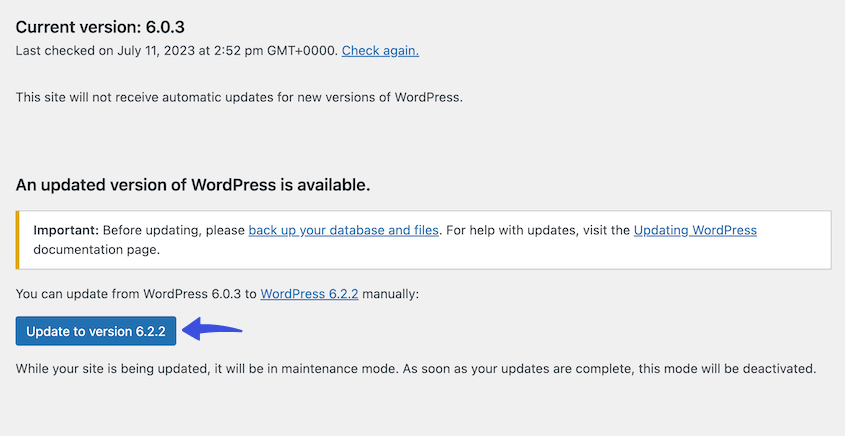
The best part is that you can quickly update your WordPress site. To do so, go to the left sidebar of the WordPress admin dashboard, navigate to the Dashboard option, and click the available update (for example, 6.2.2).
On the next screen, click the Update WordPress button. This updates your site to the latest version.
See the image below:
1.2. Limit Login Attempts
Limiting login attempts is another key WordPress security practice.
By default, WordPress allows unlimited login attempts, which attackers can exploit. Limiting the login attempts increases WordPress security and protects your WordPress site from brute-force attacks.
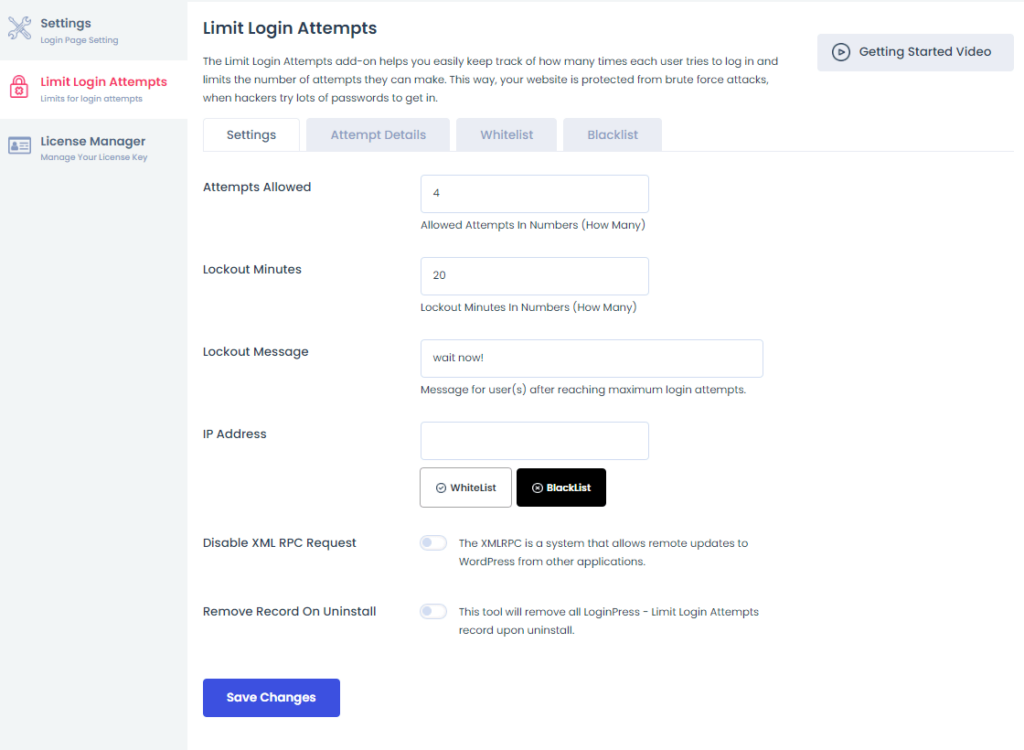
For this purpose, you can choose a reputable option, like the LoginPress Limit Login Attempts Add-on.
It helps you limit login attempts and set lockout minutes. You can also track login attempts and whitelist or blacklist users.
1.3. Use Strong Passwords
Using strong passwords is another best WordPress practice for securing your admin account.
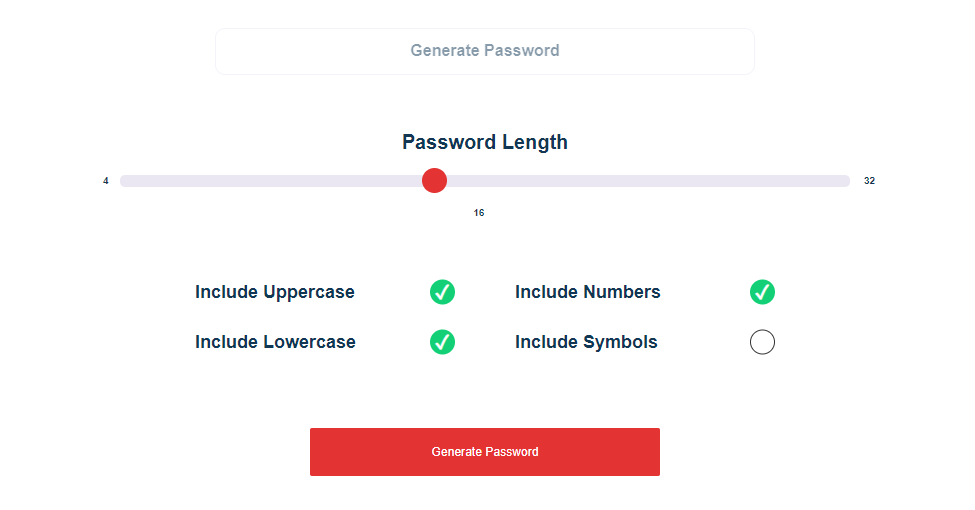
Combining uppercase and lowercase letters, numbers, and special characters creates complex passwords. For added protection:
A strong password generally has 10 to 15 characters, mixing upper and lower case letters, symbols, and numbers.
If you need help, we suggest the Strong Password Generator, which generates strong passwords with a click.
1.4. Regularly Backup Your Site
Creating regular backups is another good practice to run a smooth WordPress site. Backups ensure a quick recovery in case of data loss due to:
- Hacker attacks
- Malware
- Phishing attacks
A backup lets you restore the last working version of your site, often with a single click.
Many plugins in the market offer this option, such as BackWPup.
See the image below:
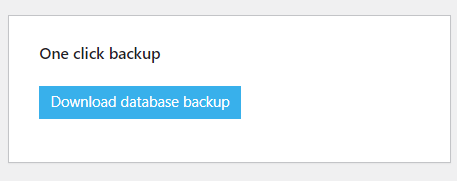
Several WordPress backup plugins are available for free in the WordPress repository, which can help you quickly create a backup of your site.
Note: If you need help choosing the right plugin for your site, see our detailed guide on the 10 Best WordPress Backup Plugins.
1.5. Choose Plugins and Themes Wisely
You should also choose third-party plugins and themes carefully when setting up your site.
It is best practice to choose ones that are:
- Reputable: Always select a reputable theme or plugin. To do this, check the selected plugins’ reviews, ratings, and active installs.
- Regularly Updated: Ensure the selected plugins and themes are regularly updated and compatible with the latest WordPress version.
- Lightweight: Don’t use bloated plugins or themes because they can slow down your site.
For example, you can choose a plugin like LoginPress, which has 5/5-star ratings, 200,000 active installations, and is tested with the latest WordPress version.
See the image below:
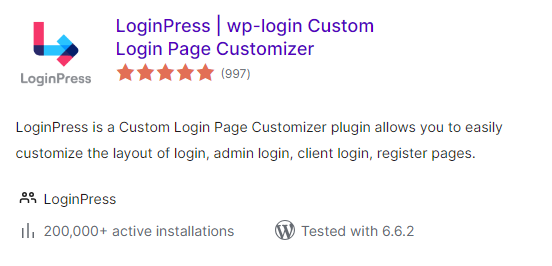
Note: If you need help, see our detailed guides on Top 60 Free WordPress Plugins 2024 (Best Compilation) and 25+ Best Free WordPress Themes – A Sneak Peek (2024) to pick a well-maintained WordPress plugin and theme for your site.
1.6. SSL Encryption
SSL (Secure Sockets Layer) protects data between sites and visitors. It allows your WordPress site to load over HTTPS, the secure version of HTTP.
It helps boost your SEO rankings as search engines like Google prioritize secure sites.
You can easily get an SSL certificate for your site. Multiple platforms, like Let’s Encrypt, offer them for free.
However, it’s better to look for a hosting provider offering a built-in SSL certificate for your site. Otherwise, you’ll have to set up a certificate manually via cPanel.
For a step-by-step guide on how to configure this on your platform, read our tutorial on how to set up HTTPS on a WordPress site.
2. Best WordPress SEO Tips
This section contains WordPress tips to help you create a strong foundation for optimizing your WordPress site for search engines.
2.1. Optimal SEO Plugins
You can use SEO plugins to optimize your WordPress site. These plugins come with features that help enhance your site’s ranking.
These typically include:
- XML Sitemap
- Schema markup
- SEO keywords
- Broken Link Checker
- Breadcrumbs
- Content Analysis
- Focus Keyword
The WordPress plugins repository offers multiple free SEO plugins, such as Yoast SEO and Rank Math.
See the image below:
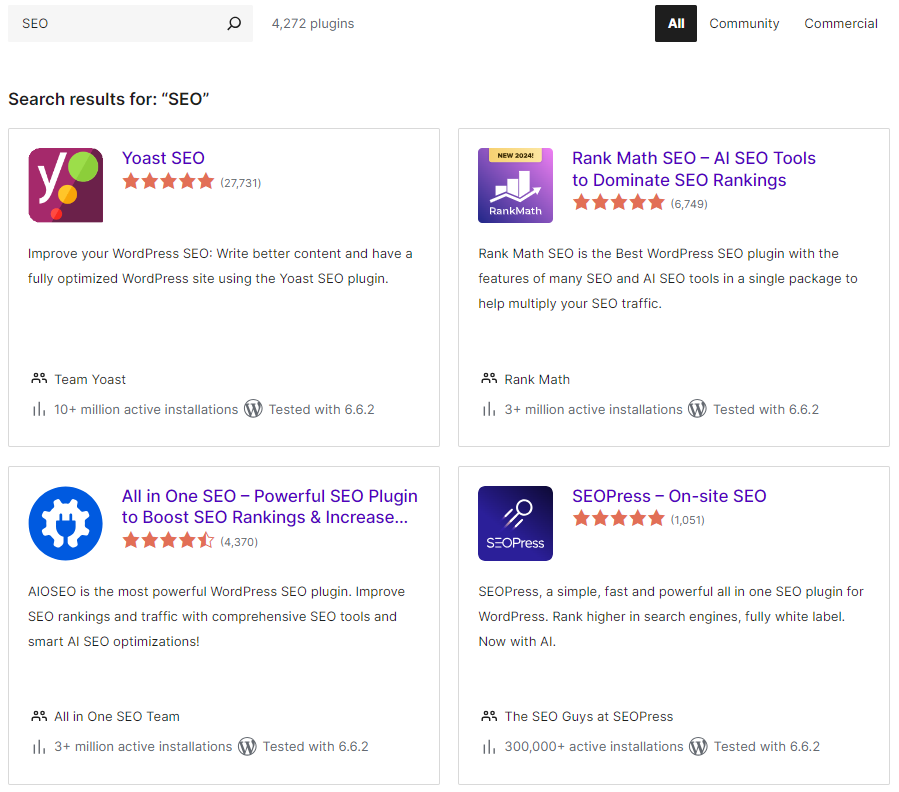
These plugins help you optimize meta titles, descriptions, and content readability. Plus, they provide suggestions on keyword usage, image alt attributes, and schema markup. Implementing one of these will streamline your SEO efforts.
Adding these plugins to your site is undoubtedly the best practice for achieving a high ranking in the SERPs (Search Engine Results Page).
2.2. Customize Permalinks
Customizing your permalinks for clarity and relevance is another important aspect of WordPress SEO. It helps search engines and users understand the content of a post or page.
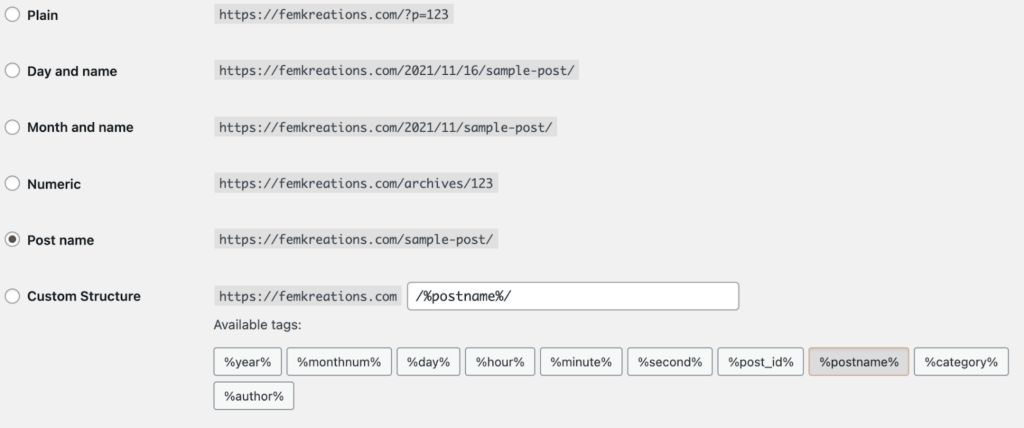
You can set permalinks from the WordPress admin dashboard > Settings > Permalinks screen.
On this screen, you can choose from the preset permalink structures. WordPress also lets you set custom permalinks that are clean and descriptive.
Clean permalinks improve user experience and rankings. Use keywords in your permalinks and avoid special characters or numbers.
See the image below:
2.3. Enable Comments Moderation
Comment moderation is the process of reviewing user comments on your blog. It ensures that your blog only has quality discussions and is spam-free.
It is another good WordPress practice for SEO, since spam comments hurt your rankings.
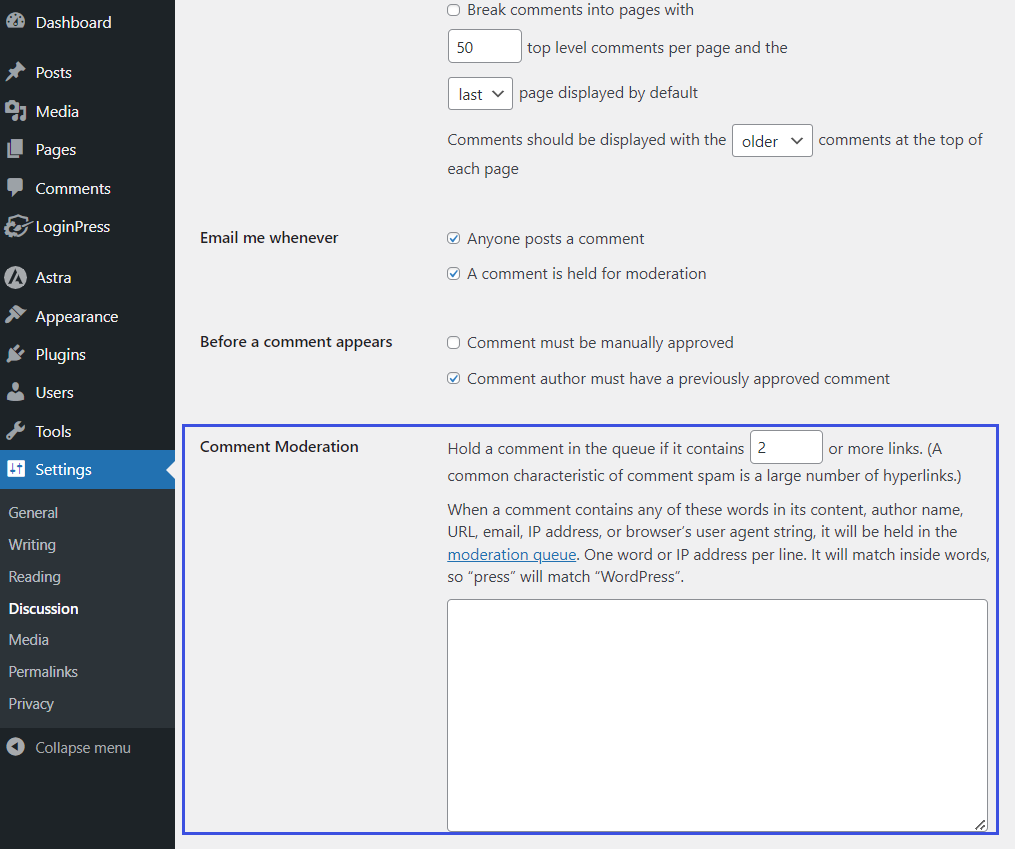
Spam comments have multiple hyperlinks. By default, WordPress allows you to hold the comments on your site if they have two or more links. This way, you can save your blogs from spam comments.
To do so, go to the left sidebar of the WordPress admin dashboard, navigate to Settings, and click the Discussion option.
You can enable comment moderation to hold comments that have a set number of links.
See the image below:
Note: For a detailed guide on managing WordPress comments well for your site, see our Complete Guide on WordPress Comments.
2.4. Utilize Categories and Tags
Using categories and tags helps search engines understand your site’s structure.
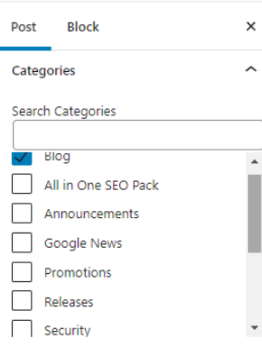
Categories help you organize your WordPress content. They usually represent broader topics or groups of related issues. You can use them to structure the content on your WordPress site.
See the image below:
On the other hand, tags are more specific keywords.
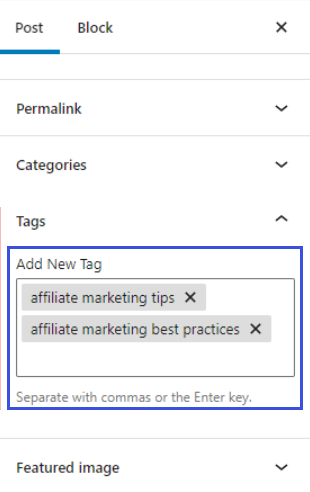
This organization boosts your site’s SEO by improving navigation and helping users find related content more easily.
2.5. Create a Custom 404 Page
Users see a 404 page when the page they requested is not available.

You can create a custom 404 page to improve user experience and SEO. A custom 404 page guides visitors who land on a broken link back to useful content.
See the image below:

2.6. Utilize Featured Images
Featured images help attract users to a post. Use relevant keywords for featured images instead of generic names, as this is good SEO practice.
To optimize WordPress featured images:
- Make use of descriptive image alt text
- Use the target keyword in the alt text
- Use WebP or AVIF for featured images
- Add a descriptive title tag
These steps help search engines understand your featured image.
2.7. Manage Redirects
When you change a URL, delete a page, etc., you must add redirects from the old URLs so users land on a working page.
It helps prevent users from landing on broken links. This way, you can maintain search rankings for that page.
There are different types of redirects, including:
- 301 Redirect (Permanent): Use it when a page has permanently moved to a new URL.
- 302 Redirect (Temporary): It indicates that you are using a temporary redirect to a new page while keeping the original page intact for later use.
- 307 Redirect (Temporary): This type of redirect ensures that the method used in the original request is preserved.
- 308 Redirect (Permanent): This is a permanent version of the 307 redirect. It ensures that the request method is not changed.
Tip: You can use a redirect plugin to manage redirects for your site efficiently. See our detailed guide on the 9 Best WordPress Redirect Plugins 2024 to select the one for your site.
2.8. Use WordPress Analytics Plugin
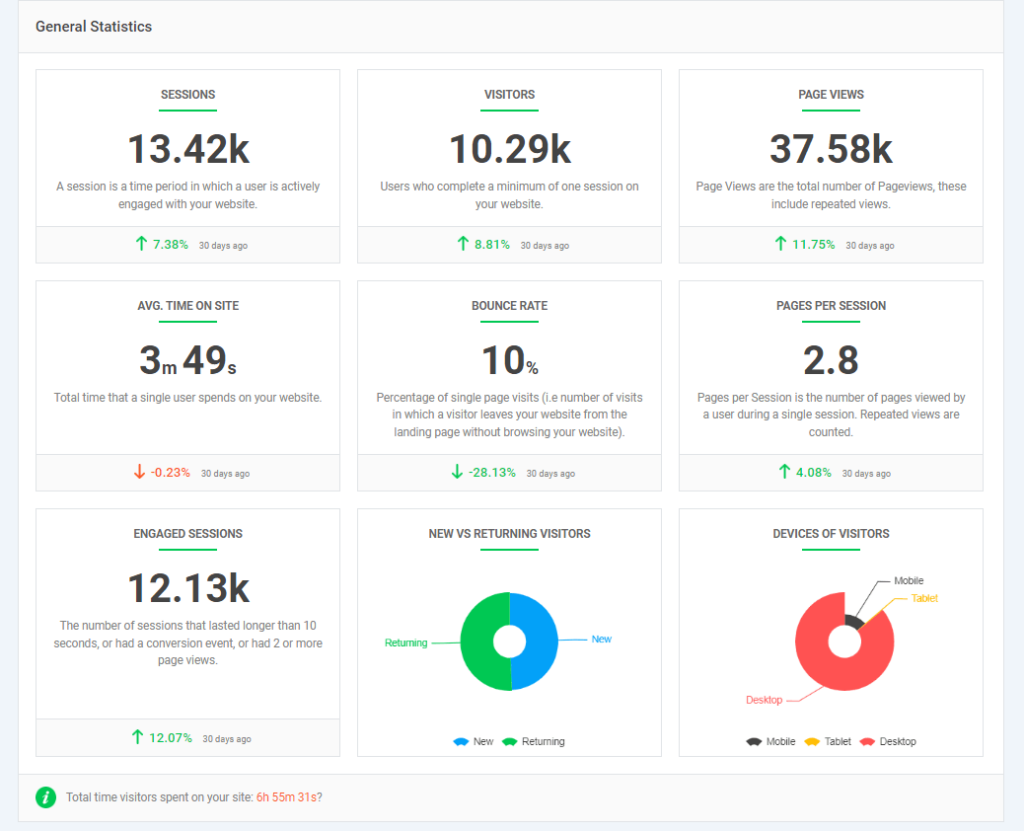
Using Google Analytics is another valuable practice for WordPress. It lets you track your site users, such as where they are coming from, their activity on your site, and much more.
You can add the tracking code to your theme header manually, but theme updates can remove it.
However, you can quickly integrate Google Analytics by using the Analytify plugin.
Analytify is the best Google Analytics plugin for WordPress. It shows your site’s traffic clearly inside your WordPress admin area.
See the image below:
You may also like: Best Google Analytics WordPress Plugins
2.9. Prioritize Responsive Design
As mobile use grows, make sure your WordPress site works well on every screen size, from desktop to mobile.
Choose a theme that works well on all devices.
How to check responsiveness:
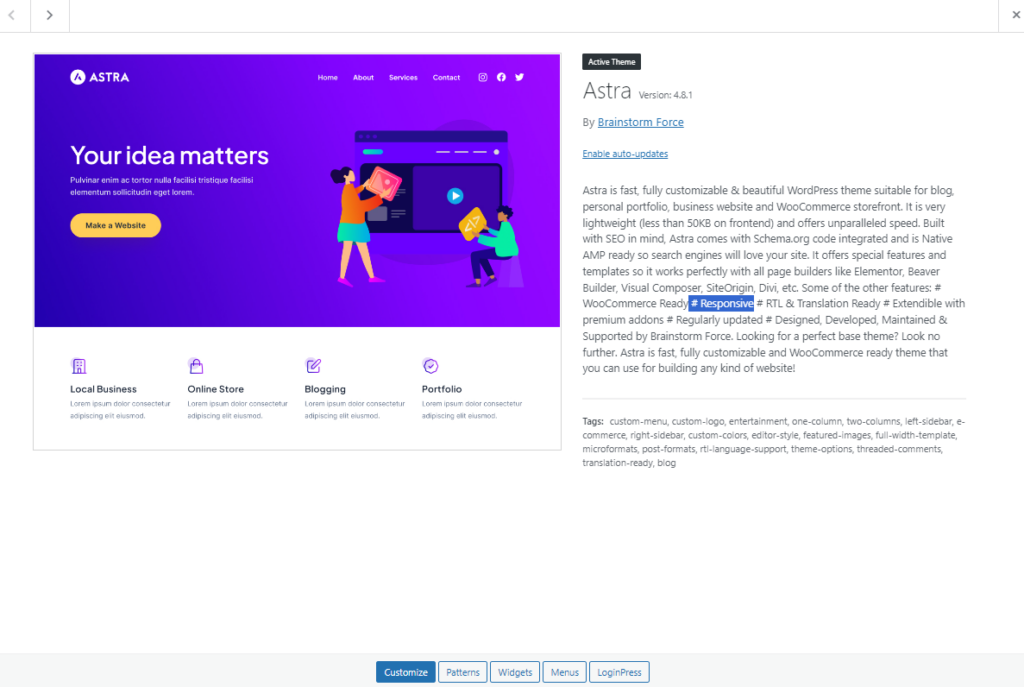
You can easily check if your WordPress theme is responsive. To do so, go to the left sidebar of the WordPress admin dashboard, navigate to Appearance, and click the Themes option.
Choose a theme that specifies mobile responsiveness, or use the WordPress theme repository filter to find “Responsive Layout” themes.
For example, you can select a theme like Astra.
See the image below:
2.10. Create a Contact Form
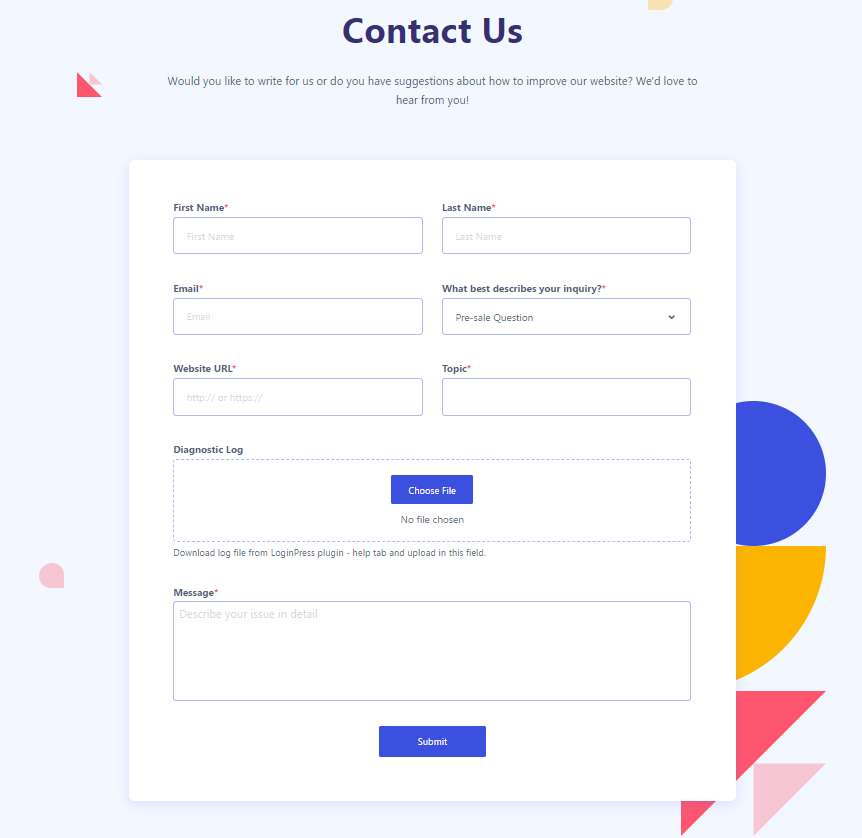
You should also create a contact form for your WordPress site. It will allow visitors to reach out to you quickly and improve communication between a business and its site visitors.
Here is an example for you:
It’s a must-have on any WordPress site.
Using a plugin, you can easily create a contact form. Once it is added to your site, your visitors can fill out the form and send you messages.
3. Best WordPress Practices for Speed Optimization
A slow load time hurts user engagement, SEO rankings, and conversions.
Key steps for optimizing speed include:
- Cache Your Site
- Optimize Images
- Quality of Hosting
3.1. Cache Your Site
You can cache your site to enhance its page load time. WordPress cache plugins can help.
These plugins store data so future requests load faster and the origin server isn’t overloaded. As a result, your WordPress site’s returning visitors can access your content much quicker.
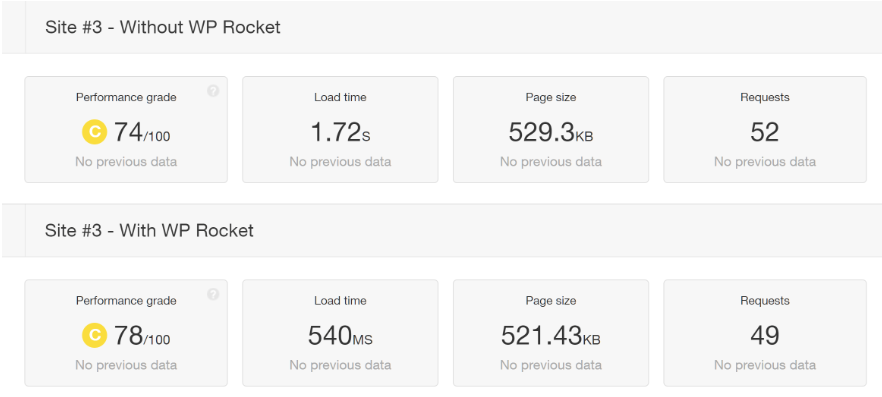
Here is a quick overview of the speed test after installing WP Rocket, a caching plugin for WordPress sites:
Note: To select a cache plugin for your site, read our guide on the 7 Best WordPress Cache Plugins.
3.2. Optimize Images in WordPress
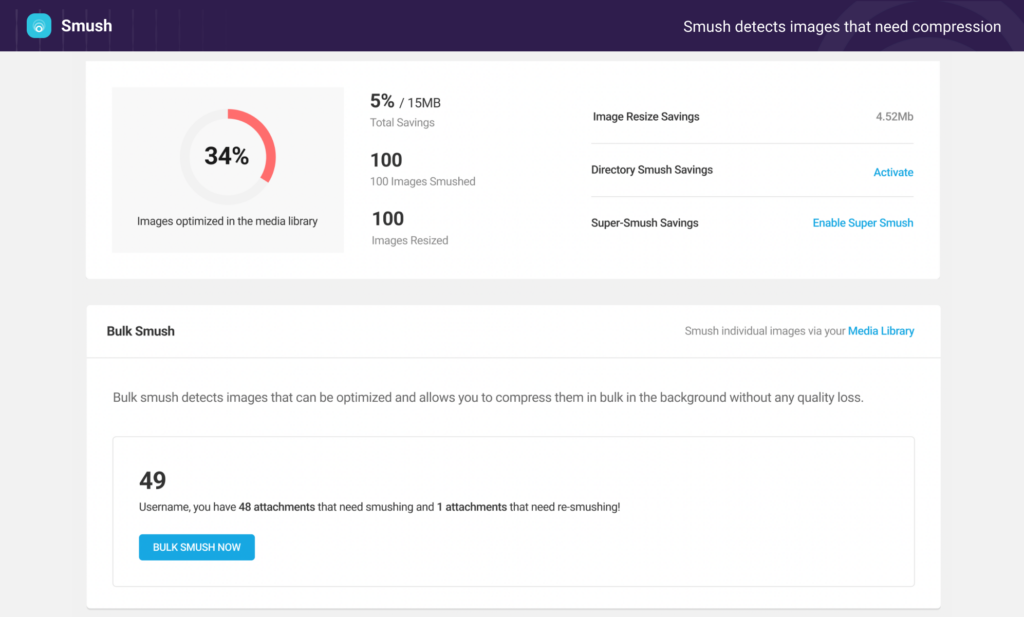
Large images can also slow down your site. So, it’s good practice to install an image optimizer plugin.
These plugins are designed to help you reduce image file size without compromising quality.
This is what you can do with the Smush plugin:
Note: If you need help picking the right plugin for your site, read our guide on the 7 Best WordPress Image Optimizer Plugins.
3.3. Choose a Quality Hosting Provider
High-quality hosting ensures that your site loads fast and delivers better user engagement.
Here are vital factors to consider when choosing a WordPress hosting solution for your site:
- Performance and Speed: Look for a hosting provider that offers CDN integration and optimized server architecture for speed.
- Uptime and Reliability: Select a hosting provider that guarantees 99.9% or higher uptime. It keeps your site online without frequent downtime.
- Scalability: Look for a hosting solution that lets you upgrade resources without downtime.
- Security: Ensure the host offers SSL certificates, firewalls, malware scans, and automatic backups.
- Support: You should select a hosting provider that offers 24/7 customer support. It will help you resolve any issue you might face in the future.
Note: To select the right hosting plan for you, see our detailed guide on 11+ Best WordPress Hosting Providers [Tested+Compared].
4. Best WordPress Practices for Writing Codes
Writing code in WordPress requires following specific standards and best practices. These practices keep your code clean, efficient, and compatible with WordPress.
4.1. Code Readability
WordPress says in its coding standards that when in doubt, space it out.
Another good WordPress practice is to maintain code readability for better debugging. Use consistent spacing and grouping patterns.
4.2. Code Reliability
Reliable code means fewer bugs and more stable performance.
You should always use coding standards. This will save you from typical errors and improve coding reliability.
You should:
- Use clear naming
- Add comments (if necessary)
When you are done coding, test your code under different conditions to ensure it performs well. This is what makes your code reliable.
4.3. Code Reusability & Flexibility
Lastly, make sure that your code is flexible enough to be easily edited in the future (if needed). It will ensure smooth future updates and minimize the chances of conflicts with themes or plugins.
Also Read: 9 Best WordPress Plugins for Adding Code
WordPress Best Practices (FAQ)
Bloggers, businesses, and eCommerce store owners all benefit from WordPress, the best CMS (Content Management System) for each of them.
Several plugins can improve WordPress SEO, such as Yoast SEO and Rank Math. These plugins help optimize meta titles, descriptions, keywords, readability, and schema markup. They also generate XML sitemaps and provide social sharing features. As a result, you increase your chances of appearing on the search results.
LoginPress is the best WordPress login page customizer plugin. It lets you customize each element on the default WordPress login, registration, and lost password pages.
You can quickly boost WordPress security using Limit Login Attempts, Hide Login, reCAPTCHA, Session Expired, etc.
Analytify is the best WordPress analytics plugin for tracking your site’s important stats, such as eCommerce, geographical data, social media stats, total visitors, average time on the page, and more.
To manage WordPress plugin bloat, avoid installing too many plugins, which can slow down your site. Install only those plugins you need for your site. Make sure that the installed plugins are lightweight and regularly reviewed. It is best to remove unused or outdated plugins.
Final Thoughts
Apply the security practices first, then SEO and speed, then code quality. Together, they help you build a fast, secure, optimized site for users and search engines.
You may also like these related articles:
- Magento vs WordPress: Ultimate Comparison
- WordPress vs HubSpot: Best CMS Comparison
- WordPress vs Squarespace vs Wix (Comparison)
- ClickFunnels vs WordPress: A Detailed Comparison
Do you know any other helpful WordPress tips? Let us know in the comment section below!

Leave a Reply