
Bad backlinks can hurt your rankings if ignored.
If you’ve received a manual penalty or noticed a spike in spammy backlinks, you need to act. Every serious WordPress site owner should know how to disavow backlinks.
In this guide, you’ll learn exactly how to use Google’s disavow tool to disavow toxic backlinks, step by step, from identifying toxic links to submitting your disavow file and monitoring results.
Table of contents
- What is Disavowing Backlinks in SEO?
- What Are Backlinks (and Why They Matter for SEO)?
- What is the Google Disavow Tool, And How does It Work?
- How Long Does Google Take to Process a Disavow File?
- How to Disavow Backlinks in Google Search Console (Step by Step)
- Common Mistakes to Avoid When Disavowing Backlinks
- Best Practices for Backlink Cleanup SEO
- WPBrigade SEO & Backlink Cleanup Services
- FAQs About Disavow Backlinks
- Disavowing Backlinks: Conclusion
What is Disavowing Backlinks in SEO?
Disavowing backlinks means telling Google to ignore specific inbound links when evaluating your website’s rankings. You submit a disavow file in Google Search Console that lists spammy, low-quality, or unnatural links you don’t want counted.
Instead of removing the links from the web, disavowing simply signals to Google’s algorithm that these links should not influence your site’s authority or search performance.
Use this process when your site has harmful backlinks, such as spam links, paid links, or links from private blog networks, that may negatively impact rankings or trigger a manual action.
What Are Backlinks (and Why They Matter for SEO)?
A backlink is any link from another website pointing to yours. Google treats backlinks as votes of confidence. The more quality links you earn, the more authority your site builds.
But not all backlinks are equal.
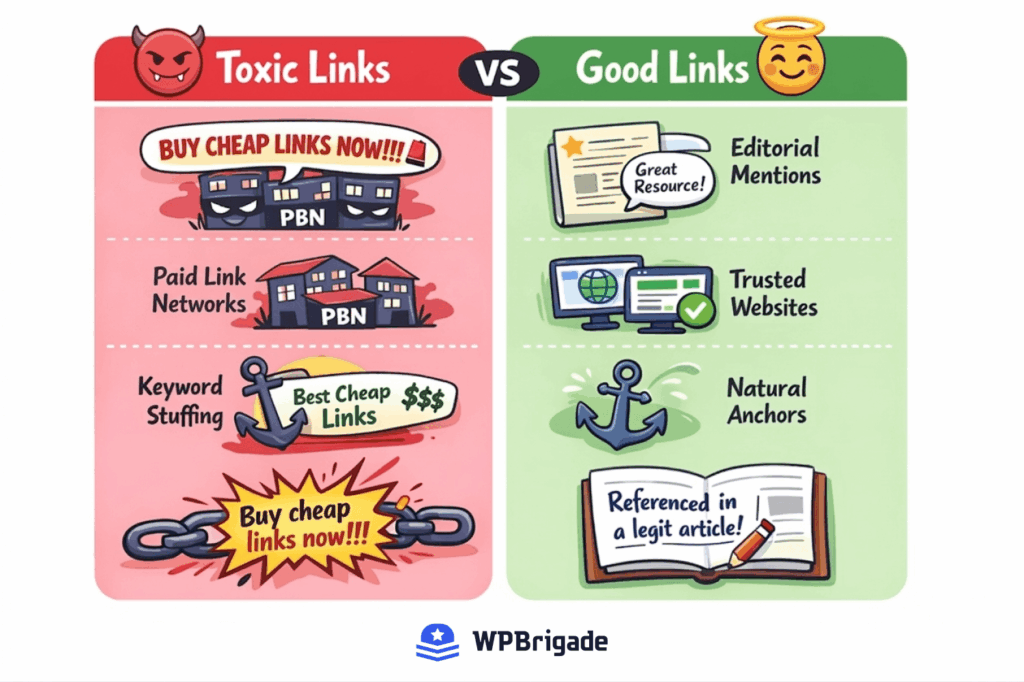
High-quality backlinks come from relevant, authoritative sites with real traffic. They strengthen your domain authority and push your rankings up. Toxic backlinks, on the other hand, come from spammy or irrelevant sources, and they can drag your rankings down.
Here’s what spammy backlinks typically look like:
- Links from comment spam on unrelated blogs
- Links from private blog networks (PBNs)
- Links from irrelevant foreign-language directories
- Paid links from low-quality link farms
- Links with over-optimized anchor text (e.g., “buy cheap loans now”)
The consequences of letting toxic backlinks accumulate aren’t trivial. They can trigger a manual action penalty from Google, cause a drop in domain authority, or suppress your pages in search results even if your content is solid.
That’s where you need to remove bad backlinks with the Google Search Console Disavow Tool.
What is the Google Disavow Tool, And How does It Work?
The Google Disavow Tool is a feature inside Google Search Console that lets you tell Google to disavow toxic backlinks when evaluating your site.
It does not remove links from the web. The links still exist on other websites; you’re simply asking Google not to count them against (or for) your site in its ranking calculations.
You submit a plain text file (.txt) listing the URLs or domains you want Google to ignore. Google then processes this file over a period of weeks and adjusts how it evaluates those links.
Important: Google itself recommends using this tool only as a last resort. If you have a few low-quality links but no manual penalty and no ranking drop, you likely don’t need to disavow anything. Misusing the tool, especially disavowing good links, can actively harm your SEO.
Use the Google Search Console Disavow Tool only when you have clear evidence of a problem.
Alert: Disavow is not a cleanup tool. It’s a risk management tool. Use it only when the risk is real.
How Long Does Google Take to Process a Disavow File?
When you submit a disavow file, Google processes disavow files gradually, so changes typically take several weeks to reflect.
This means:
- Some links may not be re-evaluated immediately
- Rankings may fluctuate before stabilizing
It’s also important to understand that disavowing links does not guarantee a ranking recovery. Google evaluates your overall backlink profile, so improvements depend on the quality of your remaining links, not just the ones you remove from consideration.
When Should You Disavow Backlinks?
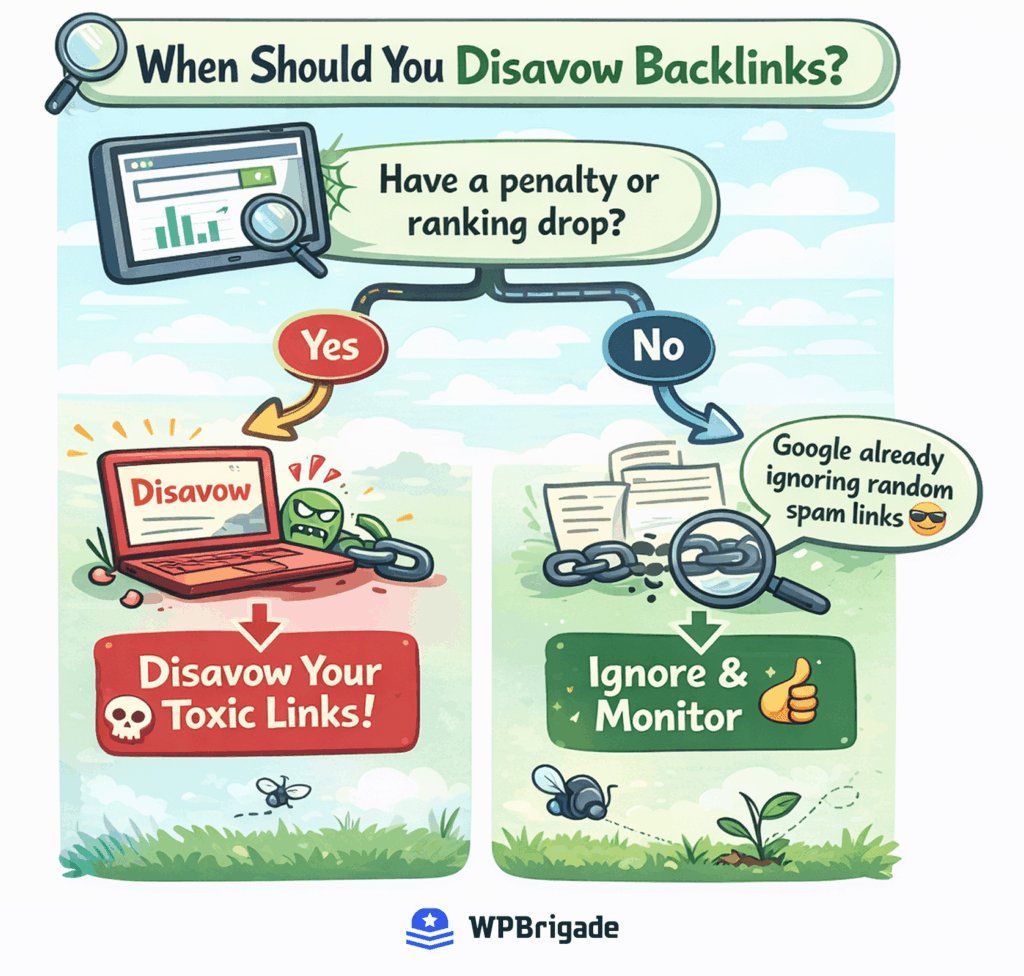
You should disavow backlinks when the problem is real and documented, not as routine maintenance.
Clear Signals that Disavowal is Needed:
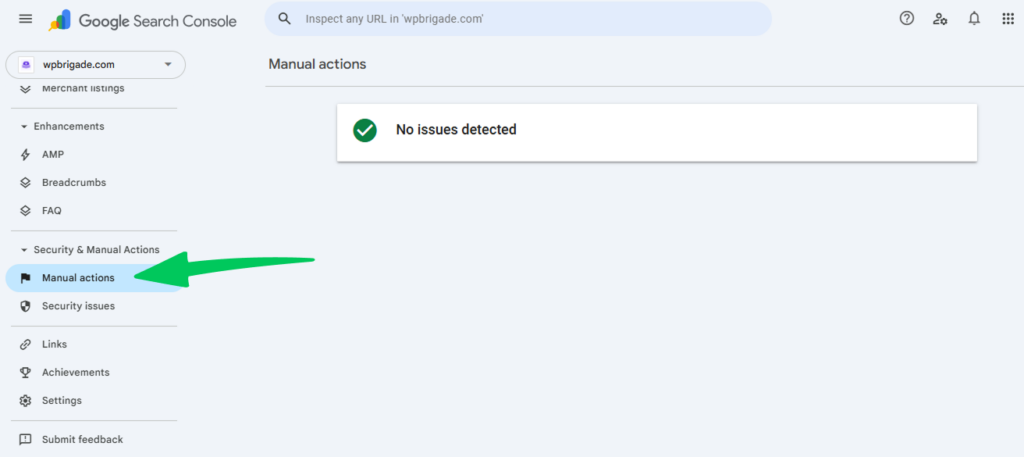
- You received a manual action penalty in Google Search Console under Security & Manual Actions
- Your site has a large volume of toxic links from spammy sites (link farms, PBNs, comment spam networks)
- You used a link-building service in the past, and the links are now flagged as unnatural
- You’re the target of a negative SEO attack — a competitor has pointed hundreds of spammy links at your site
Situations Where Disavowal is NOT Necessary:
- A handful of low-quality links with no ranking impact
- Links from mediocre but legitimate directories
- Old links from sites that have since declined in quality
Google has improved significantly at discounting spammy links automatically. In most cases, it simply ignores them. You only need to step in when Google can’t or when there’s already documented damage.
How to identify toxic backlinks:
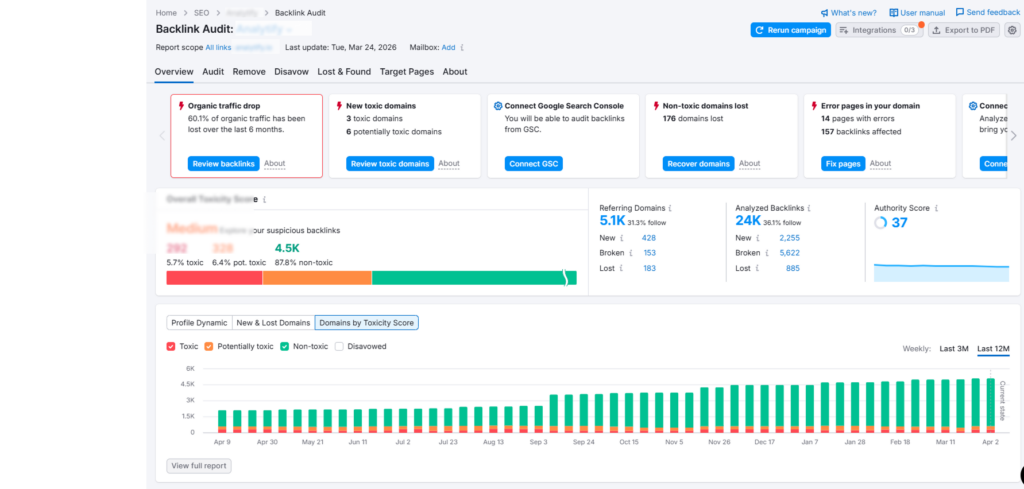
Tools like Ahrefs, SEMrush Backlink Audit, and Moz Link Explorer each provide a spam score or toxicity rating for every backlink in your profile. Use these to sort and surface the worst offenders before deciding what to disavow.
How to Disavow Backlinks in Google Search Console (Step by Step)
Here’s the full process on how to remove toxic backlinks from a website.
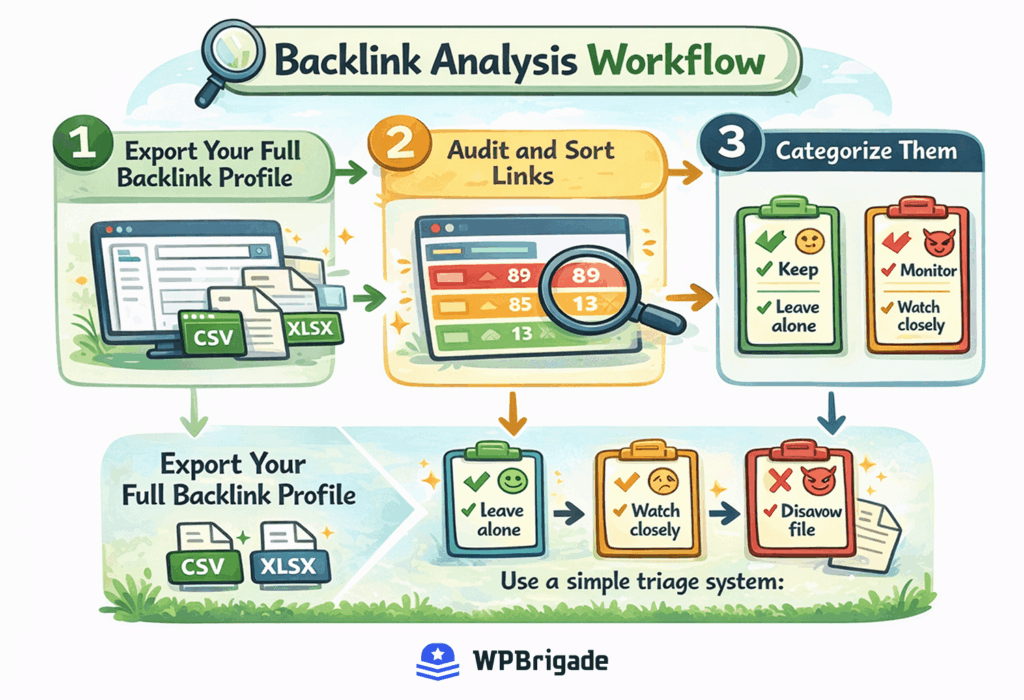
Step 1 – Export Your Backlink Profile
Start by pulling your backlinks from multiple sources.
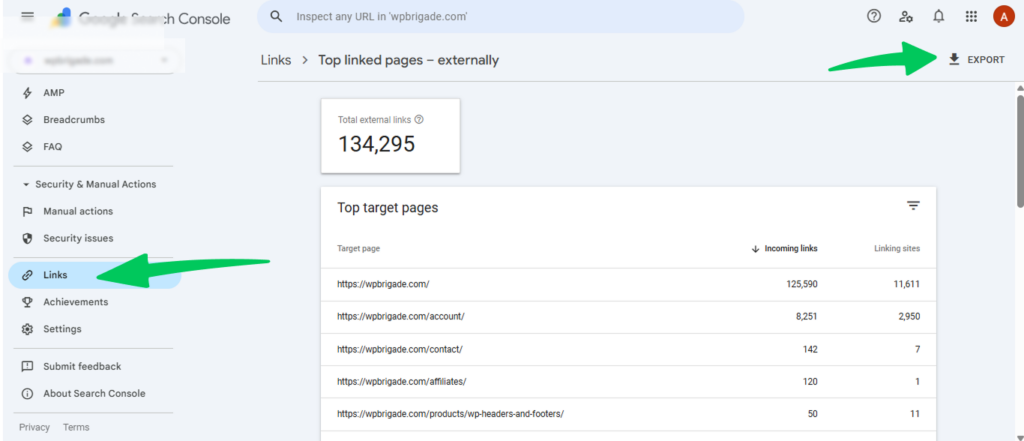
In Google Search Console: Go to Search Console >> Links >> External Links >> Export. This gives you Google’s view of what links it has discovered pointing to your site.
In Ahrefs or SEMrush: Run a full-site backlink audit and export the results to CSV. These tools show spam scores and flag potentially toxic links automatically.
Combine both exports into a single spreadsheet for analysis.
Step 2 – Analyze and Categorize Links
Open your spreadsheet and add a column labeled Action (Keep / Monitor / Disavow).
Sort by spam score (highest first). For each suspicious link, check:
- Domain authority/domain rating — Is the linking site credible?
- Relevance — Is the site topically related to yours?
- Anchor text — Is it natural, branded, or over-optimized?
- Link type — Editorial, directory, comment, or forum?
Step 3: Categorize Each Link
Use a simple three-bucket system:
| Category | Criteria | Action |
| Keep | High DA, relevant, natural anchor text | Leave alone |
| Monitor | Medium quality, not yet problematic | Watch for changes |
| Disavow | Low DA, spammy source, unnatural anchor text | Add to the disavow file |
Avoid the most common mistake: Do not disavow domains simply because they have a low domain rating. A small local blog with a DA of 15 that genuinely mentions your business is not a toxic link. It’s a legitimate one.
Only disavow links that are clearly spammy, irrelevant, or likely to have been built artificially.
Step 3 – Create Your Disavow File
Your disavow file must be a plain text (.txt) file with the proper formatting. Example structure:
# Disavow file for yourdomain.com
# Created: April 2026
# Reason: Toxic/spammy links flagged in SEMrush audit
# Disavow entire domains
domain:spammylinkfarm.com
domain:pbn-network.net
# Disavow specific URLs
https://irrelevantdirectory.org/listing/yoursite
https://irrelevantdirectory.org/listing/yoursite
Key formatting rules:
- Disavow entire domains: Use domain:example.com to reject all links from a domain (recommended for bulk spam).
- Disavow individual URLs: List the full URL to disavow a specific page only.
- Comments: Start lines with # for notes; Google ignores them.
- File type & encoding: Must be .txt, UTF-8, or 7-bit ASCII.
- Limits: Maximum 100,000 lines or 2 MB file size.
- Pro tip: Include a header with date and reason — useful for future reference if the file is updated.
Pro tip: Always include a comment header with the date and reason. If you update the file later, you’ll know what was added when and why.
Step 4 – Submit the Disavow File to Google
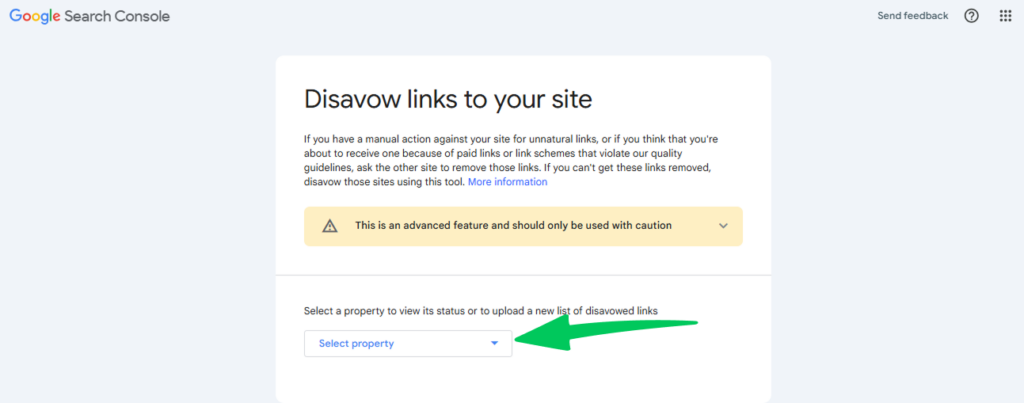
Go directly to the Google Disavow Tool:
- Select your website property from the dropdown
- Click “Upload disavow list.”
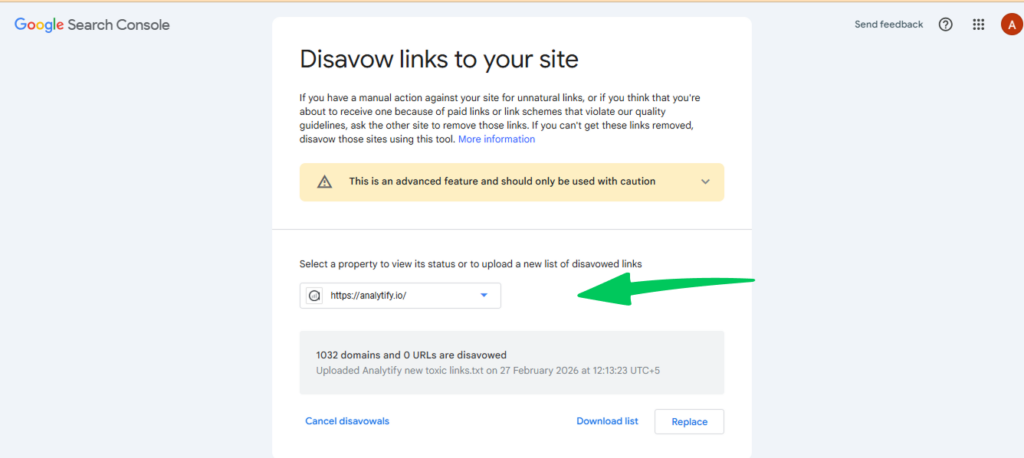
- Choose your .txt file and confirm
Google will display a confirmation that your file has been received. Each upload replaces the previous disavow file—it does not append to it. So always maintain a master file that includes all links you’ve previously disavowed.
That’s how to submit a disavow file to Google.
Note: Processing takes time. Google may take several weeks to fully process your disavow file and reflect changes in your rankings.
Step 5 – Monitor Results
Disavowing backlinks isn’t a one-time task. After submitting, keep a close eye on:
- Google Search Console >> Manual Actions. Check if any penalties have been lifted.
- Ranking changes: Use SEMrush or Ahrefs to track keyword position changes over 4–8 weeks
- Backlink profile health: New spammy links can appear at any time; schedule quarterly audits
If you submitted a disavow file in response to a manual action, you’ll also need to submit a reconsideration request in Google Search Console. The disavow file alone is not enough to spam backlinks removal. Google requires you to request a review separately.
Common Mistakes to Avoid When Disavowing Backlinks
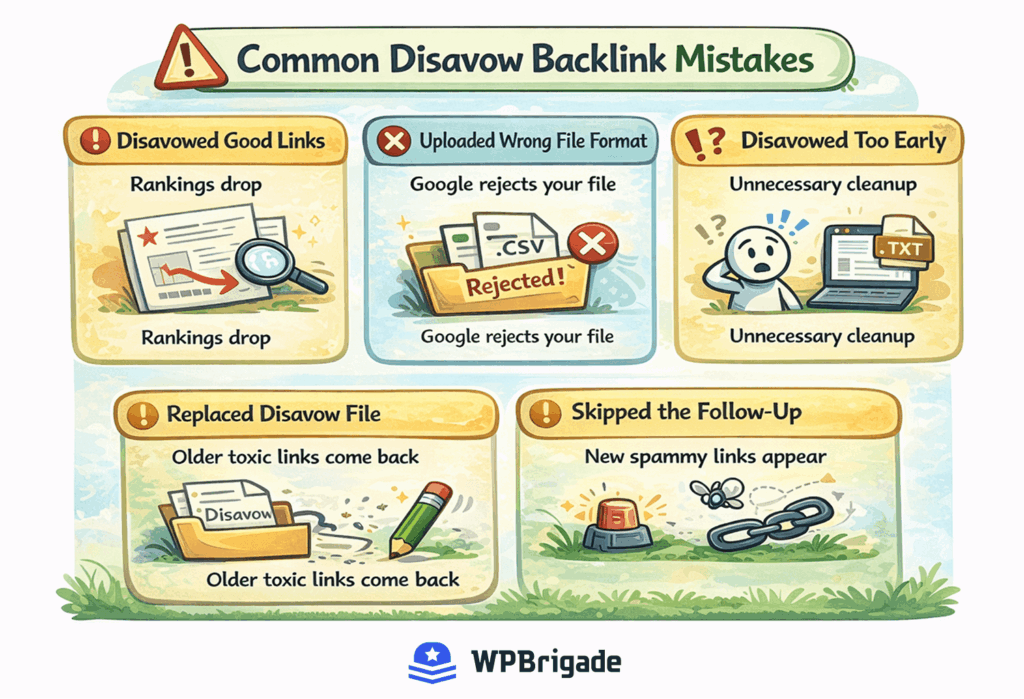
Most SEO damage from spam backlinks removal doesn’t come from toxic links. It comes from the cleanup process going wrong.
Mistake 1: Disavowing high-quality links accidentally. A domain with low authority isn’t automatically spammy. Always check relevance and context before adding a link to your disavow file. Disavowing a genuine editorial mention can remove real link equity from your profile.
Mistake 2: Using the wrong file format. The file must be .txt. Not .csv, not .xlsx, not .docx. Any other format will be rejected by Google.
Mistake 3: Disavowing too early. A few low-quality links with no ranking impact do not need to be disavowed. Acting prematurely wastes time and risks collateral damage to legitimate links in your profile.
Mistake 4: Replacing your disavow file without keeping history. Google’s disavow tool replaces the entire file each time you upload. If you upload a new file that doesn’t include previously disavowed links, Google will start counting those links again. Always maintain a master, cumulative file.
Mistake 5: Skipping the follow-up monitoring. Submitting the file is not the finish line. Monitor your backlink profile regularly after submission — new spam backlinks can appear, and the work is never truly done.
Best Practices for Backlink Cleanup SEO
Keeping your link profile healthy is ongoing work, not a one-time fix.
Run regular backlink audits. Schedule a full backlink audit every quarter (or at a minimum, semi-annually). Use tools like Ahrefs or SEMrush and set up alerts for new toxic links as they appear.
Contact webmasters first. Before disavowing, try to get the link removed at the source. Reach out to the site owner and request removal. If they remove it, you don’t need to disavow — and a removed link is cleaner than a disavowed one. This is especially worth doing for a small number of high-visibility spam links.
Prioritize by spam score and domain patterns. When you have a large number of links to evaluate, focus on entire domains with high spam scores rather than individual URLs. Disavowing the domain is more efficient and covers all current and future links from that source.
Use professional tools — not guesswork. Ahrefs’ Toxic Score, SEMrush’s Backlink Audit tool, and Moz’s Spam Score each use different signals. Cross-referencing two tools reduces false positives and gives you more confidence in your decisions.
Maintain a master disavow file. Keep one authoritative file that tracks every domain and URL you’ve ever disavowed, with dates and reasons. Every time you update and re-upload to Google, use this file — never create a new one from scratch.
WPBrigade SEO & Backlink Cleanup Services
For smaller sites, the step-by-step process in this guide is usually enough. But when your backlink profile becomes large, messy, or penalized, the margin for error increases significantly.
A poorly executed disavow can remove valuable links, weaken your authority, and delay recovery instead of fixing the problem.
WPBrigade’s backlink cleanup service is designed for manual, risk-aware backlink cleanup—not automated guesswork.
Our process includes:
- Manual review of flagged domains (not just automated spam scores)
- Anchor text distribution analysis to detect over-optimization patterns
- Identification of unnatural link footprints, including PBNs and paid campaigns
- Domain-level risk assessment to prioritize high-impact cleanup opportunities
- Carefully structured disavow file creation, with full documentation and version control
We don’t just submit a file and move on. We monitor your backlink profile over time, track changes in link quality, and refine your disavow strategy as needed.
Whether you’re dealing with a manual action, recovering from past link-building practices, or cleaning up a negative SEO attack, our team ensures your backlink profile is handled safely and strategically.
Note: Every disavow decision is documented, so you always know what was removed, why it was flagged, and how it impacts your SEO.
FAQs About Disavow Backlinks
Disavowing Backlinks: Conclusion
Disavowing backlinks isn’t something most site owners need to do often, but when you do need it, getting it right matters.
The process is straightforward: audit your backlink profile, categorize links by risk, create a properly formatted disavow file, submit it through Google Search Console, and monitor the results over the following weeks. The key is to be methodical, conservative, and consistent, and to avoid the common mistakes that turn a cleanup into a larger SEO problem.
For most WordPress site owners, the steps in this guide are all you need. For complex backlink profiles or existing manual penalties, WPBrigade’s SEO team is here to help you work through them safely.
Further Readings:
- How to Plan a WordPress Project (From Brief to Launch)
- How To Set Up Google Analytics 4 (Easy Guide 2026) – Analytify
Now, I’d love to hear from you. Have you ever checked your backlink profile and found links you didn’t build yourself? What did you do next
Leave a Reply