
WordPress 7.0, also called Armstrong, came out on May 20, 2026. It is one of the biggest updates since the block editor launched in 2018, and the first release to ship native AI infrastructure.
Three changes define this release: a native AI Client, a full admin dashboard redesign, and new block editor controls.
The admin dashboard got its first real makeover since 2013. And the block editor picked up some new controls that save time for editors and site builders.
One feature that was expected did not make it. Real-time collaboration, in which two people edit the same post simultaneously, was removed from the release on May 8.
These WordPress 7.0 updates affect how you work, from simple blogs to multi-client agencies.
Here is a full breakdown of everything that changed and what you should do before updating.
Table of contents
- What is WordPress 7.0 and Why Does This Release Matter?
- What Areas Did WordPress 7.0 update?
- What Does the Native AI Integration in WordPress 7.0 Actually Do?
- How Does the Admin Redesign Change Your Dashboard?
- What Changed in the Block Editor in WordPress 7.0?
- Will WordPress 7.0 Break Your Plugins or Theme?
- How Do You Upgrade to WordPress 7.0 Without Breaking Your Site?
- FAQs on WordPress Update 7.0
- Final Thoughts: WordPress 7.0
What is WordPress 7.0 and Why Does This Release Matter?
WordPress 7.0 is the first major release of 2026. The WordPress core team gave it the codename Armstrong, and it launched on May 20, 2026.
WordPress 7.0 at a Glance
| Detail | Fact |
| Release name | WordPress 7.0 Armstrong |
| Release date | May 20, 2026 |
| Release lead | Matias Ventura |
| Focus area | Collaboration (Gutenberg Phase 3) |
| PHP minimum | 7.4 (8.3 recommended) |
| Real-time collaboration | Postponed to a future release |
| Previous version | WordPress 6.9 (December 2025) |
WordPress 7.0 marks the official start of what the core team calls Gutenberg Phase 3.
The goal of this phase is to create a native publishing and editorial hub by introducing Google Docs-style collaboration and advanced workflow management.
What Areas Did WordPress 7.0 update?
This release touched six different parts of the platform:
- Built-in AI tools: Connect WordPress to AI services like ChatGPT, Gemini, or Claude from one screen in your settings.
- Admin dashboard: A faster, cleaner interface for managing posts, pages, and media.
- Content workflows: Better block comments and a new way to visually compare content revisions.
- Block editor: New visibility controls, custom styling per block, and two brand-new blocks.
- Developer tools: New APIs and components for building plugins and themes.
- Performance: Faster image and media handling directly in the browser.
Next up, we will look at the AI tools, including what they actually do and whether you need a paid account to use them.
What Does the Native AI Integration in WordPress 7.0 Actually Do?
WordPress 7.0 adds a native AI Client, so plugins share one connection to AI providers instead of each building their own. Before WordPress 7.0, AI in WordPress was a mess. Every plugin that wanted AI features built its own connection to OpenAI or another service.
This meant you would end up managing separate API keys, settings screens, and costs for each one.
WordPress 7.0 fixes that with a built-in AI system at its core. The WP AI Client sits inside WordPress core and handles all AI requests from plugins and the editor.
Instead of each plugin talking directly to OpenAI or Gemini, they all talk to the WP AI Client. It routes the request to whichever AI service you have connected.
How Do You Connect an AI Service?
From your WordPress dashboard, go to Settings, then the Connectors option.
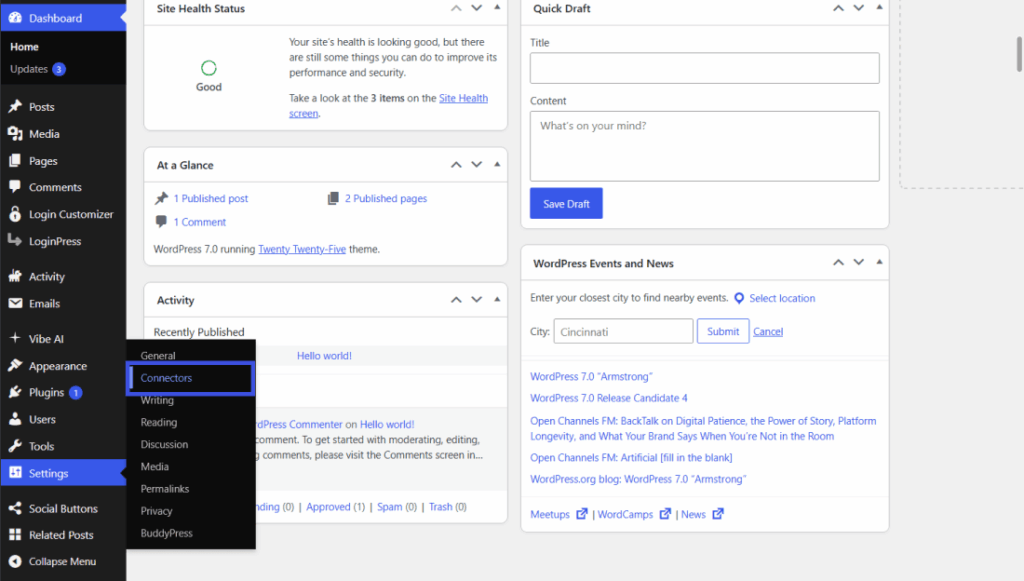
Enter your API key from whichever provider you use. That key then works across every plugin that supports the WP AI Client.
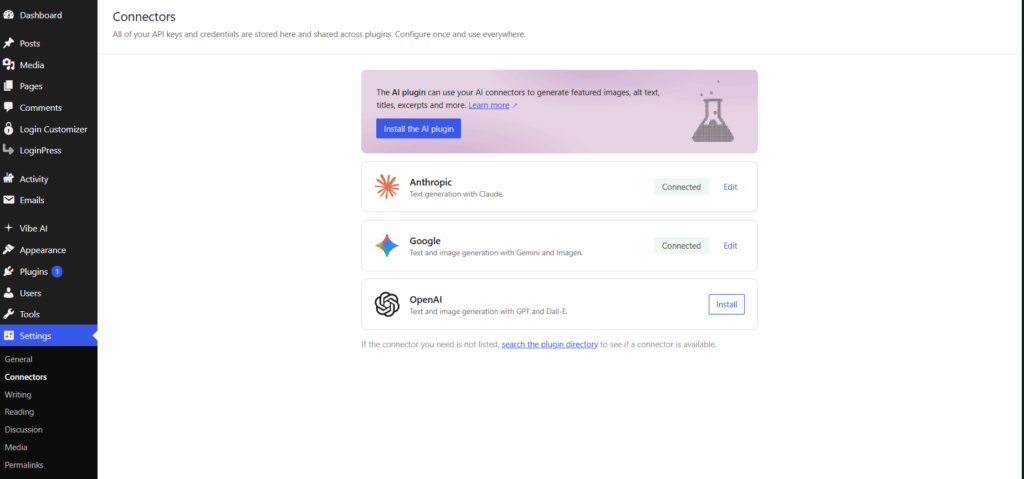
WordPress 7.0 launches with support for three providers:
- OpenAI (ChatGPT)
- Google Gemini
- Anthropic Claude
You pick one, or connect multiple. The system handles the rest. Here is what it covers at launch:
- Summarize text: Condense long content into a short summary
- Adjust tone: Shift writing from formal to casual, or the other way around
- Generate image alt text: Describe images automatically for accessibility
- Generate images: Create visuals from a text prompt (if your provider supports it)
- Complete code: Suggest or finish code snippets inside the editor
- Translate content: Convert text to another language (provider dependent)
| AI Feature | What It Does | Requires API Key? | Works With |
| WP AI Client | Routes requests to the connected provider | Yes | OpenAI, Gemini, Claude |
| Abilities API | Standardized capability layer for plugins | Yes | Any connected provider |
| Connectors Screen | Central API key management in WP-Admin | Yes | All three providers |
| Workflows API | Chain AI tasks in sequence | Yes | All three providers |
How Does the Admin Redesign Change Your Dashboard?
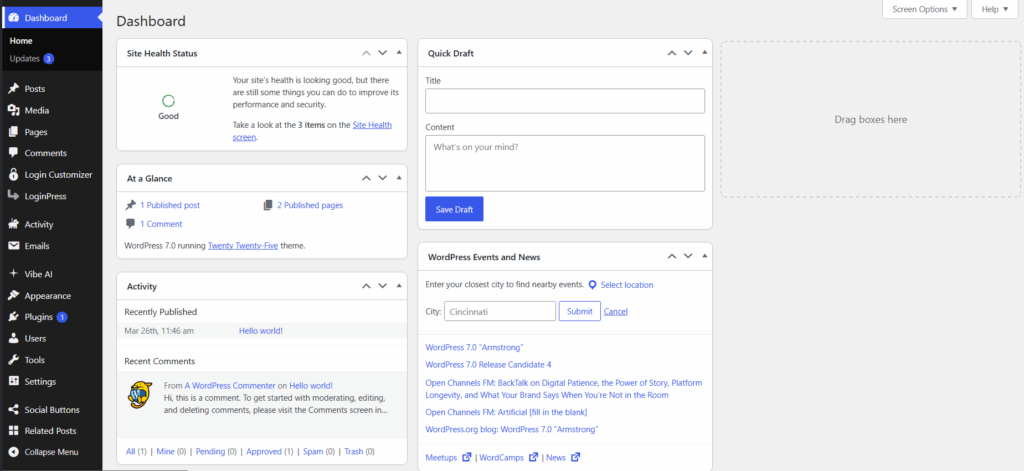
WordPress 7.0 replaces the PHP-rendered admin list tables with DataViews, a React-based interface that filters, sorts, and bulk-edits content without a page reload.
The old screens used a system called WP List Tables. These were built in PHP, which means every time you filtered your posts, sorted by date, or searched for a page, the browser had to reload the entire screen.
DataViews is built on React instead. Filtering, sorting, grouping, and bulk editing all happen in place.
You click a filter, and the list updates instantly. No reload.
For anyone managing a site with hundreds of posts or a large media library, this is a noticeable difference in day-to-day speed.
Comparison: WordPress 6.9 and 7.0?
| Area | WordPress 6.9 and Earlier | WordPress 7.0 |
| Posts and Pages list | PHP-rendered, full page reload per filter | React DataViews, instant filtering |
| Admin design | Unchanged since 2013 | Updated typography, color, and transitions |
| Command palette | Block editor only | Full wp-admin via Cmd + K |
| Font Library | Block themes only | All themes |
| Screen transitions | Full page reload | View Transitions API, no reload |
The changes are about speed, consistency, and visual polish rather than moving everything around.
That said, if you use plugins that customize your Posts, Pages, or Media screens, you should test them before updating.
DataViews is built differently from the old system, and some plugins may need an update to work correctly with it. The plugin compatibility section below covers which plugins are at risk.
Now that you know what changed in the dashboard, the next section looks at what the block editor gained in WordPress 7.0, including new controls that save time for anyone building or editing pages.
What Changed in the Block Editor in WordPress 7.0?
WordPress 7.0 adds responsive visibility controls, per-block custom CSS, two new blocks, and a visual revision diff view to the block editor.
Here is a quick summary of what changed.
New blocks in WordPress 7.0
Three additions came to the block library:
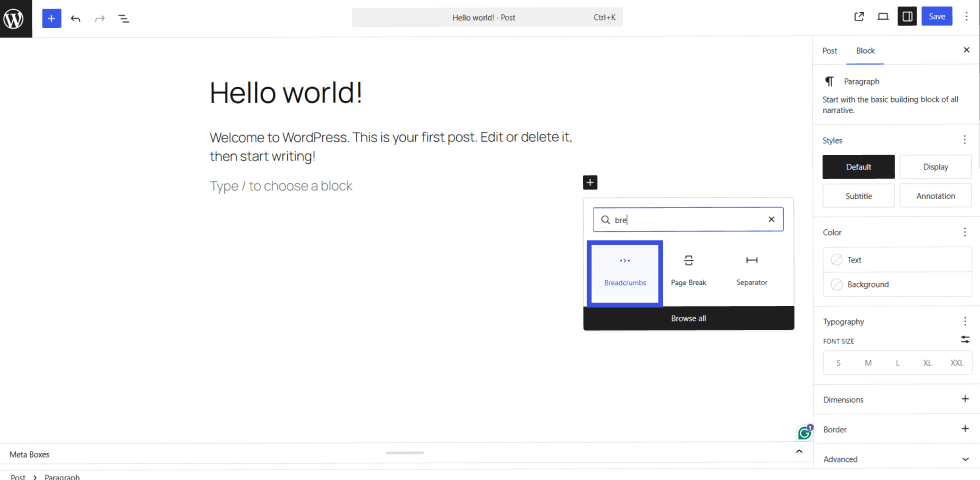
- Breadcrumbs block: Automatically shows page hierarchy. Useful for sites with deep navigation structures.
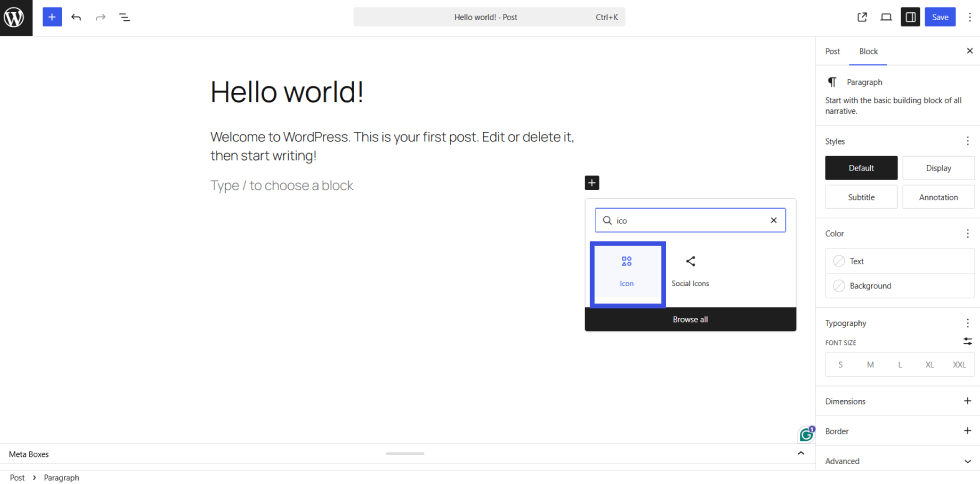
- Icons block: Insert SVG icons directly in the editor without a plugin.
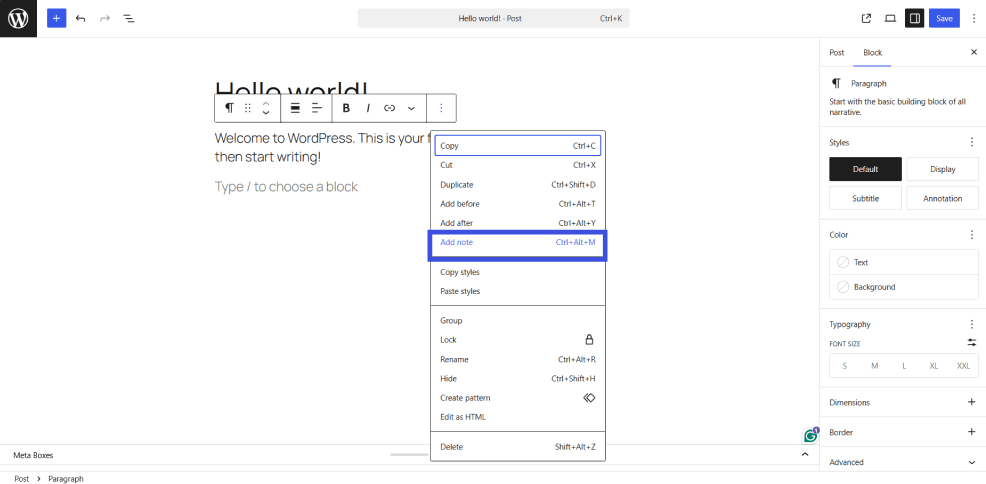
- Expanded Notes: Leave comments on specific blocks or text fragments. Useful for multi-author sites and editorial review workflows.
The bigger list of changes covers existing blocks and editor controls:
- Responsive visibility controls: Hide or show any block on mobile, tablet, or desktop from the block settings panel. No CSS required.
- Per-block custom CSS: Add custom styles to a single block from the Advanced tab in the inspector. No child theme needed.
- Gallery lightbox: The Gallery block now opens images in a full lightbox with slideshow mode and keyboard navigation built in.
- Cover block video backgrounds: Embed a YouTube or Vimeo video as a Cover block background. Lazy loading is included by default.
- Content-only synced patterns: Lock a pattern’s layout while still allowing editors to change the text and images inside it.
- Visual revision diffs: Compare two versions of a post side by side with color-coded block-level highlighting. See exactly what changed without reading the whole post.
Images are now processed in the browser before they are uploaded to your server. This means that uploads are faster, and your server does less work. This matters most on content-heavy sites where editors upload images frequently.
Will WordPress 7.0 Break Your Plugins or Theme?
For most sites running well-maintained plugins, the update will go smoothly. But there are real risks worth checking before you update.
Here is what to know.
WordPress 7.0 requires PHP 7.4 as a minimum. If your site runs PHP 7.2 or 7.3, WordPress will not offer you the 7.0 update. Your site stays on the WordPress 6.9 security branch until you upgrade PHP.
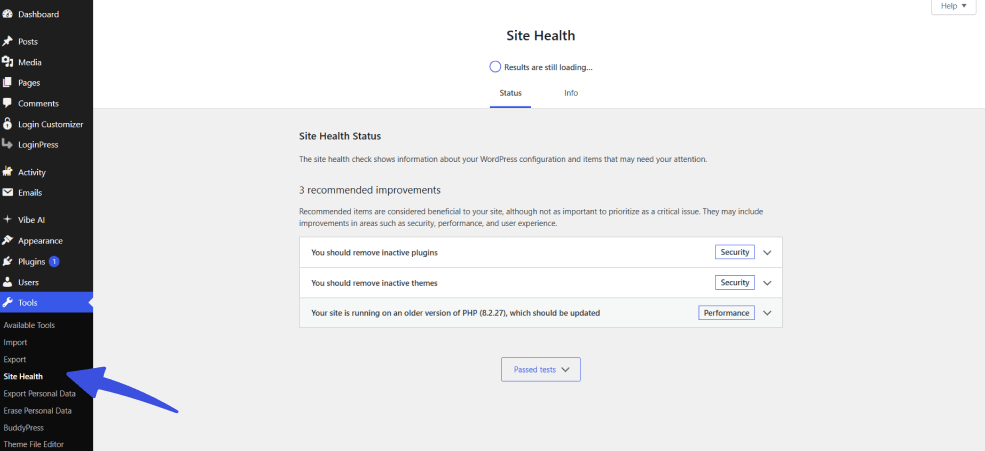
Check your PHP version at any time by going to Tools, then Site Health in your WordPress dashboard.
Where is the Biggest Plugin Breakage Risk?
DataViews is the biggest compatibility risk. The old Posts, Pages, and Media screens were built on a PHP system called WP List Tables, and many plugins hooked directly into it.
These plugins use it to add custom columns, filters, or styling. DataViews replaces that PHP surface entirely with a React-based interface.
Plugins that relied on those old PHP hooks will not work correctly after the update. They need a DataViews-compatible update from their developer first.
How does WordPress 7.0 affect different plugin types?
| Plugin Category | Break Risk | Reason |
| Custom admin column plugins | High | Legacy WP List Table hooks no longer render |
| Post and page list customizers | High | DataViews replaces the customizable PHP surface |
| Admin CSS overrides | Medium | New design tokens may conflict with existing styles |
| Page builders | Low to medium | Test on staging. Most updated during beta |
| WooCommerce stores | Medium | Admin list views affected. Wait 2 to 4 weeks post-launch |
| Metabox plugins | Low | Mostly unaffected by DataViews |
| Security and backup plugins | Low | No hooks affected |
| Analytics plugins | Low | No hooks affected |
How Do You Upgrade to WordPress 7.0 Without Breaking Your Site?
Do not update directly on your live site. That is the one rule that applies to every WordPress major release, and it applies here more than most.
WordPress 7.0 changes enough under the hood that a staged approach is worth the extra time.
Step-by-step: How to upgrade to WordPress 7.0 safely
Here is the full process for upgrading to WordPress 7.0 safely without breaking your site.
Step 01: Check Your PHP Version First
Go to Tools, then Site Health in your dashboard. Look for the PHP version listed under the Info tab. You need at least PHP 7.4 to receive the update. PHP 8.3 is the recommended version. If you are below 7.4, upgrade PHP before doing anything else.
Step 02: Create a Full Backup
Back up both your files and your database. Use your hosting provider’s backup tool or a dedicated backup plugin. Do this before touching anything. If something goes wrong, this is your way back.
Step 03: Set Up a Staging Environment
Clone your live site to a staging environment. Most managed WordPress hosts offer one-click staging. If yours does not, ask your host or set one up manually. Never test major updates on a live site.
Step 04: Update All Plugins and Themes On Staging First
Before applying the WordPress 7.0 update, make sure every plugin and theme on your staging site is running its latest version. Developers released compatibility updates during the beta period. You want those in place before 7.0 lands.
Step 05: Turn on WP_DEBUG
Add define(‘WP_DEBUG’, true); to your wp-config.php file on staging. Then visit every admin screen you use regularly: Posts, Pages, Media, Users, and Settings. Look for any PHP warnings or notices that appear on screen.
Step 06: Test your Key Workflows
Do not just look at screens. Actually use your site. Publish a post. Upload an image. Manage a user. Run through any contact forms. If you run WooCommerce, complete a test order and check the order management screen.
Step 07: Update your Live Site
Only when staging passes all your tests with no errors or warnings should you apply the update to your live site. After updating, run the same checks on your live site.
FAQs on WordPress Update 7.0
define(‘WP_AI_SUPPORT’, false);
That disables all AI features across your entire site. No data gets sent to any external provider. This is useful for client sites with strict privacy requirements, or any site where you simply want to keep things lean.
Final Thoughts: WordPress 7.0
Your upgrade path for WordPress 7.0 comes down to two things: your PHP version and your plugin profile.
Check both before you update, test on staging first, and the process will be straightforward for most sites. For more on keeping your WordPress site running at its best, see our guide on WordPress Performance Optimization.
For more related posts, check:
- How to Optimize WordPress Website Speed (Advanced Guide)
- WordPress as a Platform: From CMS to Business Infrastructure
- WordPress Technical Audits: What Agencies Look for Before Scaling
Ready to take your WordPress site further?
Subscribe to the WPBrigade newsletter for plugin updates, tutorials, and practical WordPress advice delivered straight to your inbox.
Leave a Reply