
WordPress marketing automation connects your forms, CRM, email sequences and reporting, so every lead gets the right follow-up without manual work. Without it, a visitor can fill out your contact form and be talking to a competitor five minutes later, because nobody on your team knew the lead existed.
That gap between form submission and follow-up is where most WordPress marketing systems fail.
This guide covers the tools that integrate with WordPress, a four-step setup, and how to measure the results.
WordPress marketing automation turns your CMS into the front end of a connected marketing stack.
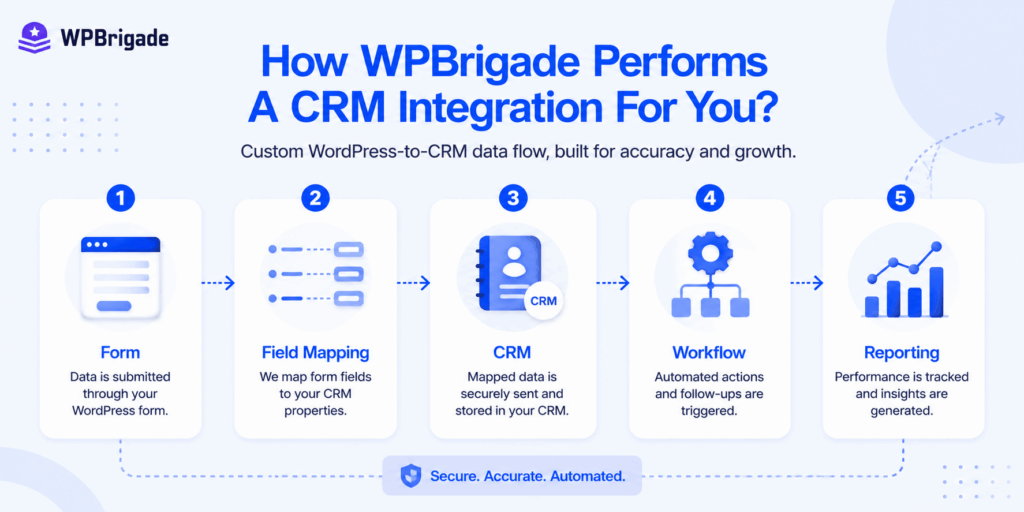
Captured lead data flows instantly into your primary CRM. The CRM then triggers targeted email sequences. Finally, accurate reporting closes the loop on your total marketing spend.
Table of contents
- What Is WordPress Marketing Automation?
- What Marketing Automation Tools Integrate with WordPress?
- How Do You Integrate Marketing Automation with WordPress?
- How Does HubSpot and WordPress Integration Work?
- What Does a WordPress Marketing Automation Workflow Look Like?
- When Should You Hire a WordPress Agency for CRM Integration?
- What Metrics Should a WordPress Marketing Automation System Track?
- FAQs
- Final Thoughts
What Is WordPress Marketing Automation?
WordPress marketing automation is the practice of connecting a WordPress site to CRM, email, and workflow platforms so that lead capture, audience segmentation, email nurturing, and performance reporting happen automatically in response to visitor actions, without manual intervention from the marketing or sales team.
To integrate marketing automation with WordPress, your system needs four core components, shown in the image below:
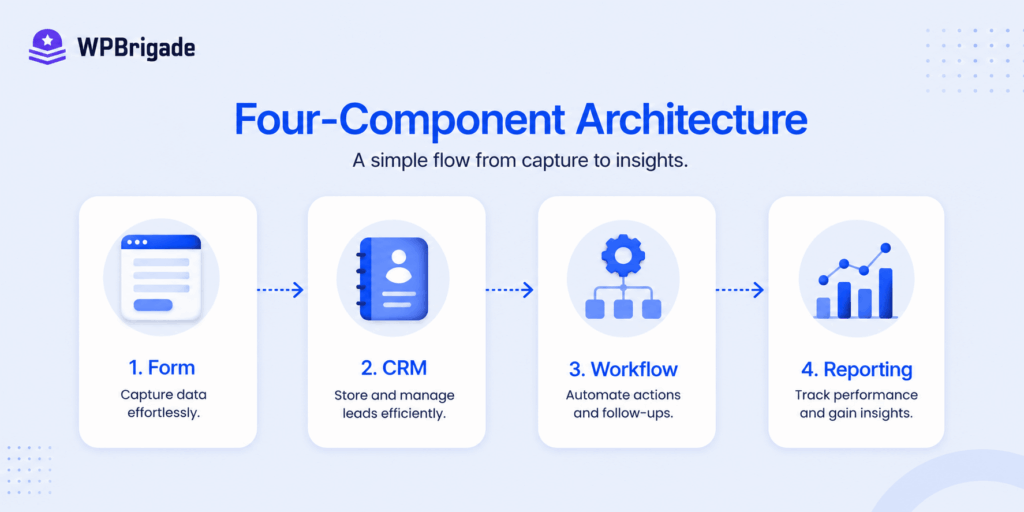
Real marketing automation is more than just one plugin that does everything on its own. Instead, it works as a connected system with several layers.
WordPress is used only for the parts of your site that visitors see and interact with. It collects form responses, tracks user behavior, and shows dynamic content. More complex tasks are handled by secure external platforms.
These external systems manage your CRM database, run your email automation, and handle detailed analytics for your sales pipeline.
What Marketing Automation Tools Integrate with WordPress?
The marketing automation tools that integrate most reliably with WordPress are HubSpot, ActiveCampaign, Mailchimp, Salesforce (via Zapier or WP Fusion), and Zoho CRM, each offering different levels of native WordPress connectivity, automation depth, and pricing.
Quick Comparison: Which Marketing Automation Integration Offers the Best Value?
This table compares the value of each marketing automation integration. It is based on our research of online forums and reviews:
| Tool | WordPress Integration Method | Automation Depth | Best For | Starting Cost [ As of 06/26 ] |
| HubSpot | Official WordPress plugin (native) | High: forms, tracking, workflows, lead scoring | B2B companies, lead gen sites, agencies | Free CRM; Marketing Hub from $7/mo/ seat |
| ActiveCampaign | Plugin + API / WP Fusion | High: email sequences, site tracking, CRM, automations | Small-mid businesses wanting deep email automation | From $15/mo |
| Mailchimp | Official plugin + WPForms/Gravity Forms | Medium: email campaigns, basic automation | Bloggers, SMBs, simple newsletter + drip | Standard Plan from $20/mo ($10/mo first-year promo) |
| Salesforce | Via Zapier, WP Fusion, or custom API | Very high: enterprise CRM, complex workflows | Enterprise sites with a dedicated CRM team | From $25/user/mo |
| Zoho CRM | Via Zapier or WooCommerce connector | Medium-high: CRM, email, lead scoring | SMBs that want all-in-one at a lower cost | Free plan; paid from $14/mo |
| Klaviyo | Official WooCommerce integration | High: ecommerce-specific flows, SMS + email | WooCommerce stores with product-based automation | Free up to 250 contacts; paid from $20/mo |
Note: The pricing of the integration software can fluctuate according to sales campaigns. Check each pricing page for current prices.
The type of connection you choose affects your site’s speed and stability. Native plugins are easy to set up and sync data right away, but they give you less control over certain custom fields.
Middleware tools such as Zapier or WP Fusion offer greater flexibility. They work around native plugin limits, but they also add more points of failure.
Custom API integration is the most reliable choice for complex workflows. It can safely sync large amounts of data, but you will need a developer to build and maintain it.
The best platform for you depends on your business model. For B2B companies, the native plugins for HubSpot and ActiveCampaign offer the most complete WordPress marketing automation integrations.
In this post, I will cover HubSpot’s marketing automation integration flow.
How Do You Integrate Marketing Automation with WordPress?
You integrate marketing automation with WordPress in four steps: install your CRM’s WordPress plugin or configure a middleware connection, map your WordPress form fields to CRM contact properties, set up the automation workflows that trigger from form submissions or page behavior, and verify the data flow with a test submission.
This integration helps you capture every visitor interaction instantly. Here is each step:
Step 1: Install and Connect Your CRM Plugin to WordPress
After you install your CRM’s plugin, log in with your CRM account details or use a secure API key to verify the connection.
If you use a native setup like HubSpot, the plugin will automatically add the tracking code to your entire site once you finish authentication.
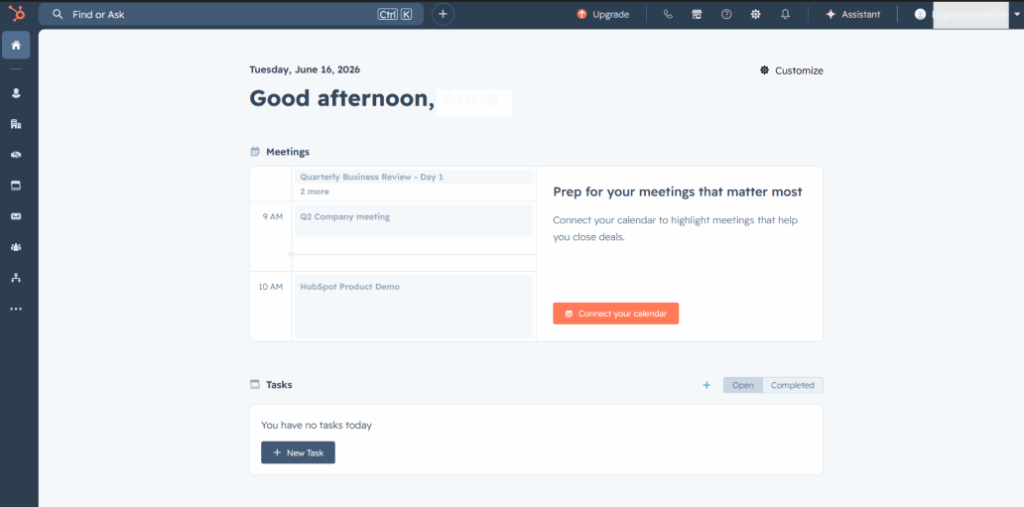
Once connected, several main features sync automatically. You’ll have instant visitor tracking, direct form embeds, and live chat. For advanced marketing automation in WordPress and detailed lead scoring, you’ll need a paid subscription.
If you’re using a non-native CRM like Salesforce or Zoho, you’ll need to install a middleware tool such as WP Fusion. Another option is to set up a Zapier webhook connection.
Both methods take extra time to set up. Non-native setups offer more flexibility, but they also require regular maintenance.
Step 2: Map WordPress Form Fields to CRM Contact Properties
Every single field in your WordPress form must map directly to a corresponding CRM contact property to connect CRM and WordPress forms reliably.
This mapping includes standard fields like name, email, company, phone, and inquiry type. If a specific field does not exist in your database, build that property inside your CRM first.
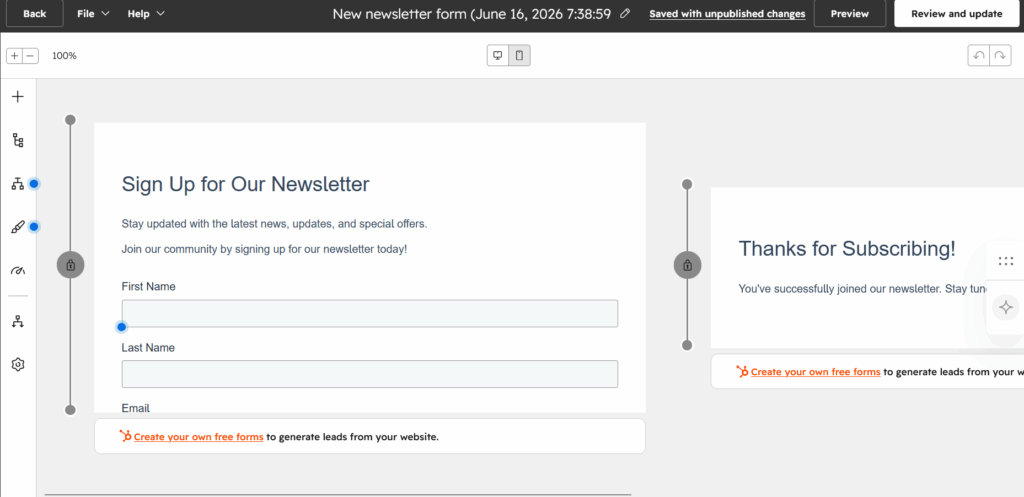
For native integrations, use the platform’s form builder embedded via the plugin. Each field maps automatically to a contact property.
A common mistake involves leaving fields unmapped. Unmapped form fields silently drop your data during transmission.
A text area field with no mapped property will never show up on the contact record. Always verify the connection by submitting a test lead.
According to Insiteful’s form statistics, reducing the number of form fields from 11 to 4 increases conversions by 120%.
Step 3: Build the Automation Workflows That Trigger from Form Submissions
A marketing automation workflow triggered by a WordPress form submission must contain specific functional steps. The automation uses five core elements to process incoming lead data.
- The Trigger Event: A user completes a form on your site.
- Contact Entry: The system automatically updates or creates the CRM contact record.
- Immediate Confirmation: An automated reply drops into the user’s inbox within seconds.
- Behavioral Scoring: The platform adjusts the lead score based on page interactions.
- Sales Alert: A notification is sent directly to sales reps when the criteria are met.
Here is a hypothetical example of a B2B contact form on a services page. A new lead submits their details. The automated system then creates the contact, applies a tracking tag, and sends a quick confirmation email.
The system waits twenty-four hours, sends a relevant case study, and monitors engagement. If the lead opens both emails, the software creates a sales follow-up task.
| Workflow Element | What It Does | Where It Lives | Complexity |
| Form submission trigger | Fires the workflow when a form is completed | CRM or form plugin | Low |
| Contact creation/update | Adds lead to CRM or updates existing record | CRM | Low |
| Immediate confirmation email | Sends automated reply within seconds of submission | Email platform or CRM | Low |
| Lead scoring rule | Assigns points based on behavior and history | CRM paid tier | Medium |
| Nurture email sequence | Sends a timed series of emails to warm the lead | Email platform | Medium |
| Sales team notification | Alerts rep when lead meets qualifying criteria | CRM workflow | Medium |
| Segmentation tag | Labels contact for clean list membership | CRM | Low |
| Sales pipeline entry | Creates a deal or opportunity record automatically | CRM | Medium-High |
Step 4: Test, Verify, and Monitor the Data Flow
Submit a test lead from your live WordPress form to verify the entire data flow. Log in to your CRM shortly after submission.
Note: Most CRM syncs take from a few seconds to a few minutes, depending on the platform.
Confirm that the new contact record exists and that all mapped fields are fully populated. Check that the automation workflow fired properly and the confirmation email arrived safely.
Document the exact test details and establish a monthly check cadence to maintain data integrity.
Monitor your live forms for unexpected connection drops. Aggressive ad blockers can sometimes prevent CRM tracking codes from firing.
Strict privacy cookie banners can block scripts if loaded in the wrong order. Core form plugin updates can also unexpectedly break your manual field mapping.
Review your sync logs weekly to spot these common failure points early.
How Does HubSpot and WordPress Integration Work?
HubSpot and WordPress integrate through HubSpot’s official WordPress plugin, which installs a tracking code across all site pages, enables HubSpot form embeds, syncs lead data automatically to HubSpot CRM, and provides live chat and chatbot widgets, all without custom code.
This direct connection links WordPress to your HubSpot CRM. Setting up the core connection takes only a few clicks.
Core Plugin Functions: Native and Free Capabilities
The free plugin comes with key data sync features right away. Its global tracking script monitors what visitors do on your site. It records each page view, button click, and form submission in the contact timeline.
You can use drag-and-drop HubSpot form embeds to easily connect your CRM and WordPress forms. New submissions go straight to your main contact database.
The free version also gives you a live chat widget, a meeting scheduler, and simple pop-up tools for basic email capture.
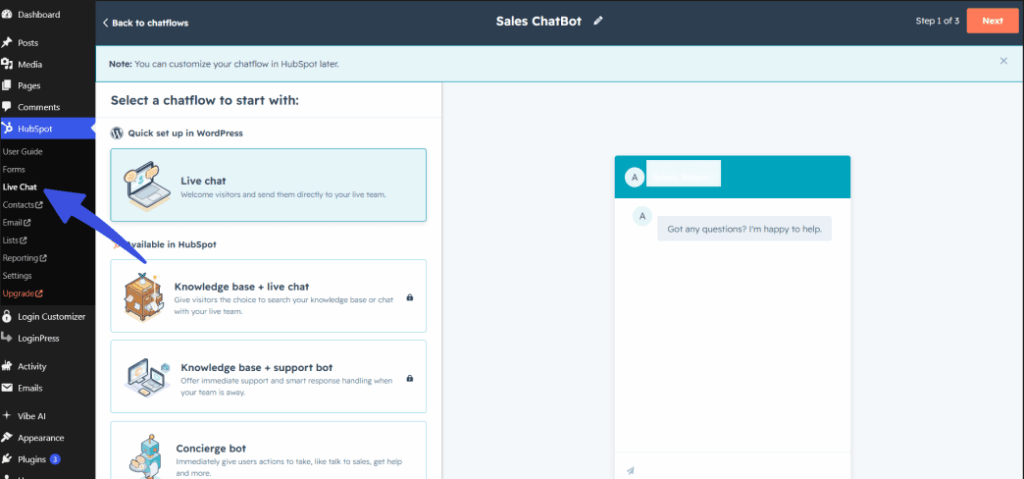
Advanced Growth Tools: Paid Marketing Hub Features
To use advanced automation features, you need a paid HubSpot Marketing Hub subscription. The free version lets you collect information, but it cannot run complex backend processes.
- Automated Workflows: A paid plan is required to set up email drip sequences that start when someone completes a form.
- Lead Scoring: Only the paid tier lets you automatically score leads based on their activity on your site.
- Smart Segmentation: Branching email logic, active A/B testing, and behavioral list segmentation are locked behind paid tiers.
- Attribution Reporting: To access advanced analytics and track revenue across multiple touchpoints, you need to upgrade to a premium plan.
Technical Scaling: When a Developer or Agency Is Needed
The standard HubSpot and WordPress integration works well for basic setups, but it has limits if you need more advanced features.
If your data needs custom mapping beyond the usual options, you will need to hire a developer or agency.
Custom WordPress post types do not automatically sync with standard CRM objects. To fix this, a developer needs to configure custom field mapping using the HubSpot API.
If you want to sync detailed e-commerce purchase history to separate CRM deal records, you will also need a custom integration.
If you use a legacy form plugin without a native connection add-on, a developer must configure middleware or code custom webhooks. This step ensures your existing web forms pass custom metadata to the CRM. For complete technical implementation details, refer to the HubSpot WordPress Guides and Resources.
What Common Marketing Automation Integration Problems Do We See?
In my experience, integrations rarely fail because of HubSpot, ActiveCampaign or Salesforce themselves. Most failures happen during implementation.
In recent CRM integration projects, the most common issues we’ve encountered include duplicate contacts created by multiple forms, unmapped custom fields, conflicting tracking scripts, WooCommerce order data failing to sync, and webhook failures after plugin updates.
These issues often go unnoticed for weeks and can result in lost leads, incomplete reporting, and inaccurate attribution.
Here is how each issue affects your data:
| Problem | Impact |
| Duplicate contacts created by multiple forms | Inflated CRM records and inaccurate reporting |
| Unmapped custom fields | Lead information is lost during sync |
| Conflicting tracking scripts | Visitor activity is not attributed correctly |
| WooCommerce order data is not syncing to the CRM | Revenue attribution becomes unreliable |
| Webhook failures after plugin updates | Leads stop entering automation workflows |
Before launching any automation system, we test form submissions, field mappings, workflow triggers, and CRM sync logs to verify that data flows correctly across all platforms involved.
What Does a WordPress Marketing Automation Workflow Look Like?
A WordPress marketing automation workflow starts when someone fills out a form on your site. From there, each step is automated, including adding them to your CRM, sending emails, scoring leads, notifying sales, and creating a sales pipeline. The process ends when the contact either becomes a customer or leaves the nurture sequence.
These automated setups ensure that your site engages every visitor instantly. Building a standard sequence typically takes less than an hour in your connected CRM.
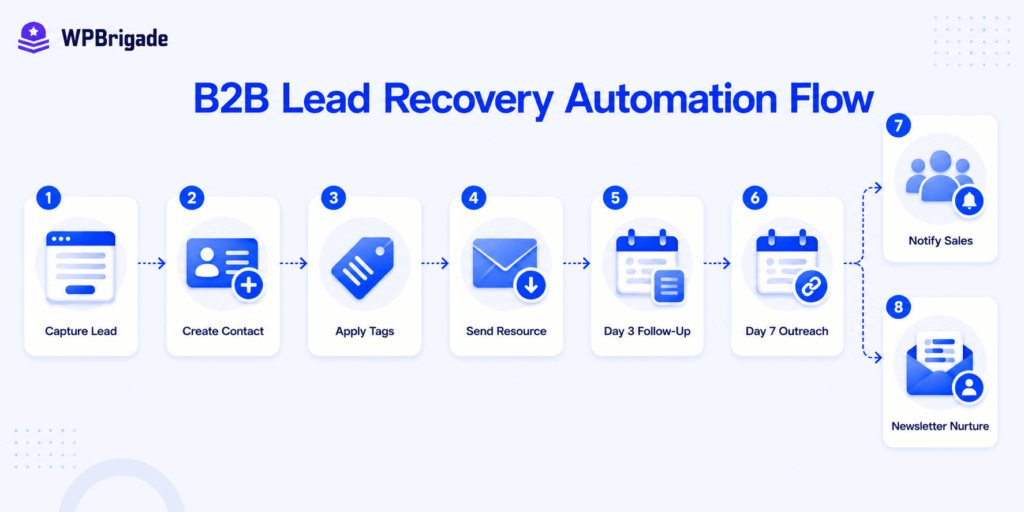
B2B Lead Nurturing Sequence Example
This process shows how to automatically follow up on typical business inquiries.
- A visitor fills out your WordPress form to download a valuable resource.
- Your CRM adds the visitor as a new contact and tags them based on the resource they downloaded.
- The system instantly emails the visitor with the download link and helpful materials.
- After three days, the workflow sends a case study that matches the visitor’s industry.
- On the seventh day, the system emails an overview of your services and includes an easy-to-find booking link.
- If the visitor opens the third email, the system automatically notifies your sales team to assign a representative.
- The system routes unengaged users to a low-frequency monthly newsletter segment if no opens occur.
WooCommerce E-commerce Recovery Sequence Example
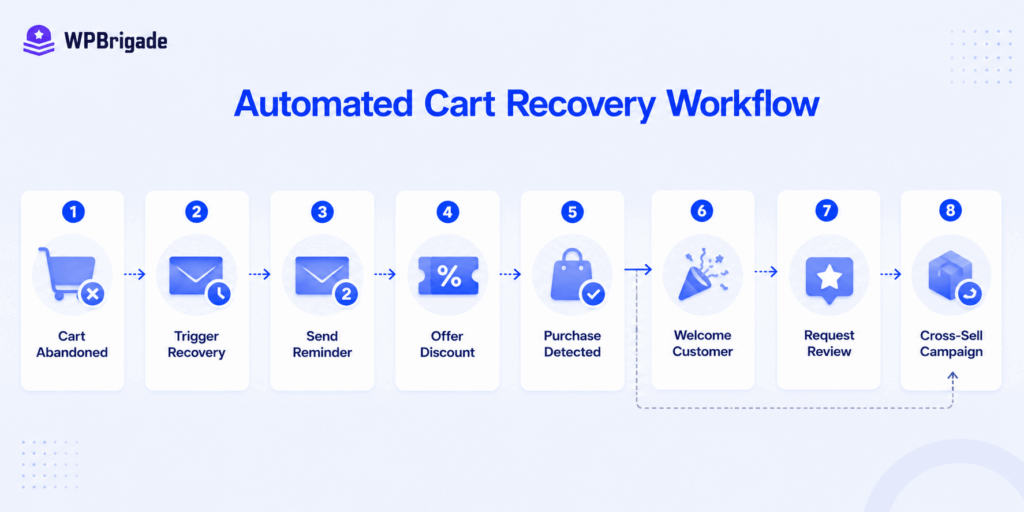
This framework shows how online stores can automatically recover lost sales.
- A customer adds products to their cart but leaves the site before finishing the purchase.
- Your integrated email platform triggers an automated abandoned cart notification within one hour.
- The system sends a second abandoned cart reminder on day two, offering a 10% discount code.
- The system immediately halts the recovery sequence and triggers a customer welcome sequence if a purchase occurs.
- The automation software sends a product review request email exactly 30 days after purchase.
- The platform delivers a targeted cross-sell or product replenishment reminder on day sixty.
To build effective marketing automation workflows in WordPress, start by following basic design principles. Set up one clear trigger for each workflow to avoid tracking issues.
Choose one main conversion goal for each sequence to make it easier to measure results. Before you turn on any automation, set a clear exit condition. This way, paying customers will not keep getting the same promotional emails.
When Should You Hire a WordPress Agency for CRM Integration?
Consider hiring a WordPress agency for CRM integration if your automation needs go beyond what plugins can handle. This includes syncing custom post types with your CRM, mapping complex fields, tracking leads from multiple sources, sending WooCommerce data to your sales pipeline, or dealing with older systems where plugins have not worked.
These complex situations require professional engineering to keep your data flowing smoothly. An agency can make sure your data moves reliably across all your business systems.
When to Build Yourself vs. Hiring an Expert
| Scenario | Recommended Approach |
| Standard contact form connecting to HubSpot CRM | DIY: use the HubSpot WordPress plugin |
| WooCommerce store connecting to Klaviyo for abandoned cart | DIY: use Klaviyo’s official WooCommerce integration |
| Custom post type syncing to CRM | Agency: requires custom field mapping via API |
| Multi-form site where forms trigger different workflows | Agency: workflow logic and field mapping complexity |
| WooCommerce purchase data syncing to HubSpot deal records | Agency: HubSpot ecommerce bridge or custom integration |
| Existing Salesforce with no native WordPress plugin | Agency: custom API integration or WP Fusion configuration |
| Lead scoring based on page behavior and form data | Agency: tracking code configuration and CRM scoring rules |
| Multi-client site where each needs an isolated CRM data flow | Agency: architecture and access control design required |
Looking at these different situations helps show when a basic plugin is not enough.
WPBrigade focuses on this type of integration by designing how data moves between WordPress and your CRM, setting up automations to move leads through your pipeline, and building reports to show what works.
If your needs match one of the agency scenarios in the table, let’s talk. Our developers make sure your marketing systems can handle more traffic as your business grows.
What Metrics Should a WordPress Marketing Automation System Track?
A WordPress marketing automation system should track six metrics: form conversion rate (visitors to leads), CRM contact quality score, email open and click rates per sequence, lead-to-customer conversion rate, time from form submission to first sales contact, and revenue attributed to automated workflows.
These metrics show how well your WordPress marketing automation performs. Regular monitoring shows you where your lead collection pipeline loses valuable prospects.
| Metric | What It Measures | Where to Find It |
| Form conversion rate | % of page visitors who submit a form | Google Analytics 4 or CRM |
| CRM contact quality | % of leads matching your ideal profile | CRM lead scoring report |
| Email open rate | % of recipients opening nurture emails | Email automation platform |
| Email click rate | % of openers clicking a CTA link | Email automation platform |
| Lead-to-customer rate | % of contacts converting to buyers | CRM pipeline report |
| Workflow attribution | Revenue traced to automated sequences | CRM or attribution tool |
Keeping an eye on these key numbers makes it easier to grow and improve your automated marketing systems. Each metric connects to a main part of your system. Conversion rates show how well your front-end capture works.
CRM quality scores tell you how strong your CRM data is. Finally, revenue attribution data supports your leadership reports and shows your marketing return on investment.
FAQs
Final Thoughts
WordPress marketing automation is not a plugin you install. It is a system you design: form capture flows into the CRM, the CRM triggers sequences, the sequences convert leads, and reporting proves what works.
The system requires the right tools connected correctly, and the right architecture built from the start.
Next Steps for Your Site Integration
- Map your current stack. List every tool you use for forms, CRM, email, and reporting. Identify which connections are manual and which are automated. The gap between those two lists is your automation project.
- Start with one workflow. Choose your highest volume form. Connect it to your CRM if it is not already. Build the immediate confirmation email and a three-email nurture sequence. Measure for thirty days before expanding.
- Consult a specialist if needed. If your integration requirements involve custom post types, WooCommerce to CRM sync, legacy CRM connections, or a setup that has already broken once, talk to WPBrigade. We design and build WordPress marketing automation systems for businesses that need this done right the first time.
Talk to WPBrigade about your CRM integration.
That is all for this post. For more related posts, check:
- WordPress API Integrations: Explained for Beginners
- Custom WordPress vs No-Code Builders: Which to Choose (2026)
- 12 Best AI Tools for Business in 2026 to Improve Productivity
Which layer of your marketing automation system is giving you the biggest headache right now: capturing the leads or syncing them to your CRM? Let us know in the comments below!
Leave a Reply