
To convert a container to columns in WordPress, open the post or page, select the content block, choose the Columns option in the block settings, pick the number of columns, then adjust the content and publish.
WordPress runs 40.2% of all websites (W3Techs, October 2026), so keeping your layouts current matters. Switching from a single container to a column layout is one of the quickest ways to refresh a page.
Table of contents
Here are the five steps at a glance.
| Step | What to Do |
|---|---|
| 1. Open the page | Log in and open the post or page in the editor |
| 2. Select the block | Click the content block you want to change |
| 3. Choose columns | Pick Columns in block settings and set the number |
| 4. Adjust content | Move headings, text and images into each column |
| 5. Preview and publish | Check desktop and mobile, then publish |
Switching from a container to a column layout is one of the simplest ways to make a WordPress page easier to scan. Below are the steps, plus why it helps.
The Basics: Understanding Containers and Columns
A container holds content in a single block, while columns split content side by side into a multi-column design.
How to Convert From Container to Column In WordPress
Convert a container to columns in WordPress in five steps.
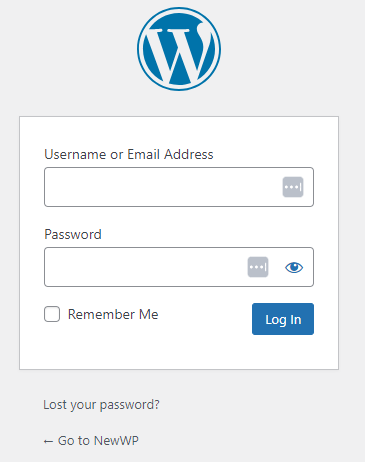
1: Log In to WordPress and Navigate Posts/Pages
- First, log in to your WordPress admin panel.
- Next, navigate to the specific post or page where you’d like to make these changes.
2: Editing Your Content
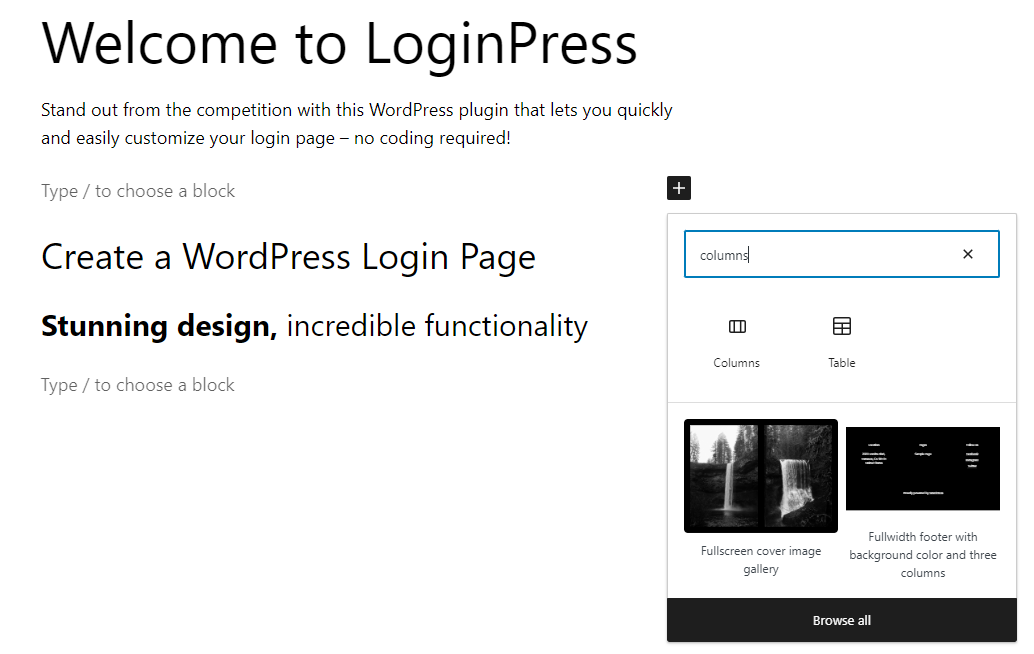
- Click on the content block that you want to transform into a column.
- In the block settings, you’ll find the Columns option.
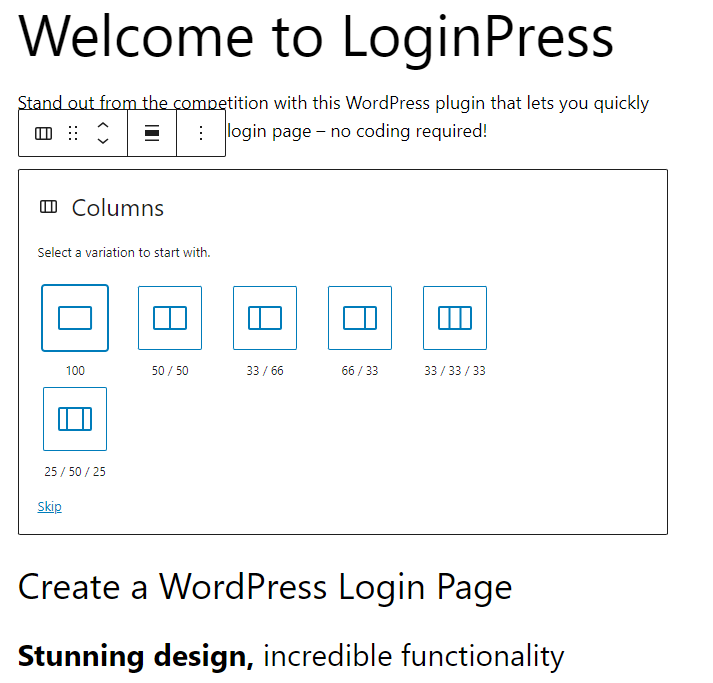
3: Changing to a Column
- Choose the number of columns you prefer. You will have multiple options for columns.
- Once you’ve made your selection, go to the next step.
4: Content Adjustment
Depending on your content, you might need to make some adjustments to ensure it looks just right in the new column layout. The goal is to make your content flow smoothly within the columns.
Additionally, you can add headings, content, images, and more as per your requirements. In our example, we’ve added some content to show how it works.
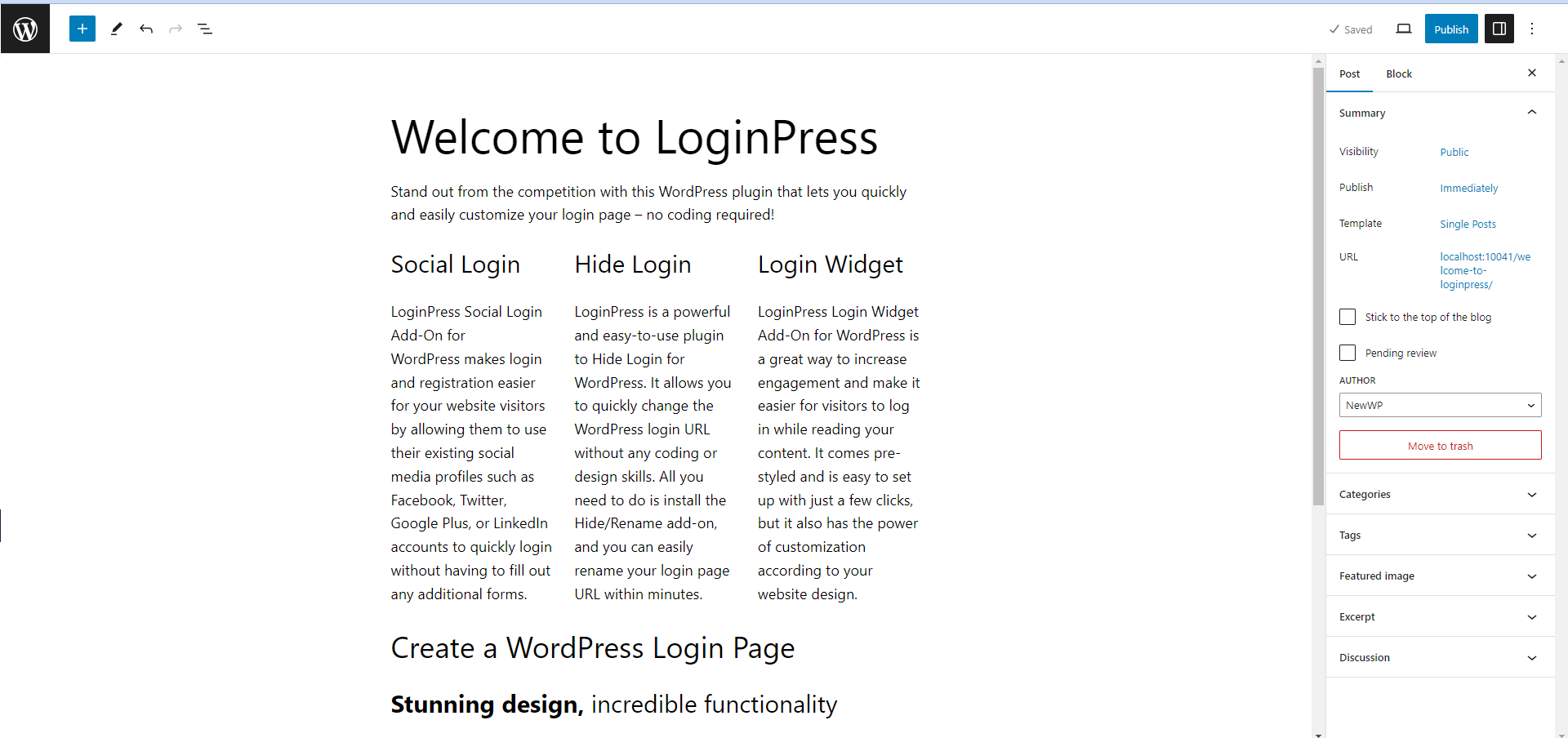
Step 5: Preview and Publish
It’s always a good idea to preview your changes to double-check that everything appears as expected. If you’re happy with how it looks, go ahead and Publish the updated post or page.
Tips And Tricks For Smooth Conversion
Six tips make the conversion smooth: plan content, back up first, keep formatting consistent, keep columns short, check mobile layouts and test links and media.
Here are some tips to help with the conversion.
1. Plan Your Content
Before you begin the conversion, plan how your content will appear in columns. Consider the flow and organization of your text, images, and other elements.
2. Backup Your Content
It’s always a good practice to back up your content before making significant changes. While the conversion process is usually safe, having a backup ensures you can quickly recover your original layout if something goes wrong.
3. Use Consistent Formatting
To maintain a professional look, keep your formatting consistent within each column. Ensure font sizes, colors, and styling match across all columns for a polished appearance.
4. Short Columns
Don’t overload any column. If you have lengthy content, consider splitting it into more columns or using other formatting options.
5. Check Responsiveness
WordPress themes are often designed to be responsive, but checking how your columns adapt to different screen sizes is a good practice.
6. Test Hyperlinks and Media
If your content includes hyperlinks or media like images and videos, ensure they function correctly in the new column layout. Test each element to verify that everything is working as expected.
Frequently Asked Questions
Will converting to columns affect my website’s loading speed?
Converting to columns itself won’t significantly impact loading speed. However, the content you place within the columns might, so optimize images and videos accordingly.
Can I revert to a container layout if needed?
You can quickly revert to a container layout by following the same steps and choosing one column.
Do I need coding skills to convert to columns?
No, WordPress’s block editor makes converting from a container to a column simple without any coding knowledge.
Conclusion: Converting from Container to Column in WordPress
Converting from a container to a column in WordPress is a straightforward process.
If you have any questions or comments, please ask via the comment section below.
Meanwhile, you can also check out Why You Should Be Using WordPress For Ecommerce.
Are you looking to create and customize your WordPress login page?
Give LoginPress a try! With LoginPress, you can easily transform your WordPress login page and make it uniquely yours.
Leave a Reply