
You need to connect WordPress to an external tool (a CRM, a payment gateway, an analytics platform), and every guide you find reads like it was written for a software engineer. WordPress API integrations are genuinely confusing territory, especially when you are a site owner trying to decide whether this is a $0 plugin job or a $5,000 development project.
In this guide, I’ll explain exactly how WordPress API integrations work, the WordPress REST API, plugin-based methods, no-code automation, and custom development, so you can choose the right approach for your site and budget.
Table of contents
- What is a WordPress API Integration and Why Does It Matter?
- What Is the WordPress REST API and How Does It Work?
- How Can You Use the WordPress REST API for Integrations?
- How Do You Connect Third-Party Tools to WordPress?
- What Are the Best Practices for API Integration in WordPress?
- How Can You Implement Custom API Development in WordPress?
- How Do You Test and Monitor API Integrations in WordPress?
- How Do Automation Platforms Connect WordPress With SaaS Tools?
- What Are Common Challenges in WordPress API Integration and How Do You Solve Them?
- FAQs About WordPress API Integrations
- WordPress Rest API Guide: Conclusion
What is a WordPress API Integration and Why Does It Matter?
A WordPress API integration is a connection between your WordPress site and an external application that allows the two systems to exchange data automatically.
API stands for Application Programming Interface.
Think of it as a contract between two pieces of software: one system says “I will send data in this format,” and the other says “I will receive it and act on it.”
WordPress has a built-in interface, called the REST API, that acts as the communication layer between your site and any external tool.
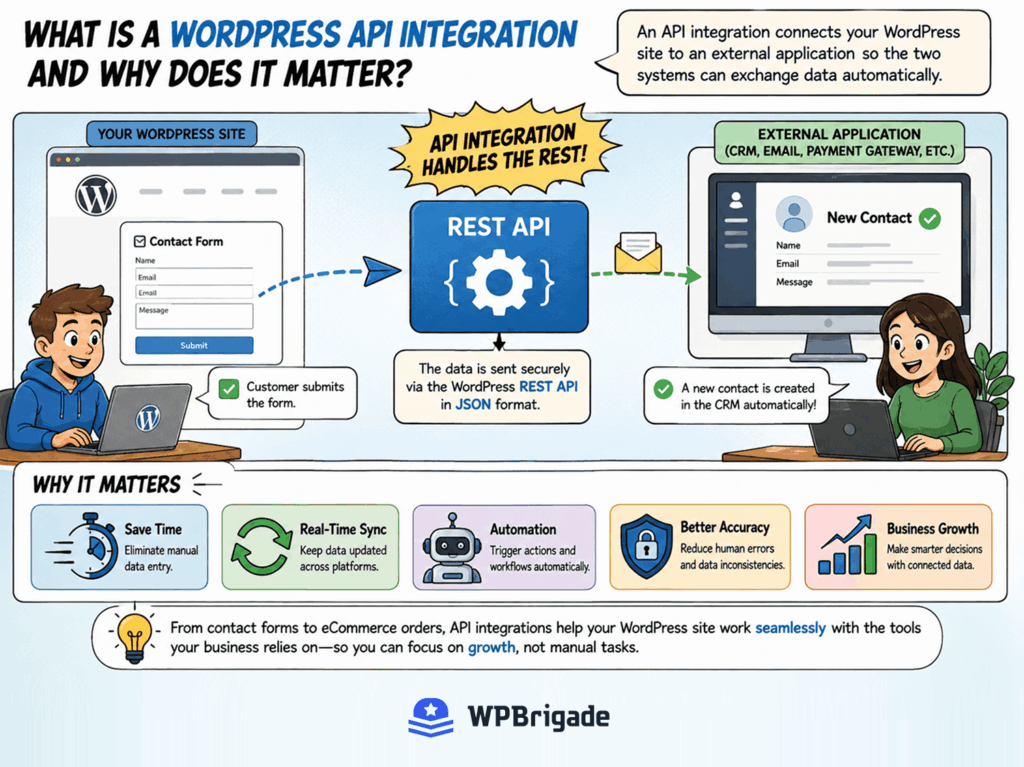
Here is an example. A customer fills out a contact form on your WordPress site. An API integration in WordPress handles the rest: that submission travels through the REST API and creates a new contact record in your CRM automatically, without anyone copy-pasting data.
Its business value is significant. WordPress API integrations eliminate manual data entry, sync records in real time across platforms, and let your site react to external events without human intervention. Poorly implemented integrations, however, can create security vulnerabilities, sync failures, and data inconsistencies across systems. So getting the approach right from the start matters.
Third party integrations wordpress sites rely on cover a wide range: Salesforce and HubSpot for CRM, Stripe and PayPal for payments, Mailchimp and ActiveCampaign for email, and custom internal systems for industry-specific workflows.
What Is the WordPress REST API and How Does It Work?
The WordPress REST API is a built-in interface that exposes your site’s data as JSON, allowing any external application to read or write content via standard HTTP requests.
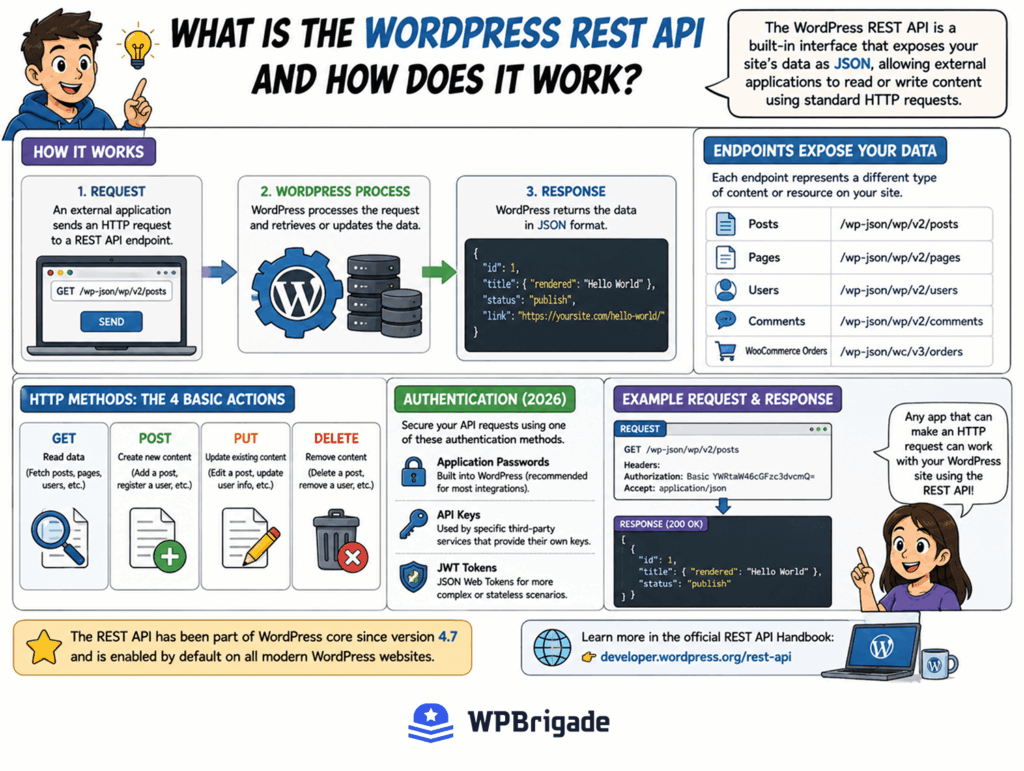
This wordpress rest api guide covers the basics every site owner should understand. The REST API works through endpoints: specific URLs that each correspond to a piece of your site’s data. Each endpoint responds to one of four standard HTTP methods:
- GET: Fetch data (read posts, users, pages)
- POST: Create new content (add a post, register a user)
- PUT: Update existing content
- DELETE: Remove content
A practical example: a GET request to /wp-json/wp/v2/posts returns your site’s published posts as structured JSON data. Any application that can make an HTTP request, including a mobile app, a third-party SaaS tool, or a custom script, can read that response and use the data.
Worth noting: the REST API has been part of WordPress core since version 4.7 and is enabled by default on all modern WordPress installations.
Authentication methods for 2026:
- Application Passwords: Built into WordPress since version 5.6. Generate them directly from your user profile. Recommended for most integrations.
- API keys: Used by specific third-party services that issue their own keys.
- JWT tokens: JSON Web Tokens, used for more complex or stateless authentication scenarios.
How Can You Use the WordPress REST API for Integrations?
You can use the WordPress REST API to fetch data, create content, update records, and trigger actions on external systems, all through structured HTTP requests.
This section covers practical use cases, not technical setup. Here are three real-world scenarios that show the REST API at work:
- Displaying WordPress posts in a mobile app. A GET request to your site’s posts endpoint returns a structured JSON list of titles, content, categories, and publication dates. The mobile app receives that data and renders it inside the app interface, without the user needing to visit your website.
- Creating a WooCommerce order programmatically. A POST request sends order details (product ID, customer information, quantity) to your WooCommerce REST API endpoint. WooCommerce processes the order as if it were placed through your storefront. This powers integrations between WordPress and external sales systems.
- Syncing user registrations with an email platform. When a new user registers on your WordPress site, a POST request fires to your email platform’s API and adds that user to the correct list or sequence. The two systems stay in sync without manual export/import.
The data flow in each case is the same. Your WordPress site sends a request. The external system receives it. The external system responds with a confirmation or a set of formatted data. WordPress processes the response.
What Does a Typical WordPress API Request Look Like?
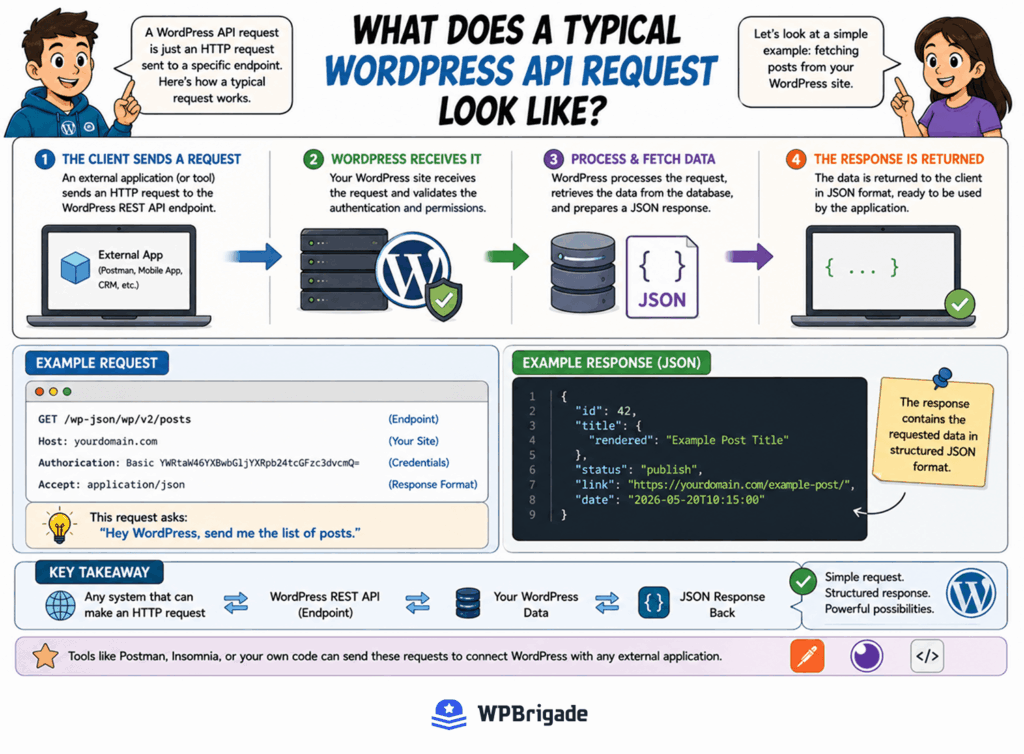
A real WordPress API request is simpler than it sounds. Here is what a basic authenticated GET request looks like when fetching posts:
GET /wp-json/wp/v2/posts
Host: yourdomain.com
Authorization: Basic [base64-encoded username:application-password]
The response comes back as a structured payload. A simplified version looks like this:
{

  "id": 42,

  "title": {

    "rendered": "Example Post Title"

  },

  "status": "publish",

  "link": "https://yourdomain.com/example-post/"

}
Any external system that can make an HTTP request can read this formatted response and act on it. That is the core mechanism behind every WordPress API integration, from simple content displays to complex CRM syncs.
How Do You Connect Third-Party Tools to WordPress?
You can connect third-party tools to WordPress using a plugin-based integration, a no-code automation platform, or a custom API connection built by a developer.
This is the decision-layer question that most guides skip. Third-party integrations for WordPress site owners depend on the tool, the data complexity, and the long-term maintenance plan. Here is how each method compares:
| Method | Setup Speed | Flexibility | Technical Skill Required | Best For |
|---|---|---|---|---|
| Plugin-based integration | Fast (minutes) | Low | None | Common tools with existing plugins (e.g. Mailchimp, Stripe) |
| No-code platforms (Zapier, Make) | Medium (hours) | Medium | Low | Multi-step workflows between popular SaaS tools |
| Custom API development | Slow (days/weeks) | High | Developer required | Unique business logic, legacy systems, real-time sync |
Plugin-based integrations are the fastest starting point. If a plugin exists for your tool, installation takes minutes and configuration requires no code. The limitation: you can only do what the plugin was designed to do. Unusual workflows, custom data fields, or non-standard triggers fall outside what most plugins handle.
No-code platforms like Zapier and Make connect WordPress to external tools through visual workflow builders. Free and paid plans are available. These work well for multi-step automations between popular SaaS products. The constraints: rate limits can delay real-time syncs, and complex business logic quickly becomes unmanageable in a visual editor.
Custom API development gives maximum flexibility. A developer builds the exact connection your workflow requires, with full control over data mapping, error handling, and security. This is the right path for proprietary business systems, non-standard data models, or integrations that need to handle high-volume real-time sync.
Security basics for all three methods:
- Validate all incoming data before processing
- Use HTTPS on every connection
- Store credentials in environment variables, never in code
What Are the Best Practices for API Integration in WordPress?
The best practices for WordPress API integration include using proper authentication, validating all data inputs and outputs, implementing error handling, and monitoring response times regularly.
Follow these eight standards on every integration:
- Always use HTTPS. Every API request must travel over an encrypted connection.
- Authenticate with Application Passwords or JWT tokens. Never embed credentials directly in code. Application Passwords are the recommended method for WordPress since version 5.6.
- Validate all incoming data before processing. Check data types, expected fields, and value ranges before acting on any incoming payload.
- Sanitize all output. Clean data before it is stored in your database or returned in a response. This prevents SQL injection and cross-site scripting vulnerabilities.
- Implement rate-limit handling. External APIs cap requests per minute or hour. Build logic to pause and retry when a rate limit response arrives, rather than failing silently.
- Cache API responses where possible. Fetching the same external data on every page load wastes server resources. Store responses temporarily for data that does not change frequently.
- Log errors and monitor response times. Set up alerts for slow response times so integration problems surface before users notice them.
- Version your custom endpoints. Use a versioned route from the start (e.g. /wp-json/yoursite/v1/). This means external API updates do not break live integrations without a controlled migration path.
- Process heavy API calls in the background. Synchronous API requests that run on page load increase your site’s Time to First Byte (TTFB). Use a queue or background job for slow external calls so page speed is not affected by an external service’s response time.
How Can You Implement Custom API Development in WordPress?
Custom API development in WordPress means registering your own REST API endpoints to handle unique data exchanges that no off-the-shelf plugin can manage.
The right time to choose custom api development: your business uses a proprietary system, your data model does not match what existing plugins expect, you need real-time sync rather than periodic batch transfers, or your security requirements go beyond what plugin-based integrations provide.
If your integration needs complex business logic, involves a legacy system, or requires real-time sync that a plugin cannot deliver, starting without expert scoping creates expensive rework later. WPBrigade’s integration services cover custom endpoint development from requirements to deployment.
The Custom Development Process in Five Steps:
- Define the data exchange requirements. Map out what data moves, in which direction, on what trigger, and in what format. This specification document becomes the blueprint for development.
- Register a custom route. A developer uses WordPress’s register_rest_route() function to create the new endpoint URL and define which HTTP methods it accepts. Custom endpoints live in a dedicated plugin file, not in a theme. See WPBrigade’s services to build a custom WordPress plugin for the file structure involved.
- Write the callback function. The callback handles the incoming request: it reads the data, processes the business logic, communicates with external systems, and returns a structured response.
- Set permission callbacks. Access control determines who can call the endpoint. Authentication checks run before the callback executes.
- Test with Postman before going live. Send test requests to the endpoint, verify the responses match the specification, and confirm error states are handled correctly.
A concrete example: a regional logistics company needs WooCommerce orders to sync in real-time with their custom warehouse management system. No standard plugin handles that combination of real-time sync, custom field mapping, and two-way data flow. WPBrigade’s custom API development delivers exactly that.
How Do You Test and Monitor API Integrations in WordPress?
You test WordPress API integrations using tools like Postman or Insomnia to send test requests and inspect responses before the integration goes live.
Three testing tools worth knowing:
- Postman: The most widely used API testing tool. Free tier covers most testing needs. Send requests, inspect responses, and save test collections for ongoing regression checks.
- Insomnia: An open-source alternative to Postman. Lighter interface, strong import/export support, and no account required for basic use.
- Browser developer tools: For simple GET requests, your browser’s network tab shows the request and response without any additional software.
The result of good pre-launch testing: you catch authentication failures, malformed responses, and edge-case errors before they affect real users or live data.
Ongoing monitoring matters for three reasons. APIs change: external services update endpoint structures or deprecate old versions without warning. Authentication expires: Application Passwords and JWT tokens have lifespans, and expired credentials cause silent failures. Performance degrades: response times from external APIs can slow under load, and your integration needs to handle that gracefully.
Track these three metrics on every live integration: response time per request, HTTP status code distribution (look for spikes in 4xx and 5xx errors), and error rate over time.
How Do Automation Platforms Connect WordPress With SaaS Tools?
Automation and SaaS integrations improve WordPress workflows by eliminating manual data entry, syncing information across platforms in real time, and triggering actions automatically based on site events.
Here is what this looks like in practice:
- A form submission on WordPress automatically creates a deal in your CRM, assigned to the right sales rep, with the form data pre-mapped to the correct fields.
- A WooCommerce purchase triggers a personalized onboarding email sequence in your email platform, starting immediately after payment confirmation.
- New WordPress user registrations sync daily to a reporting dashboard, giving your team an accurate count without manual exports.
- An order status change in WooCommerce fires a webhook that updates a fulfillment system in real time.
The main automation platforms for WordPress:
- Zapier: The largest ecosystem of supported apps. Free and paid plans are available. Best for connecting popular SaaS tools with straightforward trigger-and-action workflows.
- Make (formerly Integromat): Better suited for complex multi-step workflows with conditional logic. Free and paid plans are available. Visual workflow builder makes advanced sequences manageable.
- Custom webhooks: Maximum flexibility. A developer configures WordPress to fire a webhook on a specific event, and the receiving system handles the data exactly as the business requires. No third-party platform sits in between.
Connect apps wordpress site owners use most effectively when the integration matches the workflow exactly, not the other way around.
What Is the Difference Between APIs and Webhooks?
APIs and webhooks both move data between systems, but they work in opposite directions.
An API is request-driven: your site asks the external system for data, and the external system responds. You control when the request fires. Example: your site calls a CRM’s API every hour to fetch updated contact records.
A webhook is event-driven: the external system pushes data to your site the moment something happens, without your site asking. Example: a payment processor sends a webhook to your WordPress site the instant a transaction completes, triggering order fulfillment immediately.
Bottom line: Use APIs when you need to pull data on a schedule. Use webhooks when you need to react to events in real time. Many integrations use both.
What Are Common Challenges in WordPress API Integration and How Do You Solve Them?
The most common challenges in WordPress API integration are authentication errors, rate limiting, plugin conflicts, and version compatibility issues. All have known solutions.
| Challenge | Cause | Solution |
|---|---|---|
| Authentication errors | Expired tokens or incorrect credentials | Use Application Passwords. Test in Postman before connecting to the live site. |
| Rate limiting | Too many requests sent to external API in a short window | Cache API responses. Add exponential backoff logic to retry failed requests. |
| Plugin conflicts | Security plugin blocking API calls | Temporarily disable security plugins to identify the conflict. Whitelist the specific endpoint. |
| Version compatibility | External API updates endpoint structure | Version all custom endpoints. Subscribe to external API changelogs. |
Breaking these down:
Authentication errors are the most common issue. An expired Application Password or an incorrectly copied credential causes a 401 response on every request. Test credentials in Postman against the live endpoint before connecting any external system.
Rate limiting happens when your integration sends more requests than the external API allows per time window. Cache responses for data that does not change with every request, and implement exponential backoff so failed requests retry after progressively longer waits.
Plugin conflicts, particularly with security plugins that restrict REST API access, block API calls silently. If an integration stops working after installing a new plugin, disable plugins one by one to identify the conflict, then safelist the affected endpoint in the security plugin’s settings.
Version compatibility breaks integrations when an external API changes its endpoint structure. Version your own custom endpoints from day one, and subscribe to the changelog of every external API your site depends on.
WPBrigade’s developers troubleshoot and maintain integrations for clients, including diagnosing intermittent failures that only appear under production load.
FAQs About WordPress API Integrations
WordPress Rest API Guide: Conclusion
WordPress API integrations remove the barrier between your site and the tools your business already uses. Whether you choose a plugin, a no-code platform, or custom development, the right integration approach matches your workflow complexity, security requirements, and long-term maintenance capacity.
Next steps:
- Identify the external tool you need to connect to WordPress and check whether a dedicated plugin already exists for it.
- Test your WordPress REST API is active by visiting yourdomain.com/wp-json in your browser and confirming a JSON response appears.
- If your integration needs are complex, involve a custom system, or require real-time data sync, get a consultation from WPBrigade before starting. Scoping the project correctly saves a high cost later.
More Readings:
- Why WordPress Is Ideal for Enterprise Websites (2026)
- How to Choose the Right WordPress Plugins Without Hurting Performance
- 7 Best WordPress Maintenance Services for 2026
If your integration involves real-time sync, custom business logic, or systems that standard plugins cannot support, WPBrigade can help scope and build a stable, long-term solution.
Leave a Reply