
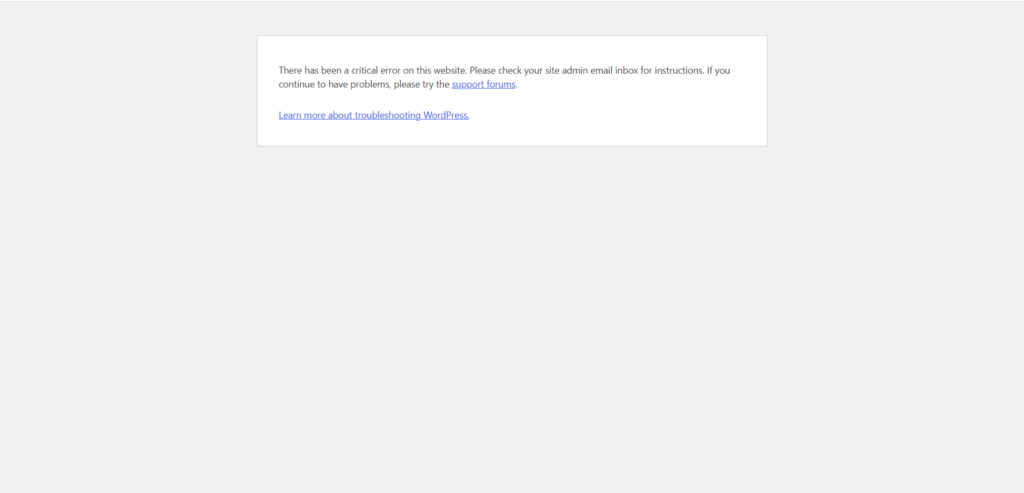
“There has been a critical error on this website” means WordPress hit a fatal PHP error, usually caused by a plugin, a theme, a memory limit or a PHP version conflict. To fix it, use the recovery email link or FTP to deactivate the plugin or theme behind the error, then check the debug log. Your site just went blank and showed: “There has been a critical error on this website. Please check your site admin email inbox for instructions.” If this is a business or client site, the dread is immediate.
Here’s what matters first: your content and database are almost certainly untouched. A WordPress critical error means WordPress hit a fatal PHP error and stopped itself, not that anything was deleted.
In this post, you’ll learn the exact error-log signature for each cause, a safe troubleshooting order, and a concrete point to call a developer instead of guessing further.
Table of contents
- What Does “There Has Been a Critical Error on This Website” Mean?
- What Should You Do First When You See This Error?
- Can You Fix This Error If You’re Locked Out of wp-admin Entirely?
- How Do You Find the Exact Cause Using Debug Mode and Error Logs?
- How Do You Fix a Critical Error Caused by a Plugin or Theme?
- How Do You Fix a Critical Error Caused by Memory Limits or PHP Version Issues?
- What If Plugin and Memory Fixes Don’t Work? How Do You Reinstall WordPress Core Files?
- What If the Error Isn’t Plugins, Themes, Memory, or Core Files?
- How Can You Prevent the WordPress Critical Error From Happening Again?
- Frequently Asked Questions
- Conclusion
What Does “There Has Been a Critical Error on This Website” Mean?
This message means WordPress has hit a fatal PHP error, usually from a plugin, theme, or server resource issue, and has stopped loading the affected page to prevent further damage.
The WordPress critical error message is part of WordPress’s fatal error protection system, introduced in WordPress 5.2 (released May 2019). It is a native WordPress core feature, not a plugin. When WordPress detects a fatal error, it pauses the broken component and emails the site admin.
Your database and all your content remain untouched. The error only affects how the page loads, not what is stored. Most fixes take under 30 minutes once the cause is identified.
Causes, Error Signatures, and Time to Fix
| Cause | Debug Log Signature | Fix (Section) | Typical Time to Fix |
|---|---|---|---|
| Plugin conflict or faulty update | PHP Fatal error: Uncaught Error: Call to undefined function… in /wp-content/plugins/[plugin-name]/… | Section 4: rename plugin folder | 5–10 min |
| Theme issue or incompatible update | PHP Fatal error: … in /wp-content/themes/[theme-name]/functions.php | Section 4: rename theme folder | 5–10 min |
| PHP memory exhaustion | PHP Fatal error: Allowed memory size of 268435456 bytes exhausted (tried to allocate…) | Section 5: raise WP_MEMORY_LIMIT | 2–5 min, or longer if host-capped |
| Outdated PHP version | PHP Fatal error: Uncaught TypeError: … deprecated in… or Call to undefined function str_contains() | Section 5: update PHP version in hosting panel | 5 min |
| Corrupted core files | No clear plugin/theme path, or failed to open stream errors referencing wp-includes/wp-admin | Section 6: reinstall core files, exclude wp-content | 15–20 min |
| Server, storage, or database issue | No PHP Fatal error in debug.log at all, or database connection errors | Section 7: rule out server-level causes | Varies, often requires host or developer |
This is the table that most guides on this topic skip: the literal text your debug log will show for each cause, not just the category. Match your debug.log line against this table before you touch anything.
What Should You Do First When You See This Error?
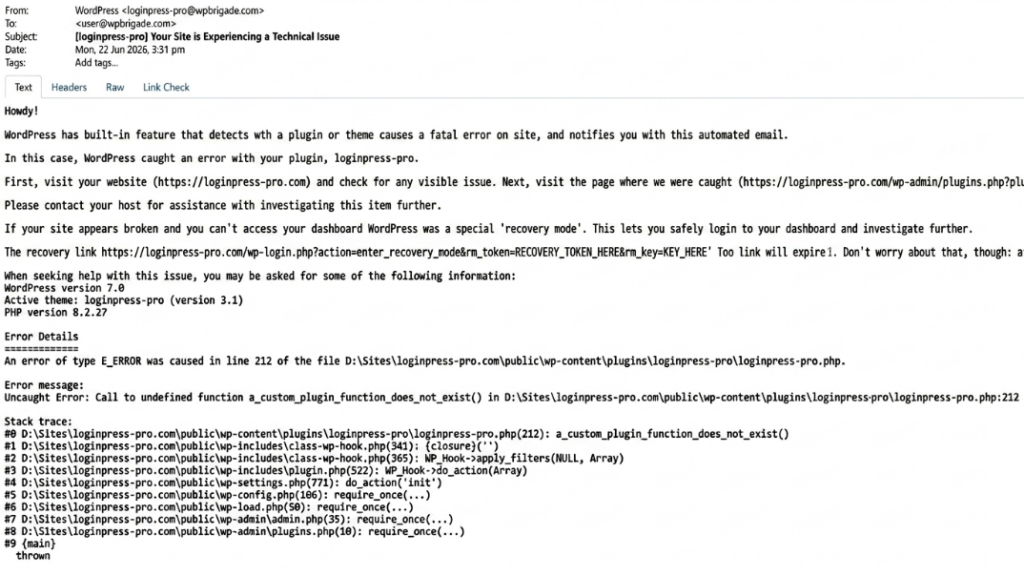
The first thing to do is check your site admin email for a WordPress recovery mode notification, because it often names the exact plugin or theme causing the error and gives you a one-click recovery link.
If your wordpress site crashed and you just saw this message, follow these three steps before changing anything:
- Check your site admin email inbox. Look for the subject line “Your Site is Experiencing a Technical Issue.” It contains a Recovery Mode link. Click it to enter the dashboard in a protected state where the broken component is bypassed. Learn more about how WordPress Recovery Mode works.
- Note any recent change. Did you update a plugin, switch a theme, or install something? That’s almost certainly the cause. Don’t update or install anything else until this is resolved.
- Don’t restore a backup yet. Some guides tell you to restore a backup first. Don’t, until you’ve identified the cause. Restoring before diagnosis can overwrite recent content and won’t fix the problem if the cause is a server-level change rather than a content issue.
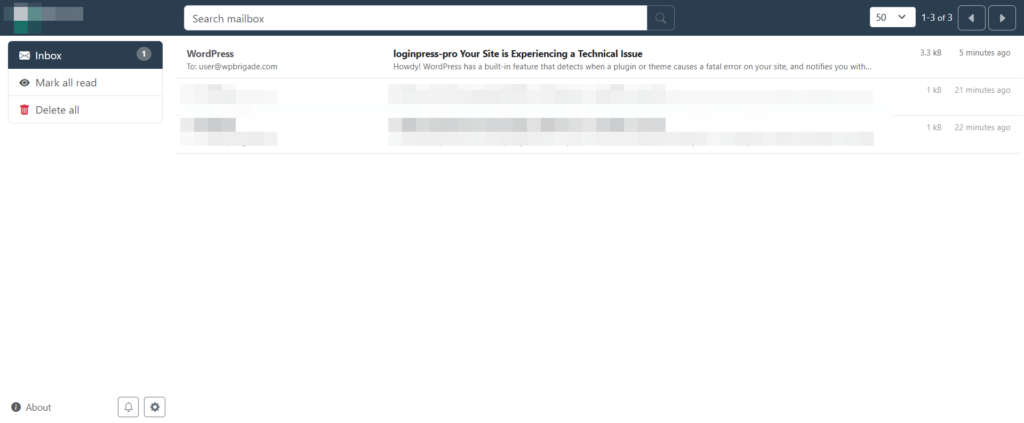

Note: The Recovery Mode link is time-limited. If it no longer works because you’ve already changed something, that’s expected. It doesn’t mean a new problem appeared.
Can You Fix This Error If You’re Locked Out of wp-admin Entirely?
Yes. If the critical error blocks you from logging into wp-admin at all, every fix in this guide is still possible using FTP or your hosting account’s File Manager, neither of which depends on WordPress loading.
This is the scenario most guides assume you’ve already solved, but it’s the most common one in practice: the error hits, the dashboard won’t load, and the Recovery Mode email either never arrives or its link has expired.
- Open your hosting control panel directly, not through wp-admin. Every major host (cPanel, Plesk, hPanel, SiteGround panel) has a File Manager that works independently of WordPress.
- Use FTP as a backup access method. Tools like FileZilla connect using credentials from your hosting account, not your WordPress login.
- From either tool, you can rename plugin and theme folders, edit wp-config.php, and read debug.log exactly as described later in this guide. None of these actions requires the WordPress dashboard to be working.
- If you don’t have hosting panel or FTP credentials, contact your host’s support directly. This is a five-minute account-level issue, not a WordPress problem, and most hosts resolve access requests quickly.
Note: If you can’t access your host account either, that’s the point to bring in a developer immediately rather than wait. Site-level lockout combined with host-account lockout is outside the scope of self-troubleshooting.
How Do You Find the Exact Cause Using Debug Mode and Error Logs?
You can find the exact cause by enabling WP_DEBUG in wp-config.php, which writes a detailed debug.log file that identifies the specific plugin, theme, or file, along with the line number responsible for the error.
This is the step that separates a quick fix from prolonged guessing. The full process is documented in the WordPress debugging documentation on developer.wordpress.org. To debug WordPress critical error issues accurately, follow these steps:
- Connect to your site via FTP or your hosting File Manager. Both give direct access to site files without needing wp-admin.
- Open wp-config.php in the site root directory.
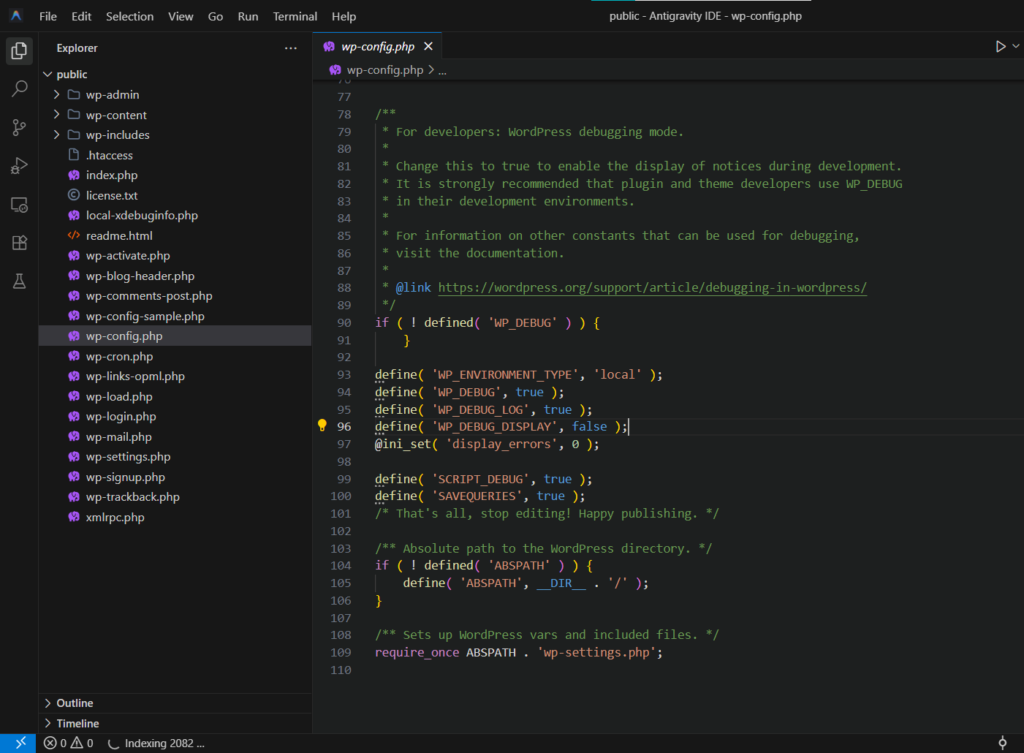
- Add these three lines above the line that reads “That’s all, stop editing!”:
define( 'WP_DEBUG', true );
define( 'WP_DEBUG_LOG', true );
define( 'WP_DEBUG_DISPLAY', false );- Save the file and reload your site. This triggers the error again and writes it to the log.
- Open wp-content/debug.log via FTP or File Manager. Scroll to the bottom. Find the most recent line starting with PHP Fatal error. Match it against the signature table near the top of this guide to identify the cause and jump straight to the matching fix section.
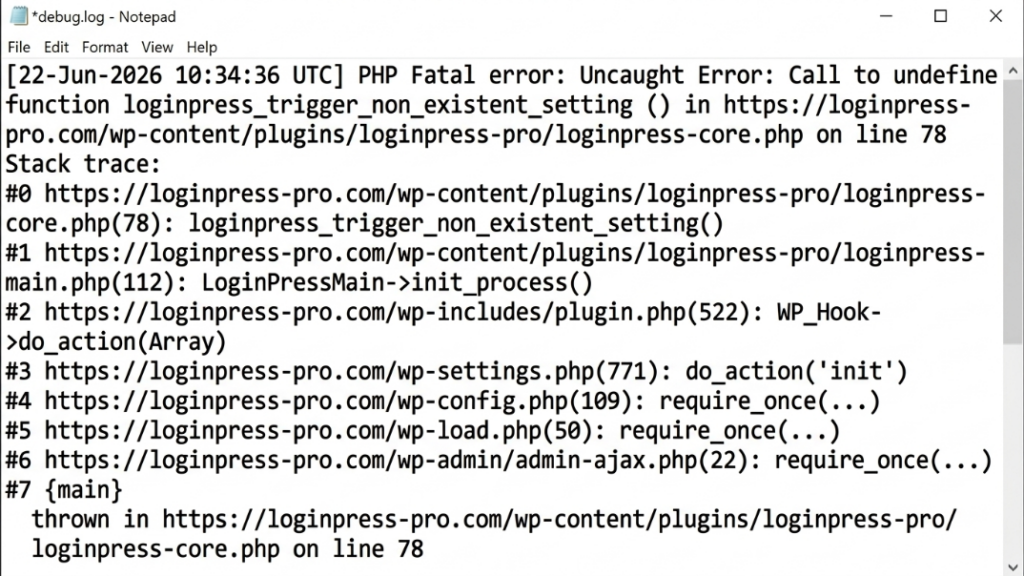
Note: Set WP_DEBUG back to false after diagnosis. Leaving debug output active on a live site exposes technical error details to visitors, creates a security risk, and looks unprofessional.
How Do You Fix a Critical Error Caused by a Plugin or Theme?
If the debug log points to a plugin or theme, the fix is to deactivate that plugin or switch to a default theme via FTP or your hosting File Manager, since a broken plugin can block access to the dashboard itself.
This is the most common cause. Use these steps to fix a critical error in WordPress step by step, with or without wp-admin access:
- Connect via FTP or File Manager and navigate to wp-content/plugins.
- If the debug log named a specific plugin, rename that plugin’s folder by adding “_old” to the end (example: “contact-form-7” becomes “contact-form-7_old”). WordPress can no longer load it.
- If the cause is unclear, rename the entire “plugins” folder to “plugins_old,” then reload the site.
- If the site loads, rename each plugin subfolder back one at a time, reloading after each. The error returns when you reach the culprit.
- For theme issues, rename the active theme’s folder in wp-content/themes (example: “astra” becomes “astra_old”). WordPress falls back to a default theme automatically.
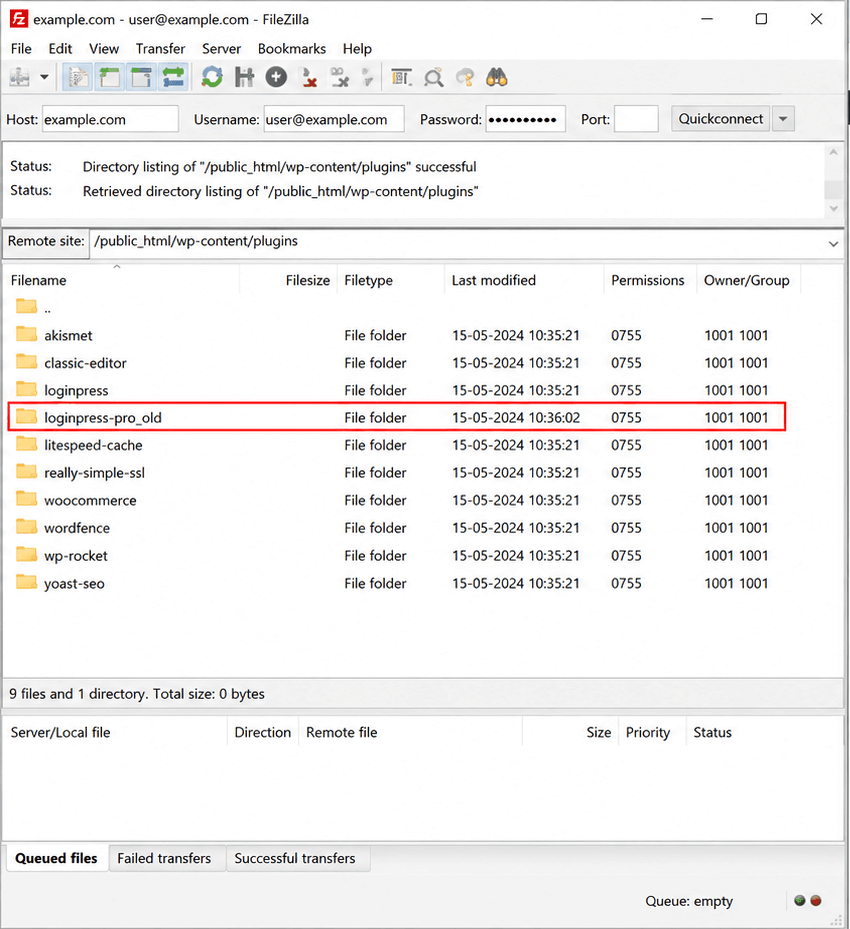
Note: Renaming a folder is non-destructive. It deletes no plugin files, settings, or data. You can rename it back at any time to restore the plugin exactly as it was.
How Do You Fix a Critical Error Caused by Memory Limits or PHP Version Issues?
If the debug log shows “Allowed memory size exhausted,” the fix is to raise the PHP memory limit by adding a WP_MEMORY_LIMIT line to wp-config.php. If the log shows deprecated function errors, the fix is to update your hosting account’s PHP version to 8.1 or higher.
This covers how to fix WordPress critical errors when the cause is a resource issue rather than a specific file. WordPress’s official server requirements page recommends PHP 8.1 or higher.
Fixing PHP Memory Exhaustion
Look for: PHP Fatal error: Allowed memory size of 268435456 bytes exhausted.
- Open wp-config.php via FTP or File Manager.
- Add this line above the “stop editing” comment: define( ‘WP_MEMORY_LIMIT’, ‘256M’ );
- Save and reload. If the error clears, the memory limit was too low.
Note: Raising the memory limit only changes one line in wp-config.php. You can lower it again at any time.
Fixing an Outdated PHP Version
WordPress recommends PHP 8.1 or higher.
- Log in to your hosting control panel.
- Find the PHP version selector (in cPanel: Software > Select PHP Version).
- Select PHP 8.1 or higher and save.
- Reload your site.
What If Plugin and Memory Fixes Don’t Work? How Do You Reinstall WordPress Core Files?
If the error persists after isolating plugins, themes, and memory settings, the cause may be corrupted WordPress core files. Fix this by re-uploading fresh core files from WordPress.org while excluding the wp-content folder.
This resolves the WordPress critical error when core files have been corrupted by a failed update, a bad server transfer, or an incomplete auto-update. It’s safe for all your content as long as you follow the wp-content exclusion rule.
- Download the latest WordPress version from WordPress.org and extract the zip file.
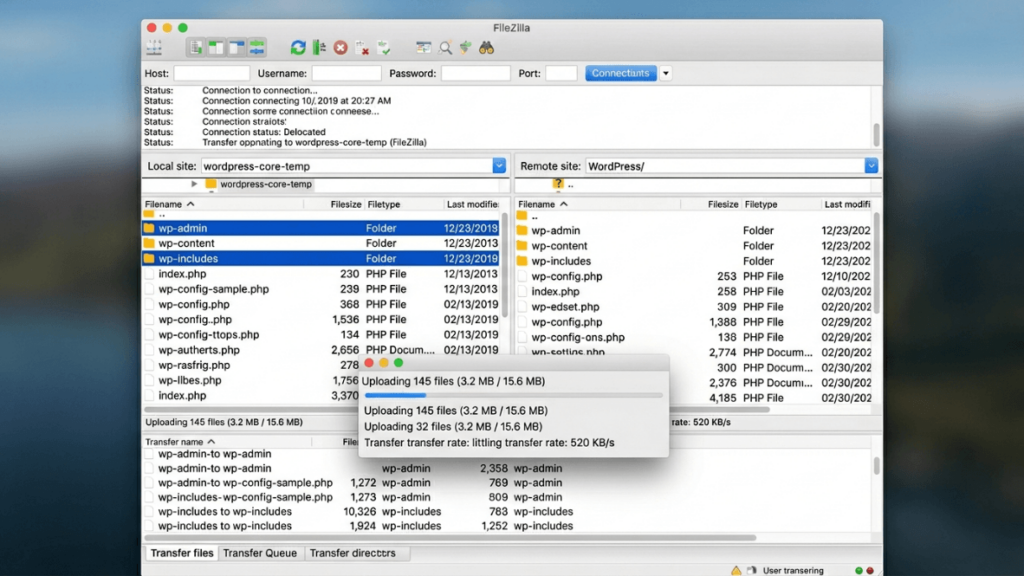
- Connect via FTP and upload the wp-admin and wp-includes folders to your site root, overwriting the existing ones.
- Upload the individual root-level files (wp-login.php, wp-settings.php, index.php, and so on), overwriting the existing ones.
- Do NOT upload or overwrite the wp-content folder. This holds your themes, plugins, and uploaded media.
- Reload your site.
Note: This step is safe only if wp-content is excluded. It’s the highest-risk step in this entire troubleshooting flow if done incorrectly. Leave wp-content completely untouched during upload.
What If the Error Isn’t Plugins, Themes, Memory, or Core Files?
If your debug.log shows no PHP Fatal error at all after a full reinstall, the cause is likely a server, storage, or database issue rather than anything inside WordPress itself.
This is the gap competing guides leave open: they cover plugin, theme, memory, and PHP causes thoroughly, then stop. A small share of critical errors come from outside the WordPress install entirely.
Advanced Causes to Investigate
- Check your hosting storage quota. A full disk can block WordPress from writing temporary files or logs, triggering this error with no clear debug.log entry. Your hosting control panel shows current storage usage.
- Check for a database connection issue. If debug.log shows a database connection error instead of a PHP Fatal error, the cause is your database credentials or server, not your files. Verify the DB_NAME, DB_USER, and DB_PASSWORD values in wp-config.php match what your host has on record.
- Rule out a server-level outage. Occasionally, the critical error coincides with a host-side disruption unrelated to your site. Check your host’s status page or contact support to confirm the server itself is healthy.
These causes sit outside what a site owner can typically fix through FTP alone. If you’ve confirmed one of them, this is the point to involve your host’s support team or a developer, rather than continue troubleshooting WordPress files.
When to Call in a Developer
🛠 When to bring in a developer (escalation checklist): Bring in a developer if any of the following are true:
- You’ve completed plugin isolation, theme isolation, memory limit increase, PHP version update, and a full core file reinstall, and the error still appears.
- Your debug.log shows no PHP Fatal error line at all, even after reproducing the error.
- The cause traces to a database connection error rather than a plugin, theme, or PHP issue.
- You don’t have FTP or hosting panel access, and your host can’t restore it quickly.
At that point, continued guessing tends to create new problems rather than resolve the original one.
What Should You Avoid When Fixing a WordPress Critical Error?
The most common mistakes when fixing a WordPress critical error are editing files without a backup, deleting plugin folders instead of renaming them, and restoring an old backup before identifying the actual cause.
Mistakes and Safer Approaches
| Mistake | Why It’s Risky | Safer Approach |
|---|---|---|
| Deleting a plugin folder to deactivate it | Permanently removes plugin settings and configuration data | Rename the folder (add “_old”). Deactivates without losing anything. |
| Editing wp-config.php without a local backup copy | A single typo creates a different, harder-to-diagnose error | Download a copy of wp-config.php to your computer before editing, so you can restore instantly. |
| Restoring an old backup before finding the cause | Overwrites recent content and may not fix a server-level root cause | Identify the cause with debug mode first. Restore only if the cause can’t be fixed directly. |
| Leaving WP_DEBUG enabled on a live site | Exposes detailed PHP error messages to every visitor, a security and trust issue | Set WP_DEBUG back to false as soon as debug.log has captured the error. |
| Raising WP_MEMORY_LIMIT without checking the server cap | Hosting providers can hard-cap memory. A wp-config.php change alone may not work. | If the limit change has no effect, contact your host or isolate the memory-leaking plugin. |
How Can You Prevent the WordPress Critical Error From Happening Again?
You prevent this error from recurring by updating plugins and themes one at a time on a staging site, keeping automatic backups, and monitoring your PHP version and memory usage.
- Test updates on a staging site before going live.
- Keep automatic, offsite backups running.
- Check your debug log occasionally, even when the site works. Warnings often precede fatal errors by days or weeks.
- Consider a WordPress maintenance plan for business or client sites that includes proactive monitoring and priority recovery.
Frequently Asked Questions
Conclusion
“There has been a critical error on this website” looks alarming, but it almost always follows a predictable troubleshooting path: plugin, theme, memory, PHP version, core files, or, in rarer cases, the server itself.
Here are your next three steps:
- Check your site admin email for the WordPress Recovery Mode notification before doing anything else.
- Enable WP_DEBUG and match the exact error line in your debug.log against the signature table near the top of this guide.
- Work through the matching fix. If the error persists after a full core file reinstall, or your debug.log shows nothing at all, that’s the signal to bring in a developer rather than keep guessing.
Need a developer to handle this directly? WPBrigade’s WordPress Development services are built for exactly this situation. Sites recovered, no data lost. If speed is the goal, start with my WordPress speed optimization guide.
Further reading:
Leave a Reply