
To access WordPress admin with a fatal error, open the recovery mode link WordPress emails to the site admin, or deactivate plugins by renaming the plugins folder over SFTP. If that fails, switch to a default theme, check PHP errors, restore a backup or contact your host.
A fatal error warning can lock you out of your dashboard. The eight fixes below work in order, from quickest to most involved.
Fatal Error Warning in WordPress (TOC):
Here are the eight fixes for a WordPress fatal error at a glance.
| Fix | When to Use It |
|---|---|
| 1. Recovery mode | You received the WordPress recovery mode email |
| 2. Deactivate all plugins | The error started after a plugin install or update |
| 3. Switch to a default theme | The error started after a theme change or update |
| 4. Check PHP errors | You need the exact file and line causing the error |
| 5. Check for malware | You see unknown files or code |
| 6. Clear your site cache | The error page still shows after a fix |
| 7. Restore a backup | Nothing else works and you have a recent backup |
| 8. Contact your host | Server limits or PHP version problems are likely |
What are WordPress Fatal Errors?
WordPress Fatal Errors occur when a critical issue prevents WordPress from functioning correctly. As a result, the site becomes inaccessible to visitors and administrators.
Typically, these errors occur due to conflicts between themes, plugins, or server misconfigurations.
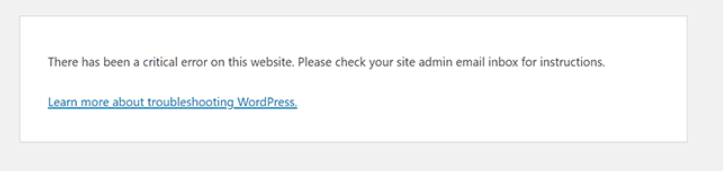
For example, if you’re trying to reach your admin, and your site has fallen victim to a fatal error, it will look something like this:
What are the Most Common Types of WordPress Fatal Errors?
The most common types of fatal errors include:
- PHP Errors: Faulty PHP code, such as syntax errors, can cause fatal errors for a site.
- Memory Limit Exhaustion: You can also get this error if a script exceeds the memory limit.
- Plugin/Theme Conflicts: Sometimes, incompatible or poorly coded plugins or themes may also cause fatal errors.
- Missing/Corrupted Files: WordPress shows a fatal error when core files, themes, or plugins are missing or corrupted.
- Database Connection Issues: If your WordPress site fails to connect to the database, you will see this error.
8 Solutions to Access WordPress Admin with a Fatal Error Warning
Use these eight solutions in order to get back into WordPress admin after a fatal error.
1. WordPress Recovery Mode
WordPress now automatically detects when your site encounters plugin or theme conflicts. To help you resolve the situation, WordPress sends an error log and recovery mode link to the site admin email.
So, if you’re locked out of your WordPress site due to a critical error, WordPress will activate Recovery Mode. You’ll receive an email with a recovery link to access the site and fix the issue without accessing the backend directly.
Here is what one of these emails looks like:
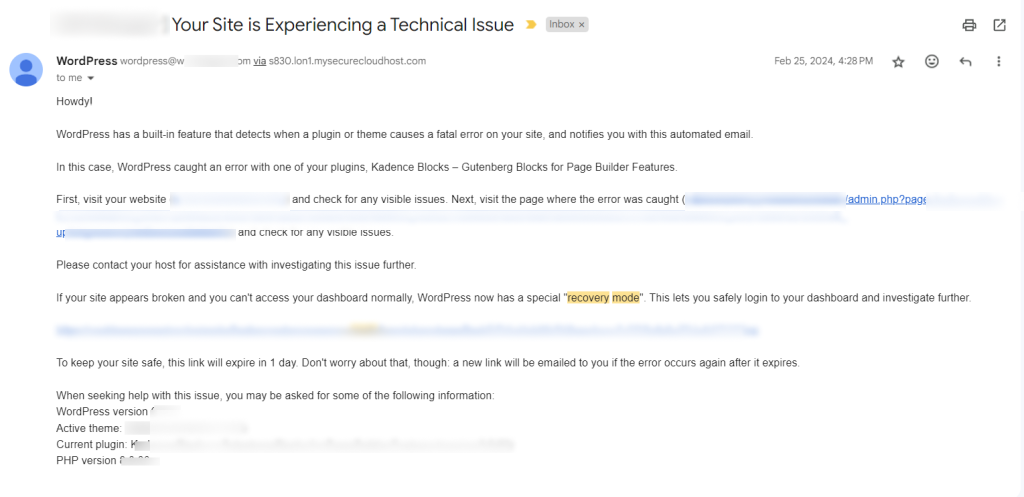
Select the recovery mode. Then, deactivate the plugin or theme that caused the problem.
You’ll regain access to your site once you deactivate the plugins or themes that caused trouble.
If it doesn’t work, try the other steps on this list.
You may also like: Which WordPress Plugins Are Slowing Down Your Website?
2. Deactivate All Plugins
Didn’t receive a WordPress recovery email? You can deactivate all WordPress plugins instead.
Since you’re logged out of WordPress admin, you can access your WordPress site using FTP (File Transfer Protocol).
You need to log into your FTP, go to the file manager, and navigate to the wp-content/plugins directory.
Next, rename the plugins folder.
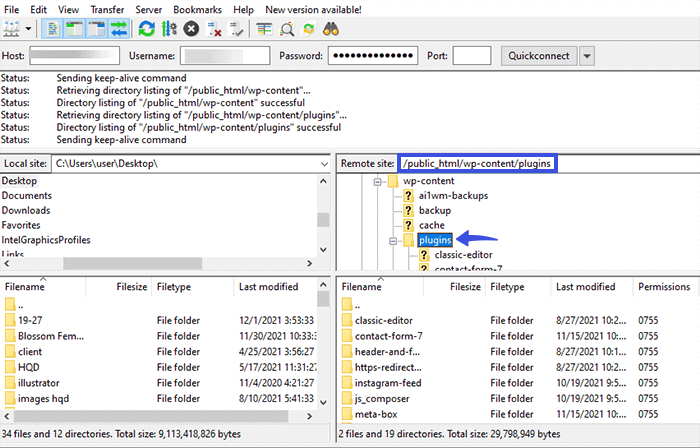
This automatically deactivates all the plugins on your site.
Now, try to log into your site. If you succeed, one of your plugins caused the fatal error.
Next, you can reactivate each plugin individually to identify the conflicting plugins.
3. Switch to a Default WordPress Theme
If the issue persists after deactivating plugins, try switching to a default WordPress theme like Twenty Twenty-Five.
This will help determine if the issue lies within your theme.
Go to FTP or your hosting control panel to access the wp-content/themes directory.
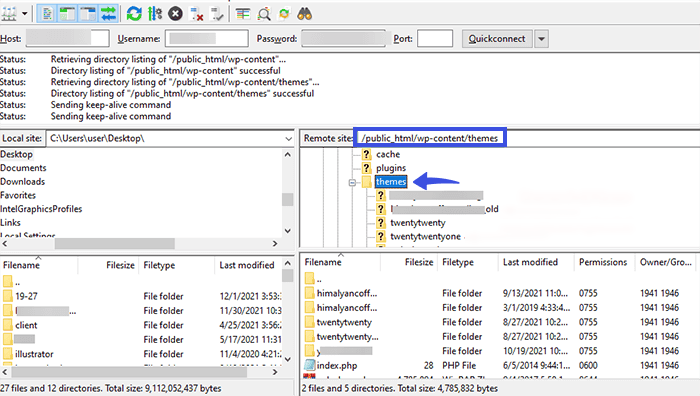
Next, rename your active theme’s folder. Doing so deactivates the theme, which should restore access to your site.
4. Check for PHP Errors
Errors in PHP files can also cause the site to display fatal errors.
Remember, PHP errors appear when there is a syntax fault or a resource limit is reached. They could also result from conflicts inside your WordPress code.
You can check for PHP errors by enabling WP_DEBUG in your wp-config.php file. This will help identify any coding issues causing the problem.
To resolve this issue, you must log into your WordPress files via FTP. Next, search for the wp-config.php file in the root directory of your WordPress installation.
Now, download the file or edit it directly.
Add the following PHP code to the end of the line:
PHP

define('WP_DEBUG', true);

define('WP_DEBUG_DISPLAY', true);

define('WP_DEBUG_LOG', true);
It will create a debug log file (debug.log) for you in the wp-content folder. This log file has detailed information about the errors, such as:
- Error messages
- Line numbers
- File locations
You can use it to identify the source of the error. You can start troubleshooting once you identify the PHP error causing the fatal error.
Note: If you’re not comfortable debugging WordPress files, it is better to hire a developer.
5. Check for Malware
Malware can also crash your WordPress site.
So, it is always better to have a security plugin, such as Wordfence or Sucuri, installed and activated on your site.
Note: If you want to select a WordPress security plugin for your site, see our detailed guide on 9 Best WordPress Security Plugins.
These plugins scan your site for malware on an ongoing basis. Plus, you can schedule scanning at regular intervals.
This is how you can stay informed about your site’s health and promptly remove malware if detected.
6. Clear Your Site Cache
Cached versions of your site may still show errors or old content.
Clear your WordPress site’s cache (if you use a caching plugin) and your browser cache, so you see the latest version of the site.
To clear your site cache, access your site’s root directory from your hosting control panel.
Next, open wp-content and delete the cache folder and the advanced-cache.php file.
Now, it’s time to clear your web browser’s cache. When done, reload the page and check if the error persists.
7. Restore from Current Backup
If troubleshooting isn’t resolving the fatal error, restore your site from the most recent backup.
Many hosting providers offer automatic backups for emergencies. Choose one that offers daily automatic backups.
If you lose data, you can restore it to its most recent state.
All you need to do is to log into your hosting provider and go to the backup option.
Note: If you want to choose the best hosting provider with backup options, see our detailed guide on best WordPress hosting providers.
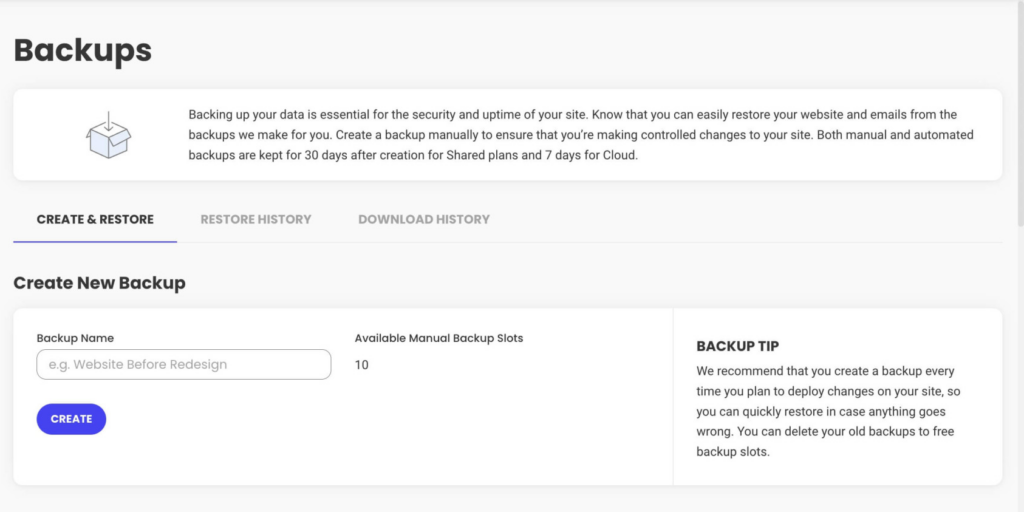
For example, SiteGround offers automatic backup. You can use these backups to restore your site altogether. Even if you have multiple sites on this server, you can back up and restore them with just a single click.
You can also back up selected parts of your site, such as:
- Files
- Databases
- Emails
Other than daily backups, SiteGround offers manual and hourly backups, plus backup downloads.
See the image below:
8. Contact Your Hosting Provider
If you can’t resolve the issue alone, contact your hosting provider for help.
They can help with server-side issues, investigate deeper causes, like database or permission errors, and provide tips and helpful resources to help you fix fatal errors.
Bonus: Strengthen Your WordPress Login Page
Once you are back in, protect the login page so attackers cannot use the same moment of weakness. LoginPress adds reCAPTCHA, login limits and a branded login page.
LoginPress is a WordPress login page customizer plugin with essential features to help protect your site from cybercriminals, such as:
- Limit Login Attempts
- Hide Login
- reCAPTCHA
- Session Expire
- Login Redirects
- Social Login
- Login Widget
- Auto Login
Upgrade to LoginPress Pro now to strengthen default WordPress login security.
Access WordPress Admin with a Fatal Error Warning (FAQ)
A Fatal Error notification for WordPress is displayed on your screen whenever something goes wrong on your site, such as a theme or plugin conflict.
A fatal WordPress error is seen when the site’s PHP code encounters any issue. Some common causes include plugin or theme conflicts, outdated or incompatible PHP versions, exhausted memory limits, or syntax errors in custom code.
You can easily fix fatal errors on WordPress by deactivating all plugins, switching to the default theme, increasing your PHP memory limit, and clearing the cached files. You can also remove and re-add core WordPress files and use an error check plugin.
A fatal WordPress error can be quite frustrating and hurt a site’s user experience. So, it’s better to find out the root cause as soon as possible and fix it.
There are multiple types of fatal errors. The solution will depend on the type of fatal error you are encountering. For example, if plugins are the root cause, you can resolve it by deactivating all your plugins.
LoginPress, a login page customizer plugin, can quickly secure the WordPress login page. It has everything to help you strengthen your login page, such as Limit Login Attempts, Hide Login, reCAPTCHA, Session Expiry, and much more.
The White Screen of Death happens when a fatal error occurs, and WordPress cannot render the page due to PHP errors.
Final Thoughts
To summarize, we’ve covered multiple ways to fix the fatal error warning and access the WordPress admin dashboard.
These steps help you fix the fatal error and get back into WordPress admin.
Here are the key takeaways:
- 1. WordPress Recovery Mode
- 2. Deactivate All Plugins
- 3. Switch to a Default WordPress Theme
- 4. Check for PHP Errors
- 5. Check for Malware
- 6. Clear Your Site Cache
- 7. Restore from Current Backup
- 8. Contact Your Hosting Provider
Try them now to ensure your WordPress site’s success.
It is better to take proactive measures that protect your site from fatal errors. You can add automatic updates for WordPress core files, plugins, and themes. In addition, choose a plugin or theme with a reputable developer and regular security audit, and use a powerful CDN and hosting provider for your site. For the speed side of this, see how I’d optimize a slow WordPress site.
That’s all for this article!
You may also like these helpful articles:
- Magento vs WordPress: Ultimate Comparison (2026)
- WordPress vs HubSpot: Best CMS Comparison (2026)
- WordPress vs Squarespace vs Wix: Which One is Best in 2026?
- ClickFunnels vs WordPress: A Detailed Comparison (2026)
Do you know any other solution to prevent fatal WordPress errors?
Let us know in the comment section below.

Leave a Reply