
A client asked about your site’s ADA compliance, and you had nothing solid to say. Or it was a lawyer’s letter. Or a competitor’s lawsuit hit the local news, and your stomach dropped.
I’ll give you the straight answer: what is ADA compliance, how WCAG fits into it, and what to check on your own WordPress site today.
This guide covers the legal definition, what the ADA actually says about websites, what happens if you skip compliance, how testing works, and a WordPress-specific checklist you can start on right now.
Table of contents
- What Is ADA Compliance?
- What Does the ADA Actually Say About Websites?
- How Does WCAG Relate to ADA Compliance?
- What Happens If Your Website Isn’t ADA Compliant?
- What Is ADA Compliance Testing and How Does It Work?
- Is ADA Compliance a Legal Requirement for Your Website?
- What Does an ADA Compliant Website Checklist Look Like for WordPress?
- Should You Use an Accessibility Overlay Widget?
- How Can WPBrigade Help You Become ADA Compliant?
- FAQs About ADA Compliance
- Conclusion
What Is ADA Compliance?
ADA compliance means making a website’s content and functionality usable by people with disabilities, based on standards set by the Americans with Disabilities Act and interpreted through WCAG. It covers things like alt text for images, keyboard-only navigation, readable color contrast, and properly labeled forms. The ADA itself does not list technical requirements, so WCAG fills that gap.
The ADA became law in 1990, and it was written for physical spaces such as stores, restaurants, and offices. Courts have since applied the same principles to websites, treating a commercial site as a “place of public accommodation” the same way a storefront is.
So what does ADA compliance for websites actually mean in practice? It means your site follows WCAG guidelines closely enough that a person using a screen reader, a keyboard, or assistive technology can use it the same way anyone else can. That is the full scope of ADA compliance accessibility: a working website, not a legal loophole.
What Does the ADA Actually Say About Websites?
The ADA does not explicitly mention websites, but courts and the Department of Justice have consistently applied Title III to commercial websites as places of public accommodation. This has been true for over a decade of case law, even without a single sentence in the original 1990 text naming the internet.
Title III covers private businesses that are open to the public: retailers, restaurants, service providers, and any commercial site selling to or serving customers. If your business would need a wheelchair ramp in a physical location, your website likely falls under the same reasoning online. You can read the full regulation on ADA.gov’s Title III page.
A separate rule applies to government sites specifically. In April 2024, the Department of Justice issued a rule under Title II requiring state and local government websites to meet WCAG 2.1 Level AA, detailed in the DOJ’s official fact sheet on the rule. This is a distinct mandate from Title III, enforced through published rules rather than lawsuits, which is exactly why the “ADA website compliance requirements” facing a government site look so different from the ones facing a private business.
How Does WCAG Relate to ADA Compliance?
WCAG (Web Content Accessibility Guidelines) is the technical standard that courts and businesses use to define what ADA compliance actually requires, since the ADA itself sets no technical criteria. Think of the ADA as the law and WCAG as the instruction manual for following it. The full standard is published and maintained by the W3C’s Web Accessibility Initiative.
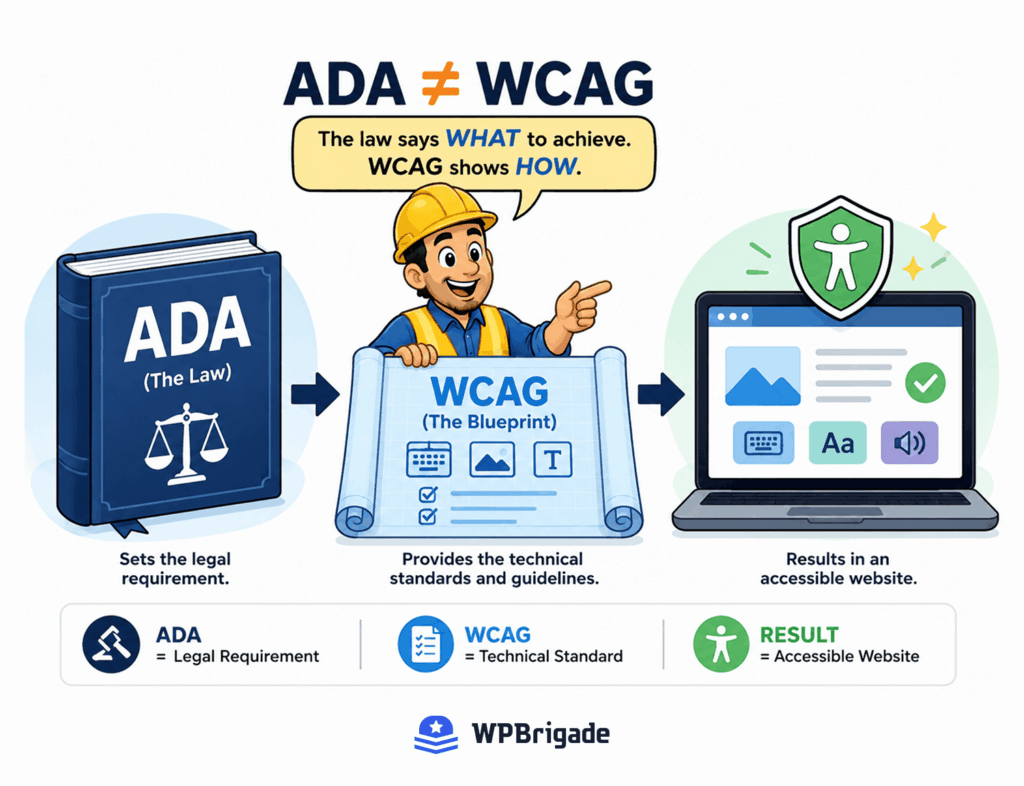
Seeing the two side by side makes the relationship click faster than any explanation:
| ADA | WCAG | Section 508 | |
|---|---|---|---|
| What it is | A U.S. civil rights law | A technical standard published by the W3C | A federal accessibility law for government technology |
| Sets technical rules? | No, it names no specific criteria | Yes, detailed, testable success criteria | Yes, and it now points to WCAG 2.0 Level AA as its baseline |
| Who it applies to | Businesses and public accommodations serving the public | Any organization that adopts it as a benchmark | Federal agencies and federal contractors |
| Who enforces it | Courts, through lawsuits and DOJ rulings | Not legally binding on its own, it works through adoption | Federal compliance reviews and procurement rules |
Once you see that layout, the confusion mostly clears up. The ADA sets the legal obligation, WCAG sets the technical target, and Section 508 shows how a different part of government already leaned on WCAG to make its own rules concrete.
WCAG organizes every guideline under four principles, known by the acronym POUR. Here is what each one means:
| Principle | What It Means | Example |
|---|---|---|
| Perceivable | Content must be presented in ways users can perceive, regardless of sense used. | Alt text for images, captions for video |
| Operable | All functionality must work via keyboard, not just a mouse. | Tab-navigable menus and forms |
| Understandable | Content and navigation must be predictable and readable. | Clear labels, consistent navigation |
| Robust | Content must work with current and future assistive technology. | Clean, standards-compliant HTML |
Within POUR, WCAG defines three conformance levels: A, AA, and AAA. WCAG 2.1 Level AA is the de facto legal benchmark referenced by the DOJ and most court rulings, including the majority of ADA website settlements. Here is how the levels compare:
| Level | What It Covers | Legal Relevance |
|---|---|---|
| A | Minimum accessibility features | Insufficient alone for most ADA defense |
| AA | Addresses the most common barriers | The de facto legal and practical benchmark |
| AAA | Highest possible accessibility | Rarely required or fully achievable site-wide |
Aim for WCAG 2.1 Level AA. Not Level A, and you don’t need full AAA either. One thing to know: WCAG 2.2 now exists too, adding criteria for cognitive and learning disabilities plus stronger keyboard navigation rules. WCAG 2.2 builds on 2.1; it does not replace it, so a site built to 2.1 AA is not automatically outdated.
What Happens If Your Website Isn’t ADA Compliant?
A non-compliant website exposes a business to demand letters, lawsuits, and settlement costs, on top of excluding a real share of potential customers. This is not a hypothetical risk. It is a measurable and growing one.
Here is what the current data shows:
- Plaintiffs filed 5,114 digital accessibility lawsuits in U.S. state and federal courts in 2025, up from 4,187 in 2024 (source: accessiBe/UsableNet lawsuit tracking data)
- Federal courts accounted for 62% of filings, with New York and California state courts making up most of the remaining 38%
- The average ADA website lawsuit settlement lands around $35,000, and that figure does not include your own legal defense fees
- California’s Unruh Act adds state-level statutory damages of $4,000 or more per violation, on top of any federal exposure
These numbers reflect general trends reported by accessibility lawsuit trackers, not a guaranteed outcome for any specific case. Every situation is different.
Beyond the legal cost, there is reputational damage to consider. A public lawsuit, even a settled one, can show up in searches next to your business name. And there is a simpler cost that gets overlooked: lost customers. A site that a screen reader user cannot navigate is a site that user cannot buy from, no matter how good your product is.
What Is ADA Compliance Testing and How Does It Work?
ADA compliance testing means checking a website against WCAG success criteria using a combination of automated scanning tools and manual review by a human. Neither approach alone gives you the full picture.
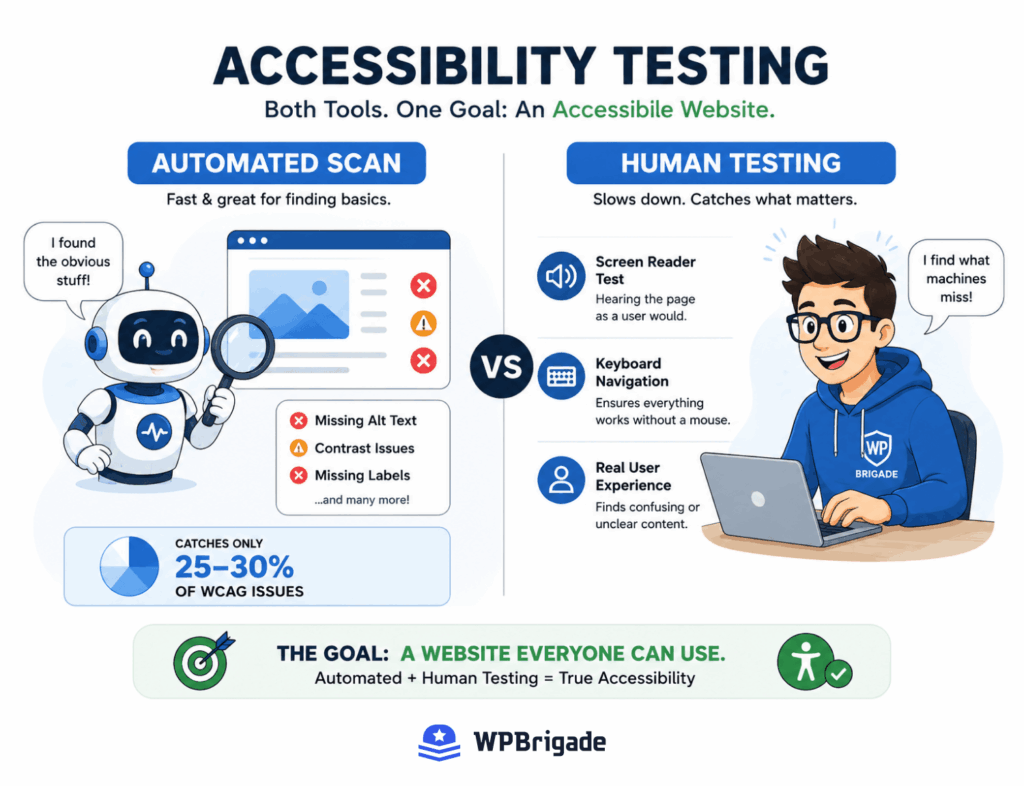
Automated testing is fast. It scans your pages and flags missing alt text, poor contrast ratios, and unlabeled form fields within seconds. Tools in this category include browser extensions, screen readers like NVDA and VoiceOver, and paid scanning platforms that crawl an entire site.
Manual testing is slower but catches what automated scans cannot. This means navigating your site with a screen reader, tabbing through every page using only a keyboard, and applying real human judgment to whether an experience actually makes sense.
Here is the part most site owners do not realize: automated tools catch only about 25 to 30% of WCAG technical requirements. A scan can confirm an image has alt text. It cannot confirm the alt text accurately describes the image. That gap is exactly why automated-only testing is not enough for genuine compliance confidence.
Is ADA Compliance a Legal Requirement for Your Website?
State and local government websites face an explicit legal mandate to meet WCAG 2.1 Level AA. Private business websites face a less explicit but very real lawsuit risk under Title III.
No single federal law states “every commercial website must comply” in plain terms. But courts have ruled on ADA website cases often enough, and consistently enough, that treating compliance as a real legal requirement is the safer and more accurate way to think about it if your business serves the public.
Rather than a blanket “you are legally required” statement that does not fit every reader’s situation, look at it this way: the practical risk of an inaccessible website grows every year, and the cost of fixing it upfront is almost always lower than the cost of defending a claim later.
What Does an ADA Compliant Website Checklist Look Like for WordPress?
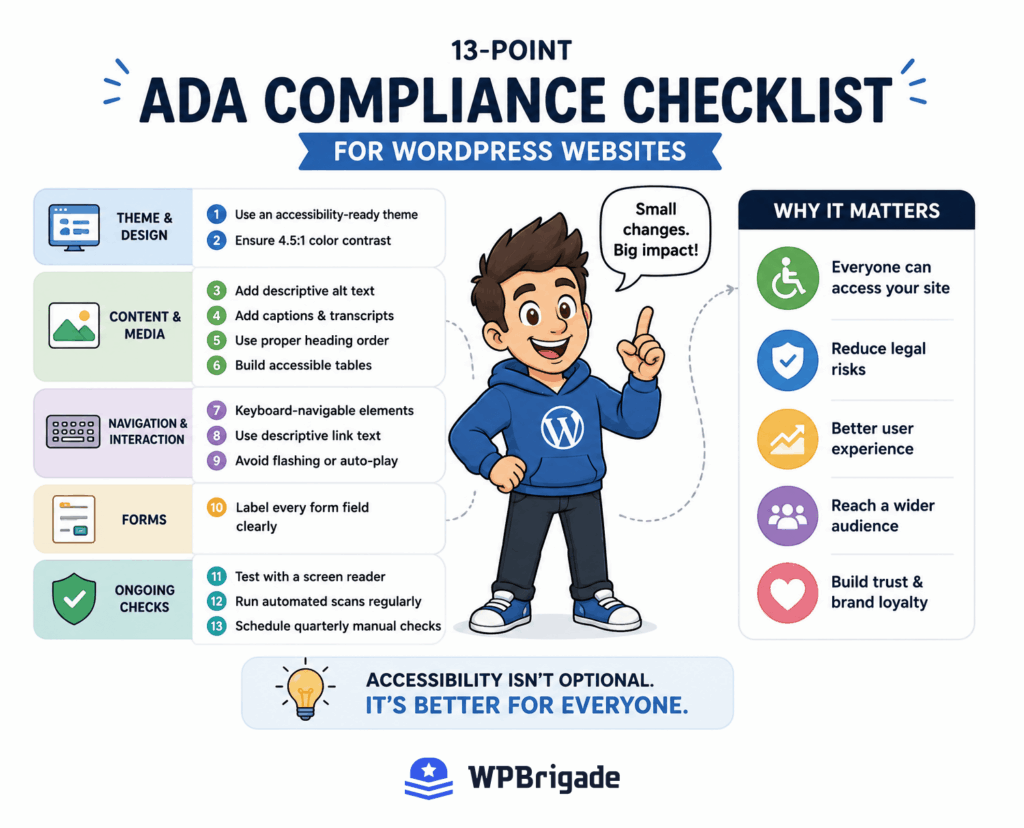
An ADA-compliant WordPress checklist covers theme selection, content structure, media, forms, and navigation, each checked from inside your WordPress dashboard. This is the section I’d start with if I only had one hour to spend today.
Here’s exactly what to check, grouped by area:
Theme & Design
- Choose an “accessibility-ready” tagged theme from the WordPress Theme Directory as a starting point, not a finish line. Our guide to WordPress accessibility covers what that tag does and doesn’t guarantee.
- Check color contrast meets a 4.5:1 ratio for normal text using the Customizer or a contrast-checker plugin. Low-contrast theme defaults are one of the most common issues I see on real WordPress scans.
- Keep heading structure in logical order (H1 → H2 → H3) instead of skipping levels for visual styling. Screen readers rely on heading order to navigate a page.
Content & Media 4. Add descriptive alt text to every image in the Media Library, not just the ones on the homepage. Missing alt text is consistently one of the top errors flagged in WordPress accessibility scans. 5. Add captions and transcripts to any embedded video or audio content. Without them, deaf and hard of hearing visitors get nothing from that content. 6. Rebuild any tables with the Classic block, or a dedicated accessible-table plugin, instead of the default Gutenberg table block, which lacks proper header markup. This is a WordPress-specific issue that generic accessibility checklists rarely mention.
Navigation & Interaction 7. Make every interactive element keyboard-navigable by tabbing through the site without a mouse. If you get stuck on a menu or a popup, so will a keyboard-only visitor. 8. Replace vague link text like “click here” with descriptive anchor text. Screen reader users often scan a page by jumping link to link, out of context. 9. Avoid any auto-playing animation or flashing content that could trigger seizures. This is a WCAG requirement, not a design preference.
Forms 10. Label every form field clearly, and never rely on placeholder text alone as a label. Placeholder text disappears the moment someone starts typing.
Ongoing Checks 11. Test the full site with a free screen reader, NVDA or VoiceOver, at least once. Five minutes of real navigation reveals problems no scanner will catch. 12. Run a free automated scan, WAVE or Lighthouse, after any major content or theme update. New content can quietly reintroduce old errors. 13. Schedule a recurring manual accessibility check, at minimum quarterly, since new content can reintroduce old errors between scans.
What About Page Builders and WooCommerce Checkout?
Page builder plugins add their own accessibility quirks on top of your theme’s, a tradeoff worth weighing alongside the ones covered in our custom WordPress development vs. page builders comparison.
Elementor widgets often swap real heading tags for styled text, breaking screen reader navigation.
Divi toggles and accordions frequently ship without ARIA attributes, so screen readers may miss that they’re interactive.
Beaver Builder rows built from visual columns can scramble reading order even when the layout looks correct. Check the tab order with your keyboard.
Gutenberg buttons and columns can lose their focus outline if a theme strips default styling.
WooCommerce checkout pages combine forms and dynamic content, a frequent lawsuit target. Watch for unlabeled fields, low-contrast errors, and a “Place Order” button with no focus visibility.
Test the actual pages you built with a builder, not just the theme underneath it.
Should You Use an Accessibility Overlay Widget?
AI-powered accessibility overlay widgets promise instant compliance by adding a script to your site, but they don’t fix the underlying code and have themselves been named in accessibility lawsuits. I want to be straightforward about this, because most articles on this topic exist specifically to sell you one.
Overlay widgets can help with surface-level adjustments: font size toggles, contrast switches, and simple display changes. What they cannot do is fix broken HTML structure, missing form labels, or navigation that is genuinely inaccessible at the code level. A script running on top of your site cannot rewrite the markup underneath it.
Here’s why that matters: no tool, overlay or otherwise, can guarantee full legal compliance, because compliance depends on your actual code and content, not a layer sitting on top of them. If a vendor promises “one-click ADA compliance,” treat that as a red flag rather than a shortcut.
How Can WPBrigade Help You Become ADA Compliant?
WPBrigade audits WordPress sites against WCAG 2.1 Level AA and fixes accessibility issues at the theme and code level, not with a bolt-on overlay. This is where WordPress ADA compliance services from WPBrigade make the process significantly easier for site owners who do not have the time or in-house expertise to fix this themselves.
The process runs in four stages: a full accessibility audit of your site, a prioritized list of fixes ranked by risk and impact, manual remediation of the actual theme, forms, and markup, and a follow-up scan to confirm the fixes hold.
I will not tell you WPBrigade guarantees zero lawsuit risk, because no honest vendor can promise that. What WPBrigade does deliver is a site that is materially lower-risk and genuinely more usable for real visitors, built through manual, root-cause work rather than a script layered on top. If the audit turns up deeper issues, WordPress development services can rebuild the affected templates properly instead of patching around them, and ongoing WordPress maintenance keeps new content from quietly reintroducing the same errors later.
FAQs About ADA Compliance
Conclusion
ADA compliance means meeting WCAG 2.1 Level AA standards on your website, and it’s an ongoing process, not a one-time fix or a script you install.
Here is what I would do next, in this order:
- Run a free automated scan (WAVE or Lighthouse) on your homepage and one interior page to see where you currently stand.
- Work through the WordPress checklist in this guide, starting with alt text, contrast, and form labels.
- Schedule a professional audit if your site handles transactions, forms, or serves a large public audience.
Get a full WordPress accessibility audit from WPBrigade and find out exactly where your site stands before it becomes a legal problem.
Further Readings:
Leave a Reply