

Disclaimer: If you face any issues with our new update and need timely assistance, contact our dedicated support team or explore our WordPress.org support section.
Related Posts Thumbnails 6.0 replaces the old settings page with a new dashboard built in React. The release also adds a one-time settings upgrade. Top Text is now plain text, with a new Title Tag dropdown for the heading level. Two security fixes round it out.
Your saved settings carry over to version 6.0. Update, open Related Posts in your WordPress dashboard, and click Proceed once. That is all most sites need to do.
Below is a quick summary table, then each change in detail.
Table of contents
- What Is New in the Related Posts Thumbnails 6.0 Dashboard?
- How Do the Guided Settings Work?
- What Does the One-Time Settings Upgrade Do?
- What Changed With Top Text?
- Which Security Fixes Are in Related Posts Thumbnails 6.0?
- Should You Update to Related Posts Thumbnails 6.0?
- FAQs About Related Posts Thumbnails 6.0
| Change in 6.0 | What It Does | Action Needed |
|---|---|---|
| React settings dashboard | A faster, cleaner settings screen | None, it loads after you update |
| Guided settings | Shows only relevant options and flags invalid values | None |
| One-time settings upgrade | Moves saved settings to the new storage format | Click Proceed once |
| Plain-text Top Text | Heading level now set in the Title Tag dropdown | Check your heading level |
| Security fixes | Cleans block titles and limits cache cleanup to admins | Update to 6.0 |
What Is New in the Related Posts Thumbnails 6.0 Dashboard?
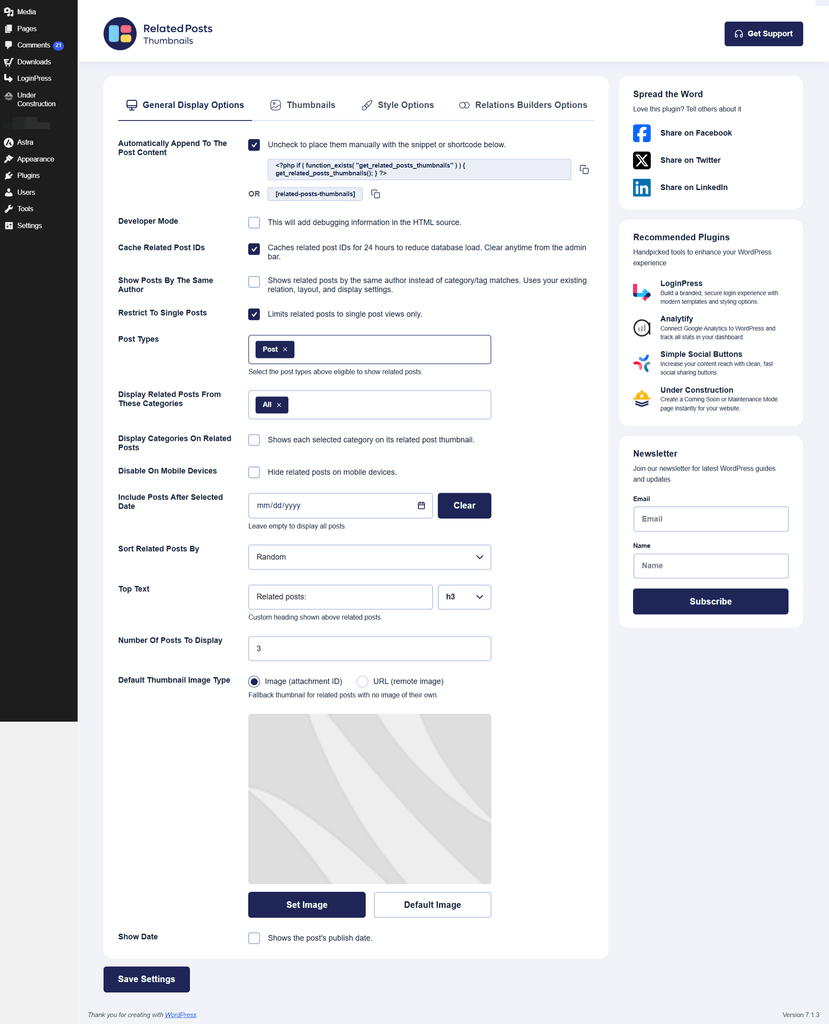
The Related Posts Thumbnails 6.0 dashboard is a settings screen rebuilt from scratch in React. To open it, go to your WordPress dashboard and click Related Posts in the left menu.
The new dashboard loads quicker and is easier to move around. One Save Settings button saves everything. The page does not reload. A “Settings updated” message confirms the save worked.
How Do the Guided Settings Work?
The guided settings in Related Posts Thumbnails 6.0 adapt to your choices and check values before you save. Here is what that means in practice:
- Options appear only when they apply. You skip settings you are not using.
- Invalid values are flagged right away. You see the problem before you save.
- Saves give clear feedback. A confirmation message shows after each save.
- The layout works on mobile. You can manage settings from your phone.
| Dashboard Feature | What You See | Why It Helps |
|---|---|---|
| Conditional options | Fields show only when relevant | Less scrolling, fewer wrong settings |
| Live validation | Errors flagged before saving | No broken values on your live site |
| Single Save Settings button | One save for all changes | Nothing gets left unsaved |
| Mobile-ready layout | Settings fit small screens | Quick changes from your phone |
Want a refresher on each option? Our Related Posts general settings guide explains what each one controls.
What Does the One-Time Settings Upgrade Do?
The one-time settings upgrade moves your saved Related Posts Thumbnails settings into a new, tidier storage format. It runs once, and only after you confirm it.
Follow these steps to complete the upgrade:
- Take a backup of your site.
- Update Related Posts Thumbnails to version 6.0.
- Click Related Posts in your WordPress dashboard menu.
- Wait for the Upgrade settings storage window to open.
- Click Proceed to carry your existing values over.
- Review your settings and click Save Settings if you change anything.
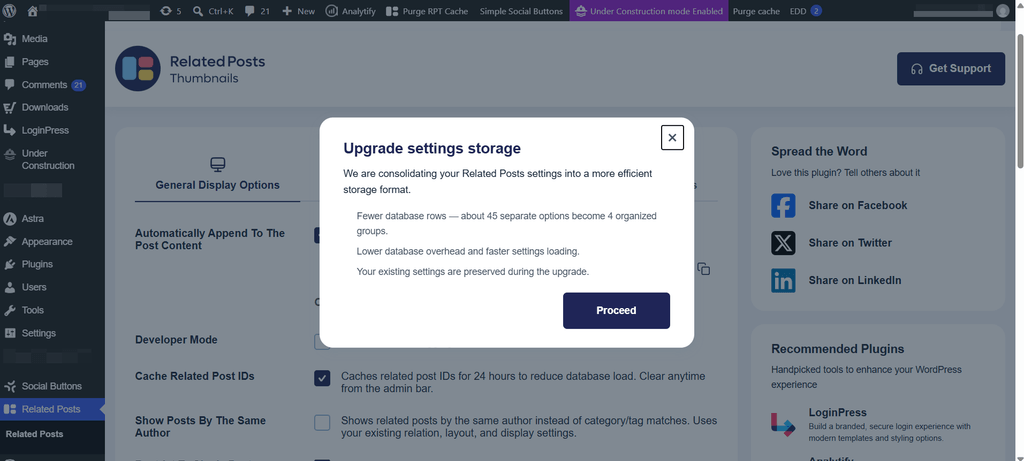
The upgrade window will not appear again after you click Proceed. A backup first is a simple safety net for any settings change.
What Changed With Top Text?
Top Text in Related Posts Thumbnails 6.0 accepts plain text only. Top Text is the heading shown above your related posts. Its heading level now comes from a new Title Tag dropdown, with options from H1 to H6.
| Setting | Before 6.0 | In 6.0 |
|---|---|---|
| Top Text content | Could include a heading tag | Plain text only |
| Heading level | Set with a tag inside Top Text | Chosen in the Title Tag dropdown (H1 to H6) |
| Existing heading tags | Stored inside Top Text | Converted for you by the upgrade |
If your Top Text used a heading tag before, the one-time upgrade converts it. Check the Title Tag dropdown afterward to confirm the level you want. Most themes suit H2 or H3 here.
Which Security Fixes Are in Related Posts Thumbnails 6.0?
Related Posts Thumbnails 6.0 includes two security fixes:
- Safer block titles. The title field in the Related Posts block is now cleaned before it shows on your site.
- Admin-only cache cleanup. Only administrators can now clear the Related Posts Thumbnails cache.
Both fixes apply as soon as you update. You do not need to change any settings. To learn what the cache stores, read how the Related Posts Thumbnails cache works.
Should You Update to Related Posts Thumbnails 6.0?
Yes, we recommend updating every site to Related Posts Thumbnails 6.0. The security fixes alone make it worth it. You get them even if you never open the new dashboard.
The update takes a few minutes on most sites. Back up, update, click Proceed, and check your Top Text heading level. Coming from an older version? See what changed in Related Posts Thumbnails 5.0 too.
FAQs About Related Posts Thumbnails 6.0
Related Posts Thumbnails 6.0 adds a new settings dashboard built in React. It also adds a one-time settings upgrade, plain-text Top Text with a Title Tag dropdown, and two security fixes. The fixes clean block titles and limit cache cleanup to administrators.
No. The one-time upgrade carries your existing Related Posts Thumbnails settings over after you click Proceed. Take a site backup before you update as a precaution.
The Related Posts Thumbnails 6.0 settings are under Related Posts in the left menu of your WordPress dashboard. All options save with one Save Settings button.
Top Text in Related Posts Thumbnails 6.0 is plain text only, so heading tags no longer work inside it. Choose the heading level in the Title Tag dropdown instead. Pick any level from H1 to H6, then click Save Settings.
Yes. Related Posts Thumbnails can show related posts through a shortcode, a Gutenberg block, a sidebar widget, or a PHP template function. You can also turn off automatic placement and choose where related posts appear by post type, page type, and category.
Only administrators can clear the cache in Related Posts Thumbnails 6.0. This change is one of the two security fixes in the release.
Something not working the way this post describes? Reach out to our support team, and we will help.

Leave a Reply