
The Add Social Accounts feature in our plugin lets you add links to your social media profiles (e.g., Facebook, Twitter, LinkedIn) to your under-construction or maintenance page.
This feature displays social media icons on the page, allowing visitors to connect with you while your site is being updated.
In this guide, we’ll show you how to easily integrate your social media accounts into your Under Construction Maintenance Mode Plugin, keeping your visitors engaged and connected even when your site is temporarily offline.
How to Add Social Media Icons to Under Construction Pages #
To add social media links to your page, start by logging in to your WordPress Admin Dashboard.
Then look for Under Construction in the left-hand menu and click on Customizer.
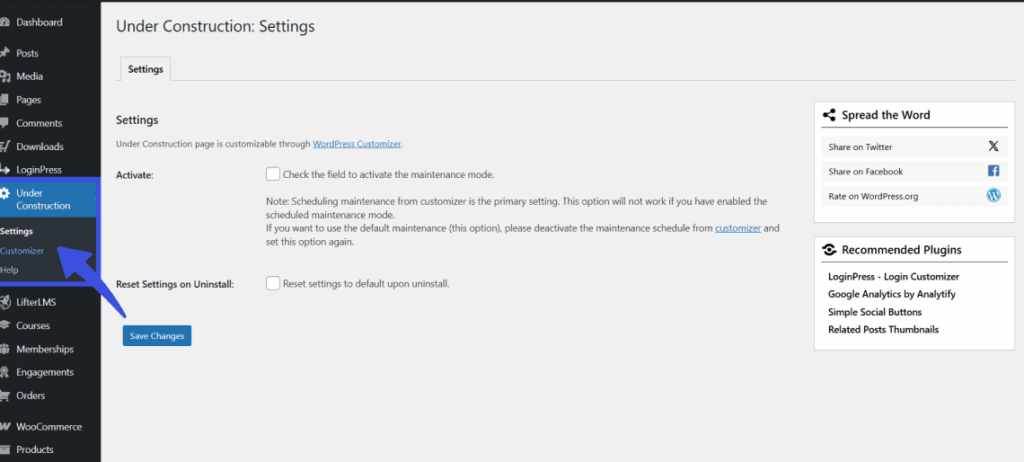
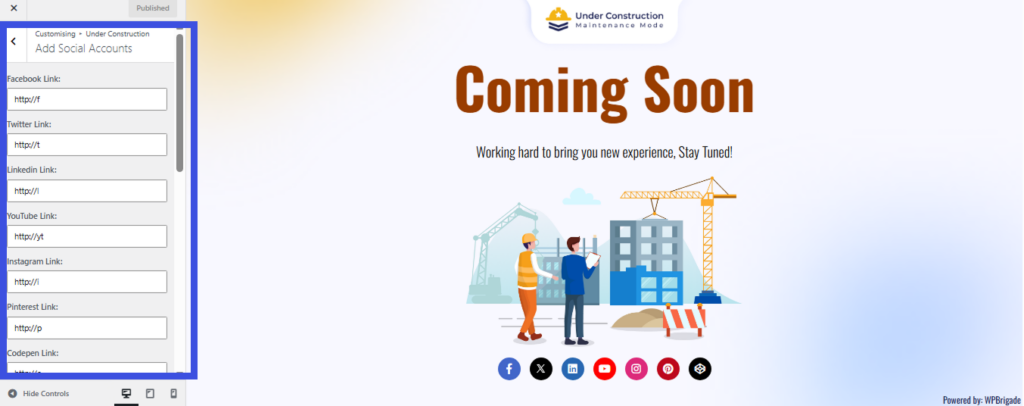
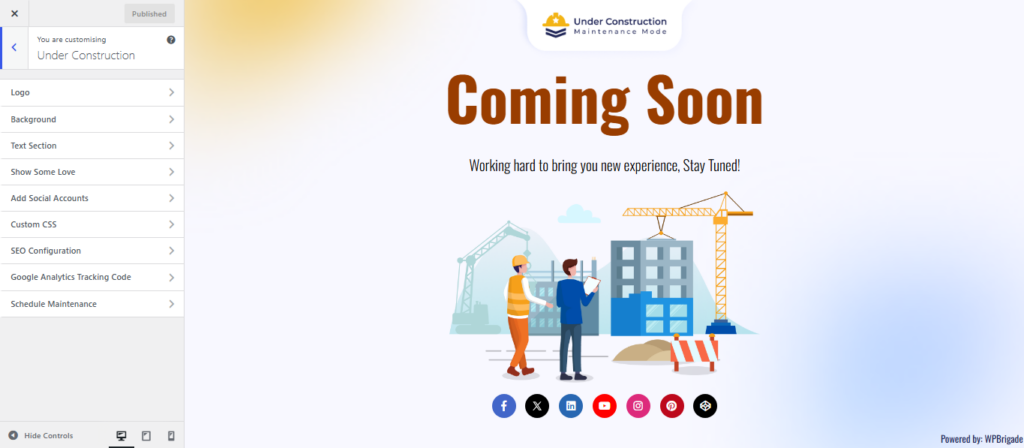
Once you are in the settings area, click on the Add Social Accounts section from the menu on the left.
Here you can enter the full web addresses (URLs) for your profiles, such as your Facebook or Instagram pages.
Customizing the Order and Position of Social Icons #
Below the social links fields, you’ll find two additional controls: Social icons order and Social icons position. These let you decide which network appears first and where the icon strip sits on the maintenance page.
Social icons order #
The Social icons order panel lists all available networks (Twitter(X), Facebook, LinkedIn, YouTube, Instagram, Pinterest, Codepen, and more), each with a drag handle on the left.
Drag and drop any network to change the order in which icons appear on the page. The order you set here is the same order visitors will see on the front end.
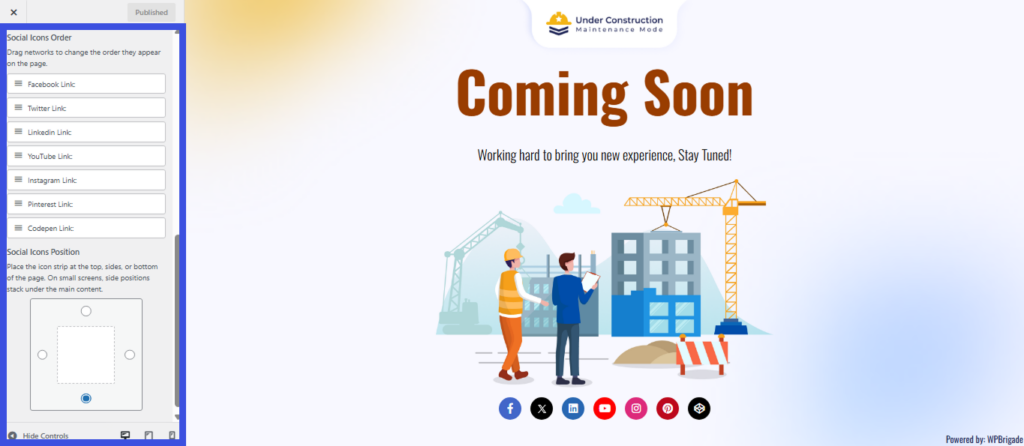
You can still leave any link field empty if you don’t want that particular icon to show. Only networks with a URL will appear, but they’ll follow the order you’ve set. This makes it easy to prioritize your most important profiles, such as putting Twitter or Instagram first.
Social icons position #
The Social icons position control lets you choose where the social icon strip appears on the maintenance page layout.
Use the position selector (the four dots around the square) to place icons at the top, bottom, left, or right of the main content area.
Select Placement of Social Icons
This gives you flexibility to match your design, for example, placing icons at the bottom for a classic footer-style look, or on the right side if you want them more prominent.
After adjusting both order and position, use the live preview in the Customizer to confirm everything looks correct, then click Publish to save your changes.
As soon as you paste in a link, the matching icon will automatically appear on your maintenance page.
When you are finished adding your accounts, click the Save Changes button at the bottom to make your social icons live.
What Happens Next? #
Once saved, your social media icons will appear on the maintenance or coming-soon page, giving visitors easy access to your social media profiles.
Tips for Adding Social Accounts
- Make sure to double-check the URLs for your social media profiles to ensure they are correct.
- You can add multiple social media links, but keep the number manageable to avoid overcrowding the page.
- Social media icons are automatically styled to match each platform’s branding (e.g., the Facebook icon for Facebook, the Twitter icon for Twitter).
The Add Social Accounts feature is a great way to stay connected with your visitors while your site is under construction.
Even if your site is offline, visitors can still reach out to you through your social media profiles. It’s an easy and effective way to engage with your audience during maintenance.
We’re here to help. If anything in this guide is unclear, feel free to contact our support team anytime.