
The WP Headers and Footers Plugin is a lightweight and user-friendly solution for WordPress site administrators, developers, and marketers. It allows you to easily insert custom code snippets into your website’s <head>, <body>, and <footer> sections without manually editing your theme files.
This plugin is ideal for those who need the flexibility to inject third-party scripts, styles, or tracking codes globally across website pages.
It provides advanced customization and seamless integration with external services, all while keeping your theme files untouched.
In this guide, we will walk you through common use cases and troubleshooting tips for the WP Headers and Footers Plugin.
Whether you are integrating marketing scripts, adding custom styles, or handling other customization needs, this plugin can help enhance your website’s functionality.
Everyday Use Cases #
Let’s see some everyday use cases where WP Headers and Footers can benefit you:
- Adding custom JavaScript or CSS across all pages.
- Inserting tracking scripts (e.g., Google Analytics, conversion scripts).
- Placing meta verification codes for webmaster tools, email platforms, etc.
- Embedding third-party widgets such as chat plugins, cookie banners, or surveys.
- Executing deferred or footer-based scripts for performance optimization.
How to Use WP Headers and Footers Plugin #
To start using the plugin, follow these simple steps:
Navigate to the WordPress Dashboard. Then, go to Settings >> WP Headers and Footers.
Once you’re in the settings page, you’ll notice two main tabs:
- Scripts
- Settings
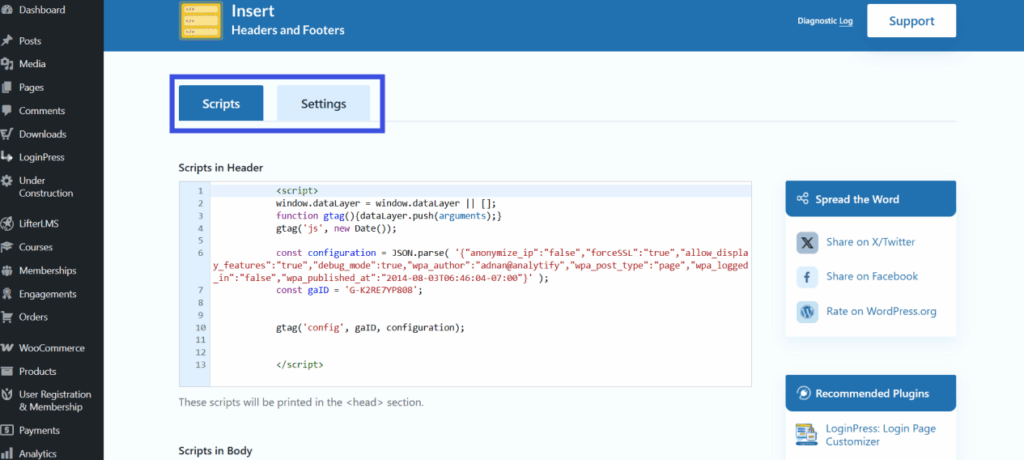
Scripts Tab Overview #
The Scripts tab is where you manage custom code snippets in your website’s <head>, <body>, and <footer> sections. The tab is divided into three distinct areas:
1. Scripts in Header #
Scripts added here will be inserted inside the <head> tag of your site.
Let’s see where it can benefit you!
- Site verification tags for Google Search Console, Bing, or other platforms.
- External stylesheet links for loading custom CSS files.
- Script preloaders or configurations, especially for performance optimization.
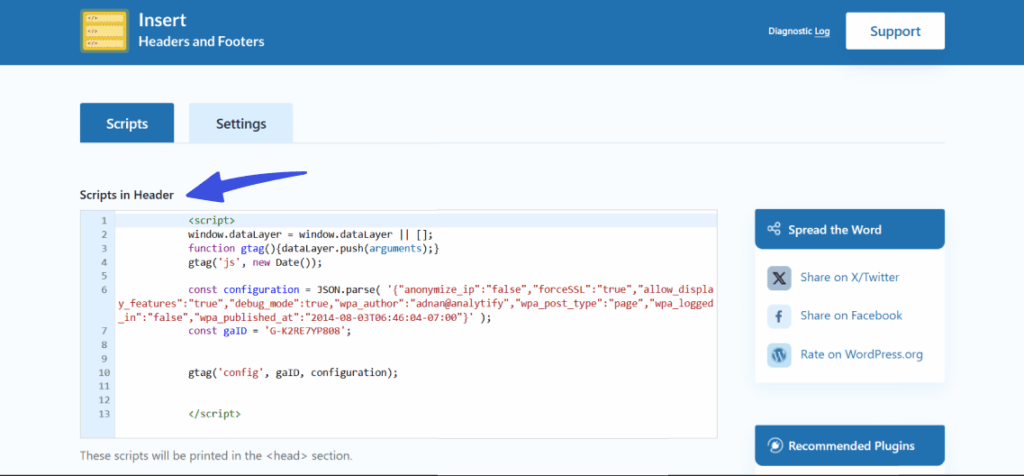
Example HTML Code:
<script async src="https://www.googletagmanager.com/gtag/js?id=G-XXXXXXXXXX"></script>

<script>

  window.dataLayer = window.dataLayer || [];

  function gtag(){dataLayer.push(arguments);}

  gtag('js', new Date());

  gtag('config', 'G-XXXXXXXXXX');

</script>
2. Scripts in Body #
Scripts added here will be inserted immediately after the opening <body> tag of your site.
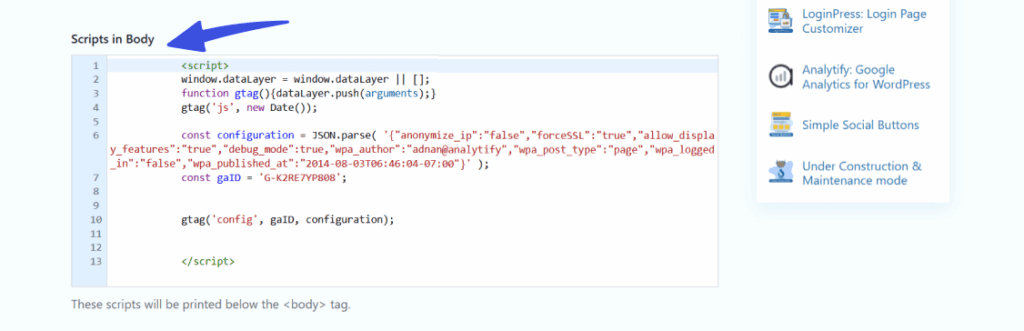
Let’s See Some Common Use Cases:
- Consent managers or cookie banners.
- Inline custom initialization scripts for third-party widgets or services.
Note: The body injection may depend on how your theme or site framework handles the body hook.
3. Scripts in Footer #
Scripts added here will be inserted after the <footer> tag on your site.
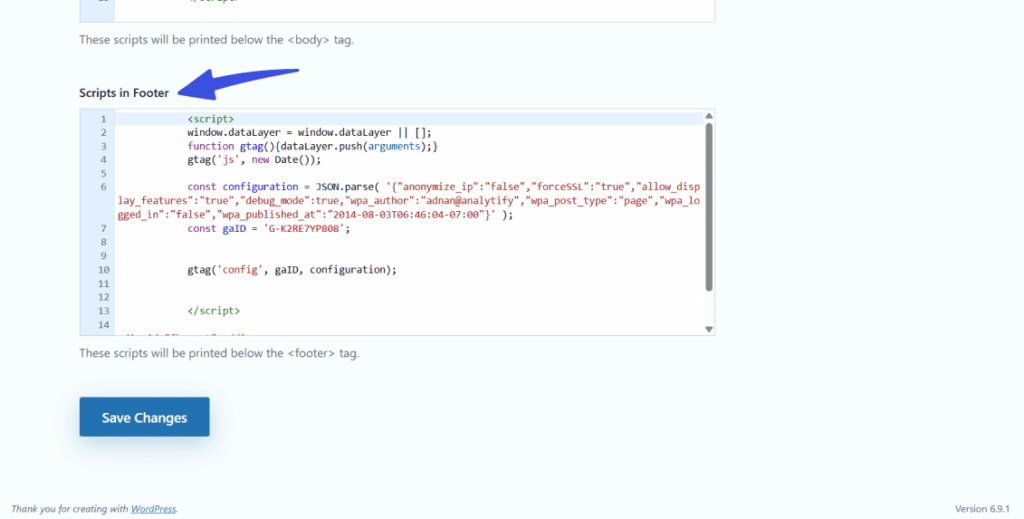
Let’s see some common application scenarios!
- Lazy-loaded or deferred JavaScript for better performance.
- Scripts that do not need to block page content and can load after the page is fully rendered.
4. Saving Changes #
After you have added your custom scripts to the appropriate section (Header, Body, or Footer), click the Save Changes button to apply the updates.
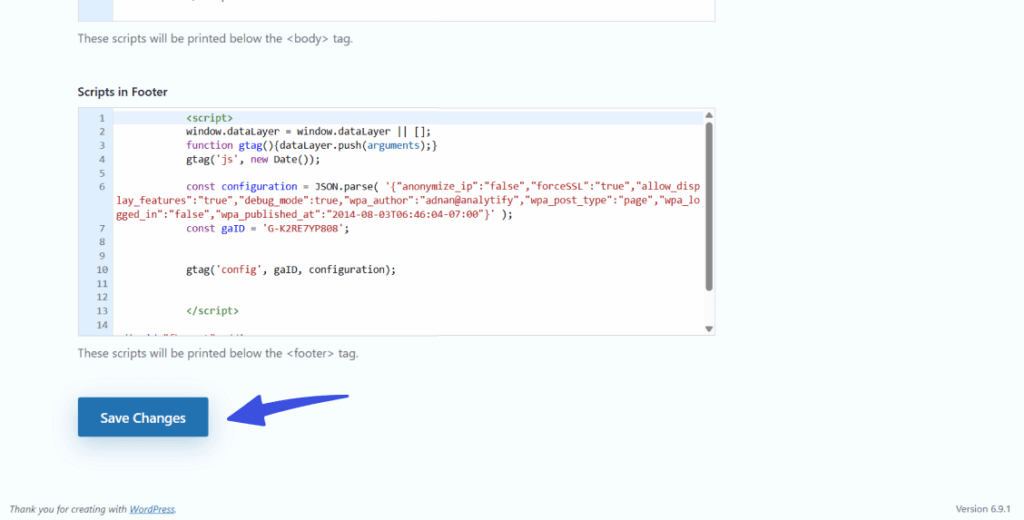
All scripts will be rendered on the front end of your site in their respective sections.
Add Screenshot – Add Scripts Here
Note: If you need to control the execution order of these scripts, you can use the priority settings for the header, body, and footer.
Troubleshooting and Support #
While using WP Headers and Footers, you may encounter issues or need additional support.
Below, we’ll walk you through accessing the Diagnostic Log for troubleshooting and reaching the Support team for assistance.
1. Diagnostic Log #
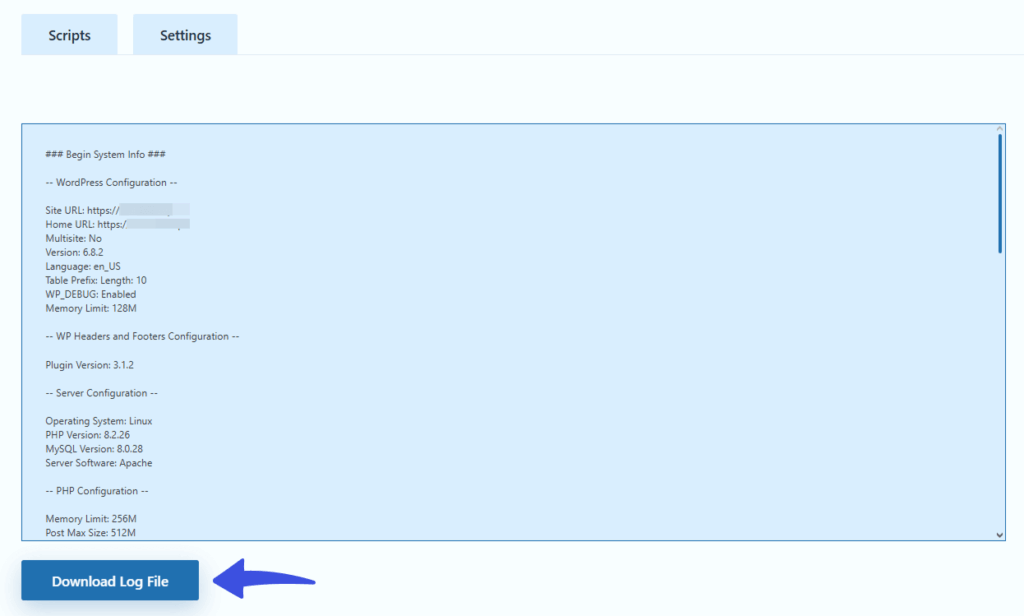
The Diagnostic Log is a helpful tool that provides detailed technical information about your site, which can help troubleshoot plugin-related issues. Here’s how to access it:
- Viewing the Diagnostic Log:
To view the diagnostic report of your site, simply click on the Diagnostic Log option in the plugin’s settings. This will display a full report with technical details regarding your site’s performance, the plugin’s functionality, and any errors or conflicts that may have occurred.

- Downloading the Diagnostic Log:
Once you’ve reviewed the log, you’ll find a Download Log button just below the viewer. Clicking this button lets you download the diagnostic file to your device. This can be useful for record-keeping or for sending to support if needed.
2. Support #
If you require further assistance or have any questions, the Support section is available for help. Here’s how to access the support resources:
- Accessing Support:
To reach out for help, click on the Support option in the plugin’s settings. This will redirect you to the plugin’s official support page, where you can browse FAQs, view troubleshooting articles, or directly contact the support team for more specific inquiries.

- Getting Help When Needed: The Diagnostic Log and Support options are designed to help you diagnose problems and get the assistance you need. If you encounter any issues you cannot resolve, these resources help you quickly gather the necessary information and contact the support team.
Final Thoughts #
WP Headers and Footers is a simple yet powerful plugin that lets WordPress users add custom scripts and styles to their sites without modifying theme files.
Whether you’re adding tracking codes, embedding widgets, or optimizing site performance, this plugin simplifies the process with an easy-to-use interface.
If you need assistance or encounter any issues, the Diagnostic Log and Support options provide quick solutions.
If you’re also looking to manage the execution order of scripts in your header, body, and footer sections, check out our guide on Script Priority Settings in WP Headers and Footers Plugin for further instructions on how to control when your scripts load.
For further technical assistance or questions related to this matter, please contact our support team at your convenience