
The Thumbnails Settings in Related Posts plugin helps WordPress site administrators display related posts with thumbnail images to boost user engagement and improve content discovery. Customizing the appearance of these thumbnails ensures they blend seamlessly with your site’s design.
In this guide, you’ll learn how related post images (thumbnails) are sourced, sized, and displayed.
These settings help you maintain a consistent, attractive appearance for related posts across your WordPress site, ensuring a cohesive user experience.
Thumbnails Settings #
Let’s see how you can use the Thumbnails settings effectively.
Select Thumbnails Source #
This dropdown controls where the plugin fetches the thumbnail image from for related posts. You have two main options to choose from:
- Post Thumbnails: This option uses the WordPress featured image set for each post. It’s the most common and recommended source, as most WordPress themes and plugins rely on the featured image to display visuals.
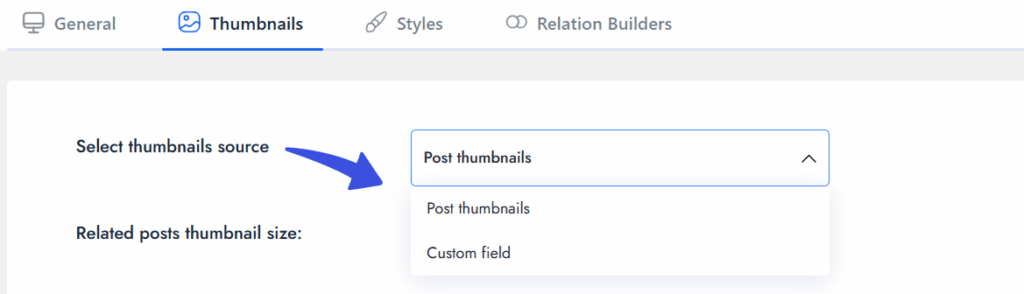
- Custom Field: This option is useful for more advanced setups, especially when thumbnails are stored in a custom field (for example, via Advanced Custom Fields (ACF)). When selected, additional input fields will appear for customization:
- Custom Field Name: Provide the meta key (e.g., thumbnail_url) that stores the image URL or ID.
- Size (Width × Height in pixels): Define custom dimensions for the image (e.g., 125 × 125).
- Theme Resize URL (optional): If your theme has a PHP image resizer, provide the full URL (e.g.,https://yoursite.com/resize.php).
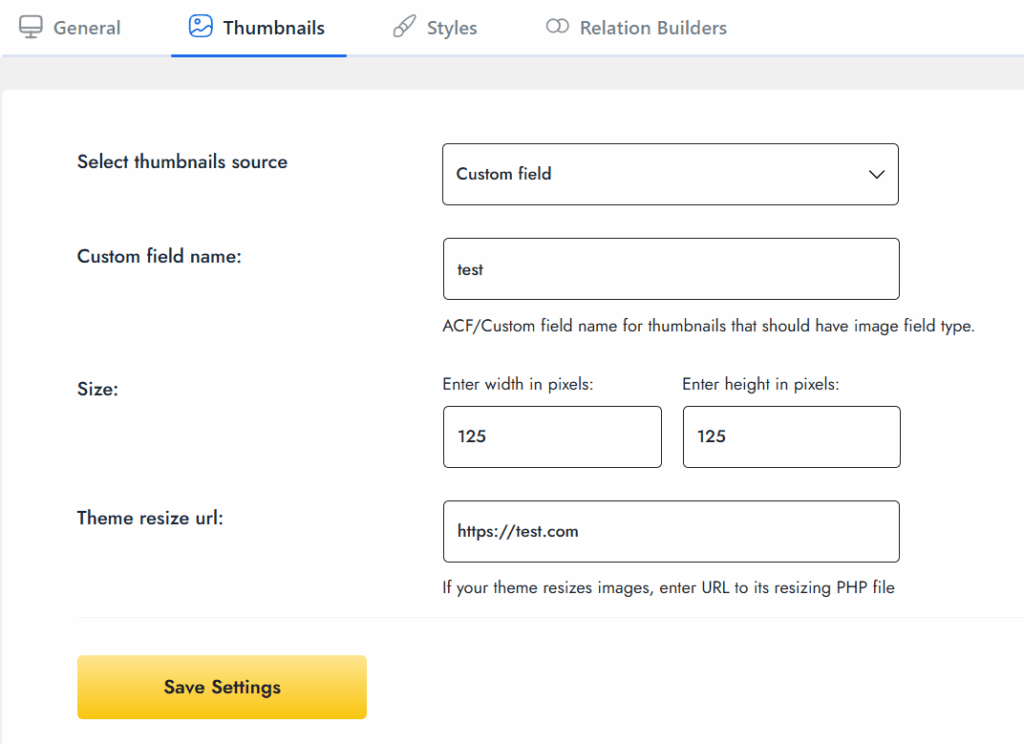
This option is ideal for developers or custom setups where media is not stored via the default WordPress featured image system.
Related Posts Thumbnail Size #
This dropdown appears when Post Thumbnails is selected as the source. It allows you to choose from WordPress-registered image sizes for your related post thumbnails.
Here are some examples of the available sizes:
- thumbnail – A small square image (e.g., 150×150 px)
- medium – A medium-sized image
- 1536×1536, 2048×2048 – Large, high-resolution sizes (useful for higher quality images)
Other custom sizes may also appear, depending on your theme or plugins.

Choose a size that fits your layout and balances performance with visual clarity. Larger images may look better, but they can impact your site’s load time, so choose the size carefully based on your design needs.
Show Posts with Featured Image #
When enabled, the plugin will only display related posts that have a featured image assigned. This prevents empty or broken thumbnails from appearing and helps maintain a clean design for your related posts section.
This setting is particularly useful if your site heavily relies on featured images for styling.
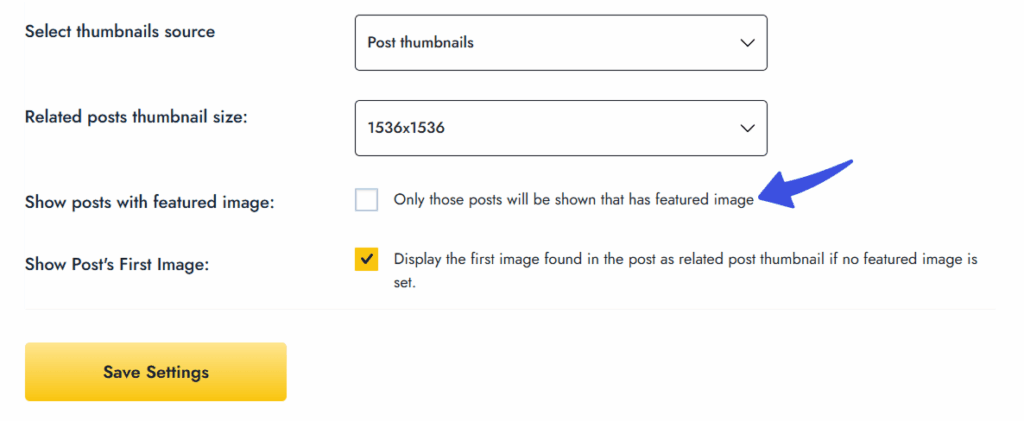
Show Post’s First Image #
Enable this option to use the first image from within the post content as the thumbnail when no featured image is available. This acts as a fallback and ensures your related posts section still has visuals, even if the featured image is missing.
Note: This option is ignored if you selected “Custom Field” as the source.

Example Scenarios
To help you set up the plugin efficiently, here are some common use cases and suggested settings:
- Standard blog with featured images:
Suggested Settings: Use Post Thumbnails with either medium or thumbnail size. - Portfolio site with ACF image fields:
Suggested Settings: Use Custom Field, then configure the size and resize URL based on your custom setup. - Content-heavy blog with inline images:
Suggested Settings: Use Post Thumbnails and enable “Show Post’s First Image” to ensure posts are always visually filled. - Highly visual design:
Suggested Settings: Enable “Show Posts with Featured Image” to avoid any blank or empty thumbnail entries.
Save Settings #
After updating any settings, click the “Save Settings” button to apply the changes across your site. This concludes the Thumbnails Settings – Configuration Guide. With these settings, you can control how your related post thumbnails are displayed, ensuring a consistent and visually appealing experience for your site visitors.
Feel free to reach out to our dedicated support team for any queries.