
The Background Customization feature lets you add a custom background image to your maintenance or coming soon page.
This is a great way to personalize the page and match it with your brand’s style or message.
In this guide, we’ll show you how to easily customize the background using the Under Construction Maintenance Mode Plugin, giving your site a professional and branded look during maintenance or construction periods.
New Background Template in UCMM 3.0 #
UCMM 3.0 replaces the previous Customizer background template with a cleaner, more modern layout. Three things changed:
- Cleaner layout and spacing, so elements on the page don’t feel cramped.
- Improved visual hierarchy, so your logo, headline, and call-to-action stand out in the right order instead of competing for attention.
- Better mobile behavior, so the background renders properly across phone, tablet, and desktop screens instead of stretching or cropping unpredictably.
The new template applies automatically once you update to 3.0. You don’t need to rebuild your existing background setup, and every change you make is visible as a live preview directly in the WordPress Customizer before you publish.
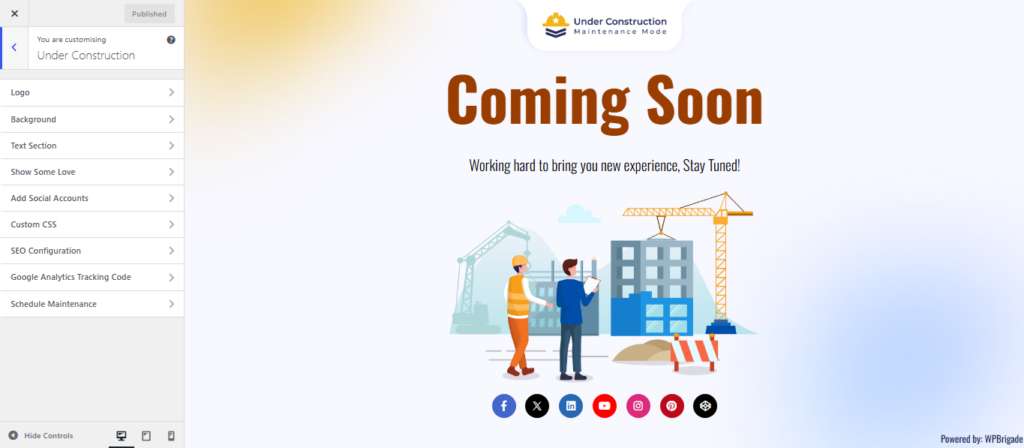
Vector Image Control #
UCMM 3.0 adds a new Enable Vector control that lets you show or hide the decorative vector illustrations on your maintenance page.
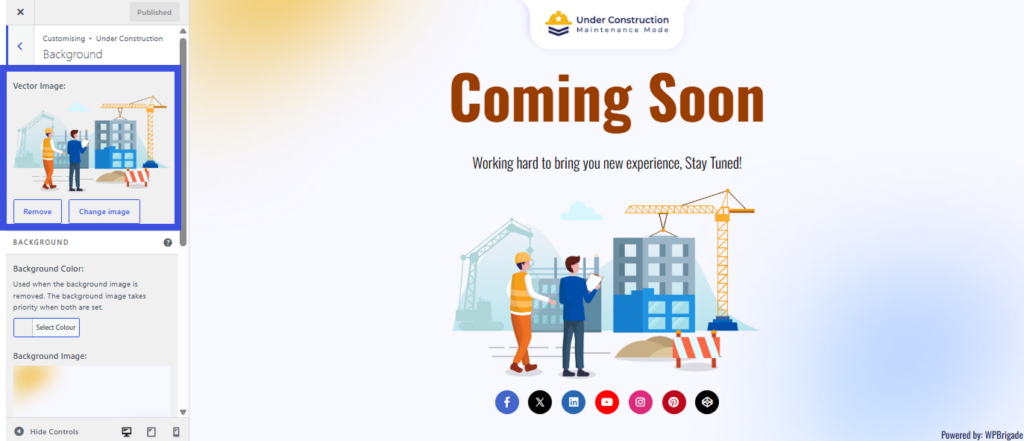
- Turn it on if you want a more visual, playful look with illustrated graphics layered into the design.
- Turn it off if you prefer a minimal look with just your background image, logo, and text.
You’ll find this toggle in the same Background section of the Customizer covered below, alongside your existing background image settings.
How to Set a Background Image for Under Construction Pages #
To customize your background, log in to your WordPress account and access the Admin Dashboard.
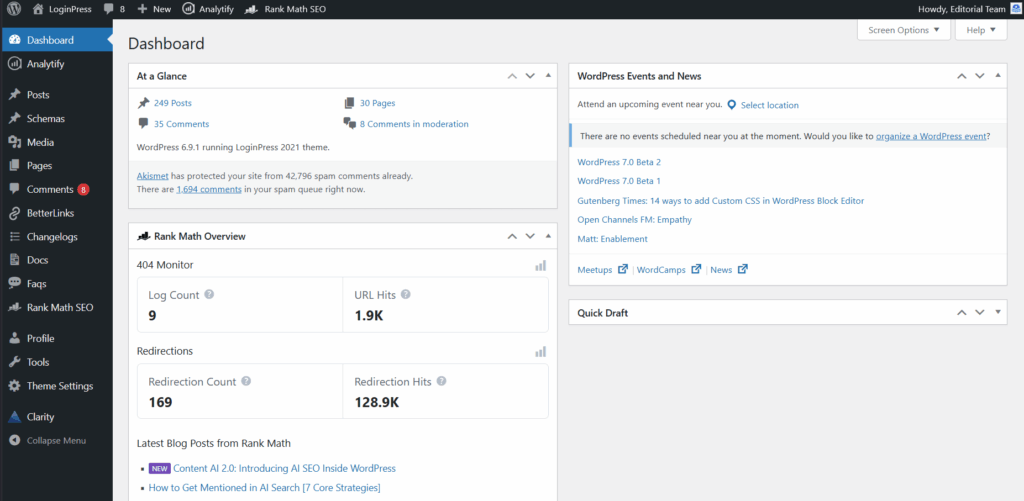
From there, locate the left-hand sidebar menu, click on Under Construction, and then select Customizer to enter the editing interface.
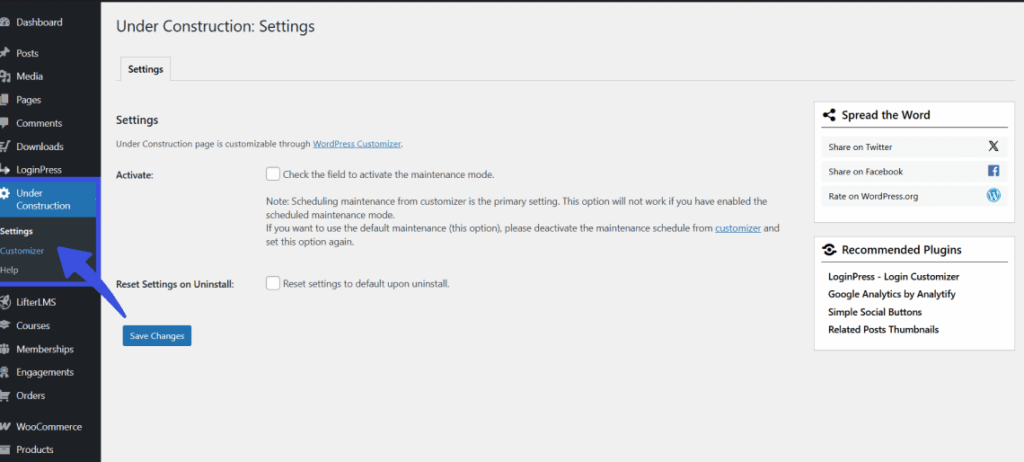
Here is the Customizer interface for the selected page:
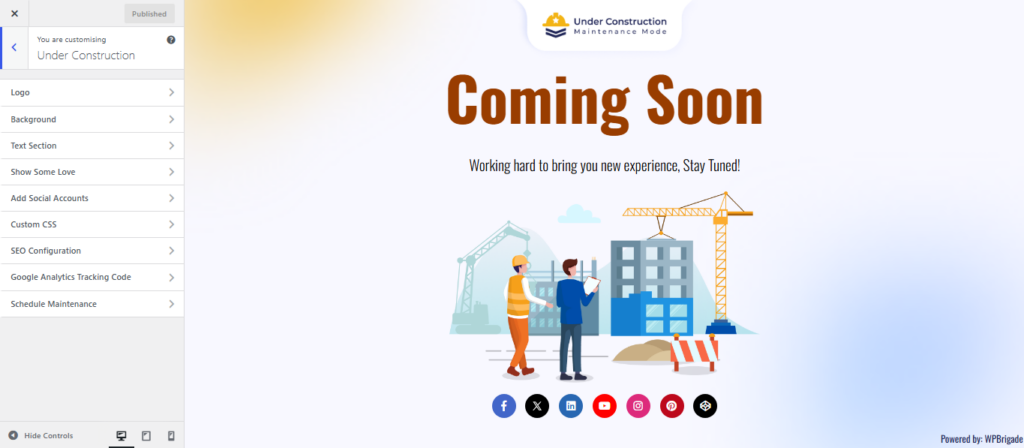
Select the Background Section
In the plugin customizer, click on the Background section from the left menu. Next, click the Select Image button to upload your desired background image or select an existing one from your media library.
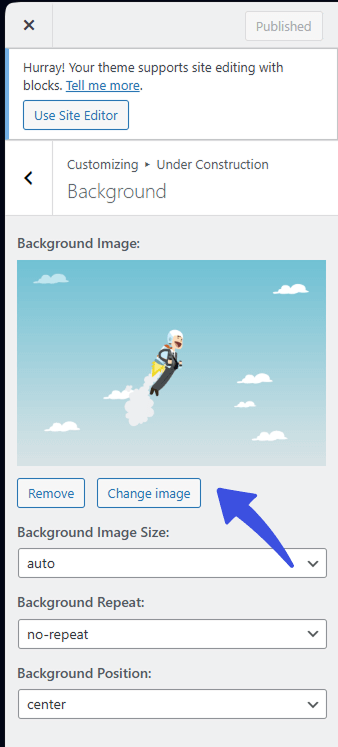
- Customize the Background Appearance
Once the image is uploaded, you can adjust the following settings
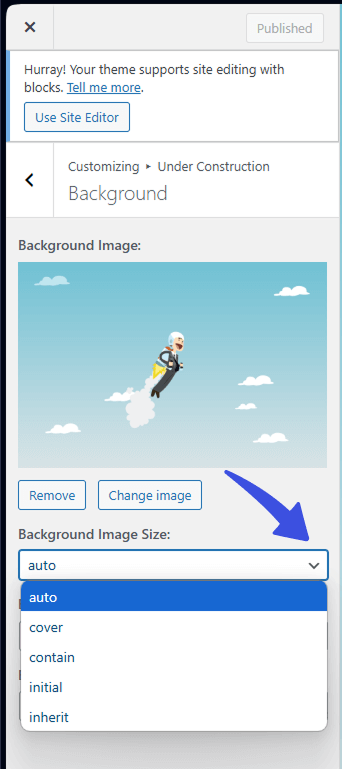
- Background Image Size: Choose how the image will fit:
- Auto: Keeps the image at its original size.
- Cover: Scales the image to fill the entire background, potentially cropping it.
- Contain: Scales the image to fit entirely within the background without cropping.
- Background Repeat: Decide if the image should repeat:
- Repeat: The image repeats both horizontally and vertically.
- Repeat-x: The image repeats horizontally only.
- Repeat-y: The image repeats vertically only.
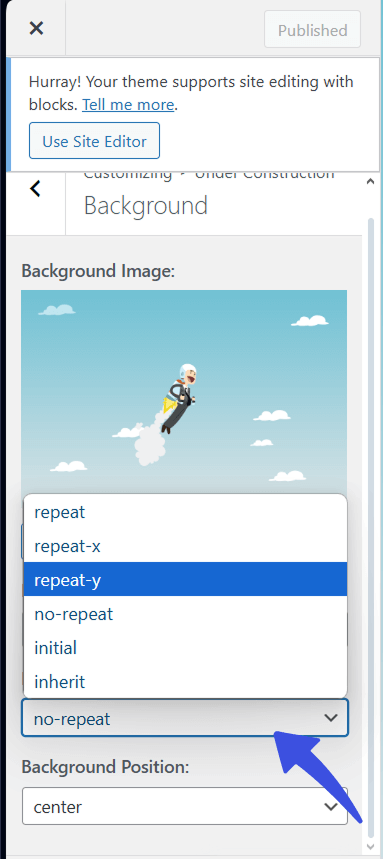
- No-repeat: The image is displayed once and does not repeat.
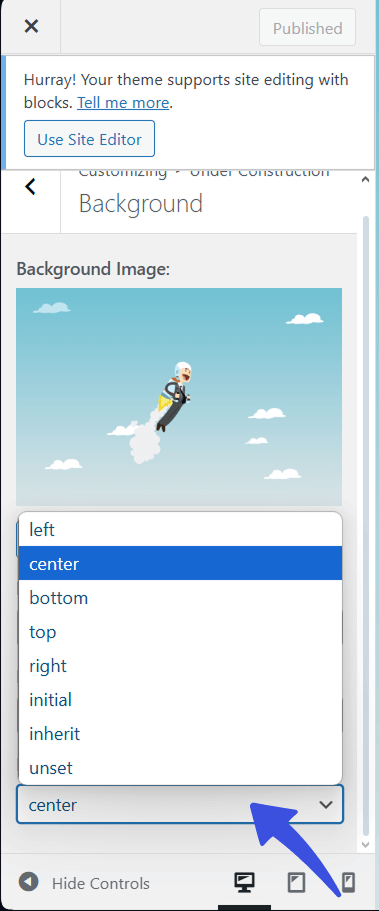
- Background Position: Set the alignment of the background image:
- Top: Aligns the image to the top of the container.
- Bottom: Aligns the image to the bottom of the container.
- Left: Aligns the image to the left side.
- Right: Aligns the image to the right side.
- Center: Centers the image in the container.
- Initial: Resets the position to the default browser setting.
- Inherit: Inherits the position from the parent element.
- Unset: Removes any set position, using the default or inherited settings.
Save Your Changes
After setting your background image and customizing the options, click Publish to save your changes.
What Happens Next? #
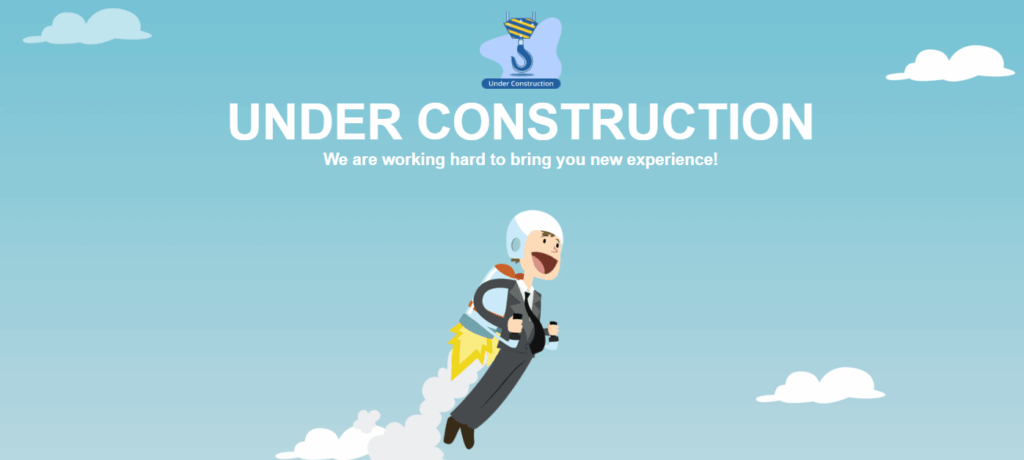
Once saved, your chosen background image will appear on the maintenance or coming soon page, giving it a customized look.
Tips for Background Customization #
- Choose a high-quality image that is not too large to keep the page load fast.
- If your logo or text is light-colored, consider using a darker background to make the content stand out.
- Test different image sizes (auto, cover, contain) to see which one fits best on your page.
Customizing the background of your maintenance or coming-soon page is an easy way to ensure that, even when your site is temporarily offline, it still reflects your brand’s personality and professionalism.
Keep experimenting with different background settings until you find the perfect fit that aligns with your site’s style.
With these simple steps, you can make sure that your under-construction page is not only functional but also visually appealing.
If you need further assistance, feel free to reach out to the support team for clarification.