
Are you experiencing any issues with the Under Construction Maintenance Mode plugin? Our support team can help you with troubleshooting any errors you run across while using our plugin.
The Help and Troubleshooting section provides useful technical information about your site’s environment and the UCMM plugin configuration.
This section is especially helpful when diagnosing issues or submitting a support request.
Support Links in the Plugin Dashboard #
At the top of the Help and Troubleshooting section, you’ll find several support options:
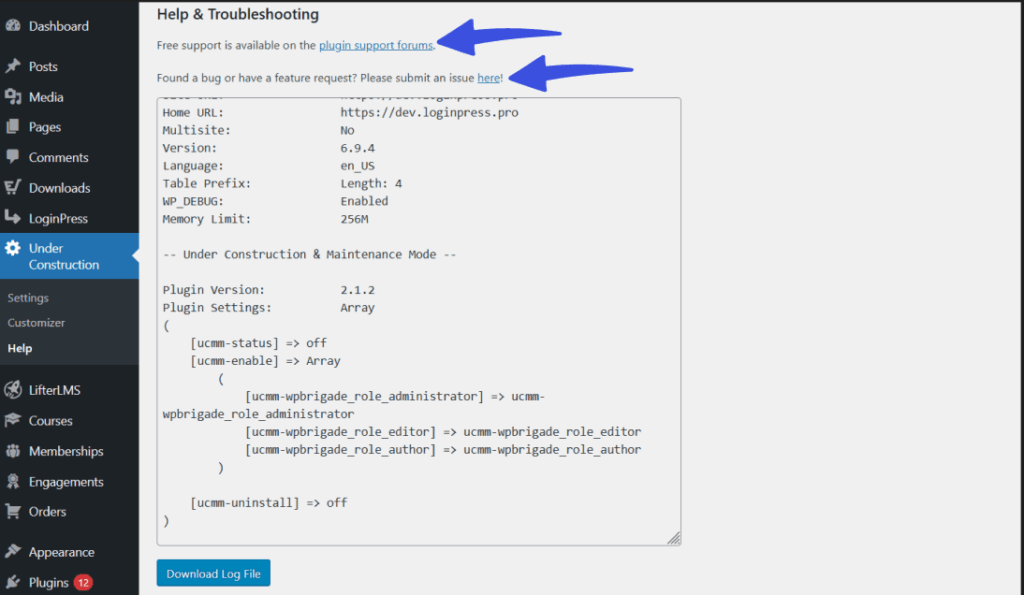
- Plugin Support Forums Option: This link redirects you to the free community support forums where you can get help from other users. This is a great place to find solutions to common issues or share your experiences.
- Bug or Feature Request Submission: A direct link to GitHub or the plugin’s issue tracker, where you can submit bug reports or feature requests. This helps the developers improve the plugin based on user feedback.
System Info Block #
The System Info section provides structured details about your WordPress setup and the plugin configuration, which is crucial for troubleshooting.
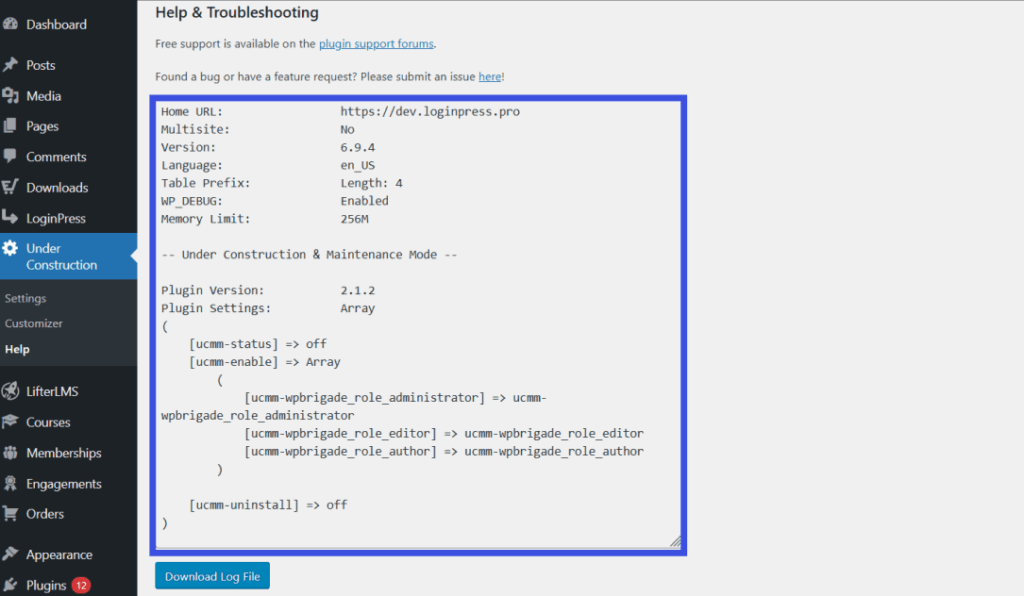
Here’s what you’ll find:
- Site and WordPress Configuration
- Site URL: The URL of your website.
- WordPress Version: The version of WordPress you are using.
- Language: The language settings for your WordPress site.
- Memory Limits: Information about memory limits, such as the PHP memory limit, which can affect plugin performance.
- Plugin Version & Settings
- The current version of the plugin is installed on your site.
- A list of active settings, such as which user roles are allowed to bypass maintenance mode and any other custom settings you’ve configured.
Download Log File #
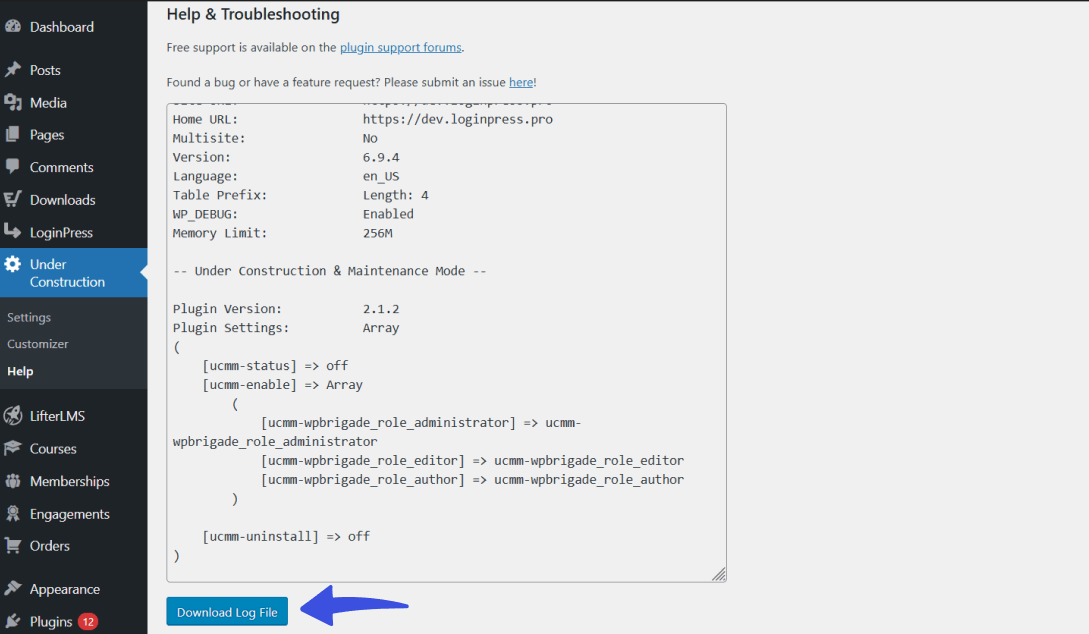
At the bottom of the Help & Troubleshooting section, you’ll find the Download Log File button.
This allows you to export all the displayed information in a single text file. This log file can be:
- Attached to certain support tickets to help the support team diagnose issues.
- Used for keeping internal records or tracking any changes in your configuration.
Once you’ve gathered the relevant system information and logs, you can proceed to submit a support request or look for solutions in the support forums. This feature makes it easier to provide all necessary details when requesting help.
Tips for Troubleshooting #
- Always check the system info block to ensure your WordPress environment is properly configured (e.g., with sufficient memory limits).
- If you encounter a bug, use the bug submission link to report it with detailed steps to help the developers understand and fix the issue.
- When submitting a support request, include the log file to ensure the support team has all the information they need to assist you quickly.
The Help & Troubleshooting section is a valuable tool for diagnosing issues with the plugin and your WordPress setup. By providing the right information via the System Info and Download Log File, you can get faster, more accurate support, ensuring minimal downtime for your website.
If you have any questions or concerns about the Help and Troubleshooting section, feel free to reach out to our dedicated support team for clarification.