
The Maintenance Mode Schedule feature allows you to automatically enable and disable the maintenance or coming soon page based on a predefined time window. This is useful if you want to schedule the start and end times for your maintenance mode, making it easier to automate the process.
In this guide, we’ll show you how to set up and configure the Maintenance Mode Schedule feature in the Under Construction Maintenance Mode Plugin to automatically control when your site is in maintenance mode.
How to Use the Scheduling Options #
To set up an automatic schedule for your maintenance page, start by checking the box labeled Show Maintenance Schedule, which reveals the scheduling options.
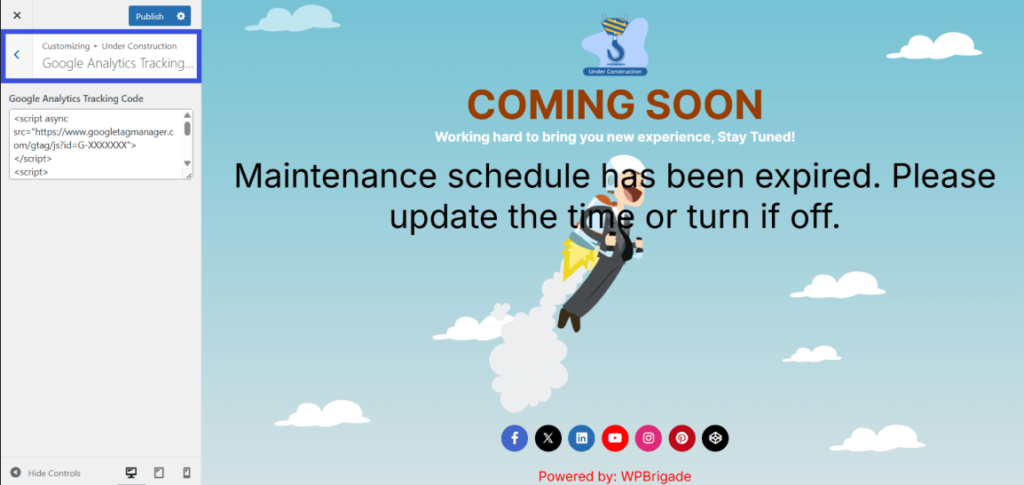
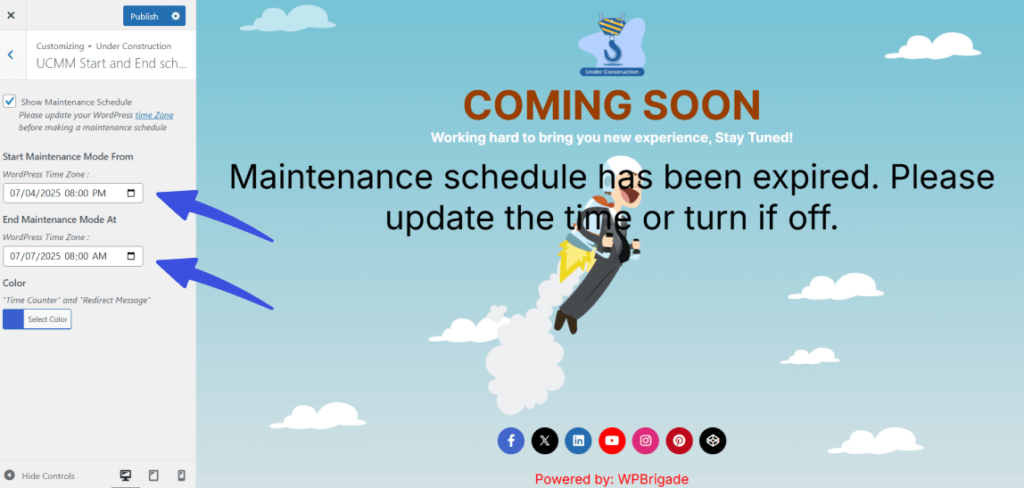
Under Start Maintenance Mode From, select the exact date and time you want the maintenance page to appear, keeping in mind that this is based on the time zone you have set in your main WordPress Settings.
Next, go to End Maintenance Mode to choose when you want the page to automatically turn off so your site can go public again.
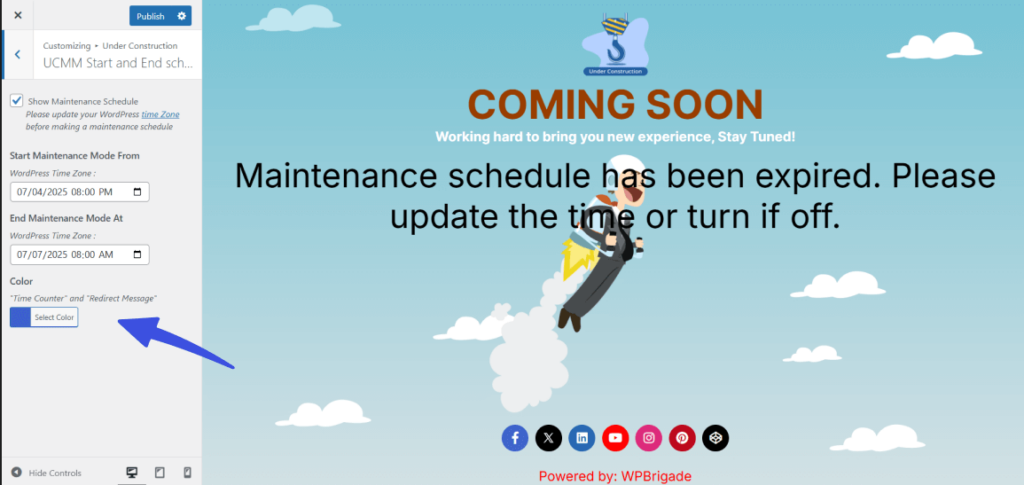
You can also use the Color Picker to choose a custom color for the countdown timer and redirect message to match your brand.
Once your schedule is set, simply click the Publish button in the top-left corner to save your changes.
What Happens Next?
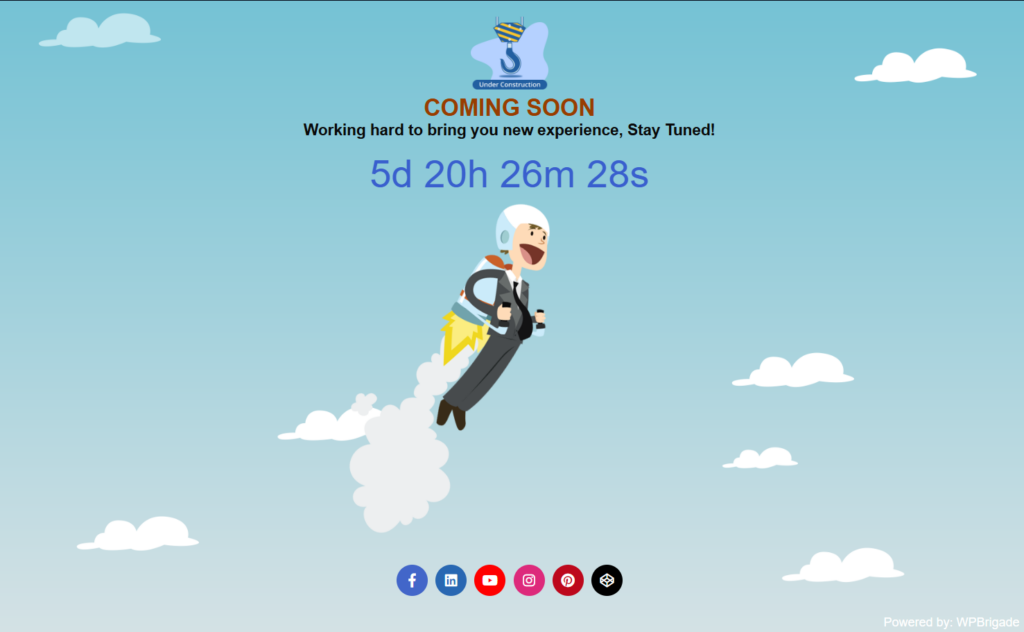
Once saved, the Under Construction Maintenance Mode Plugin will automatically activate the maintenance mode at the scheduled start time and deactivate it at the scheduled end time. You won’t need to manually enable or disable maintenance mode anymore.
Why Use It? #
- Automate Maintenance Mode: Set your maintenance mode to turn on and off automatically, without manual intervention.
- Time Management: Easily schedule maintenance during off-hours or weekends to minimize disruption.
- Brand Consistency: Keep your branding consistent by using custom colors for the scheduled maintenance period.
The Maintenance Mode Schedule feature makes it easier to manage your site’s maintenance period.
By automating the start and end times, you can ensure your site remains offline or under construction at the right time, while notifying your visitors in advance.
We’re here to help. If anything in this guide is unclear, feel free to contact our support team anytime.