
The Custom Login Page Customizer Plugin is a powerful tool for WordPress site administrators, allowing you to easily customize the login page to match your site’s branding and improve the user experience.
With this plugin, you can personalize various elements of the login and registration process, including logo, background, form styles, and more.
In this documentation, we will guide you through the available settings in the Custom Login Page Customizer Plugin, providing detailed instructions for controlling various aspects of the WordPress login and registration process.
Available Settings in Login Page Customizer #
In this section, we will walk you through the plugin’s settings, explaining each option and how it helps you personalize your login page and improve the user experience.
Accessing the Settings Panel #
To configure the plugin settings:
Navigate to your WordPress dashboard. Then, on the left-hand menu, go to Custom Login Page Customizer >> Settings. The Settings tab will display multiple options you can configure.
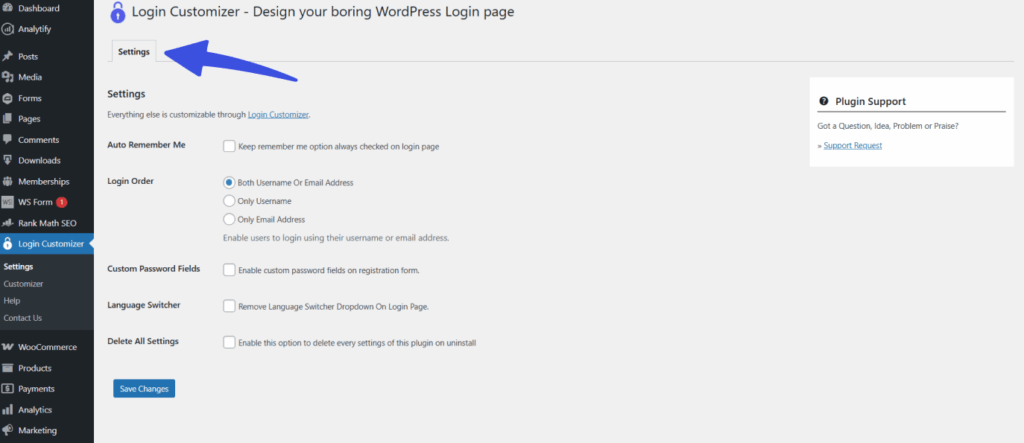
Login Page Customizer Settings Overview #
Here’s a breakdown of each setting available in the plugin:
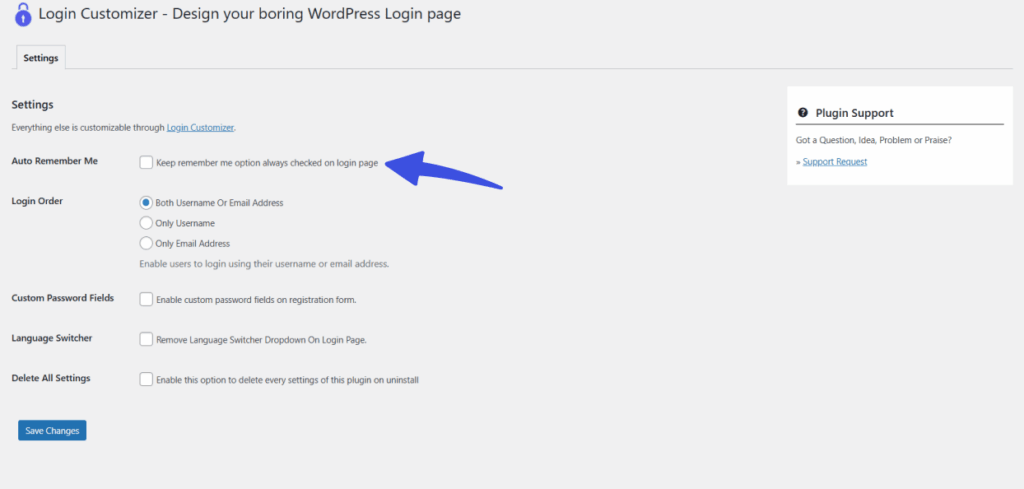
1. Auto Remember Me #
- Option: Keep the “Remember Me” option always checked on the login page.
- Description: When enabled, the “Remember Me” checkbox on the login page will be pre-selected by default, so users don’t have to manually check it each time they log in.
- Use Case: Ideal for sites where users frequently return and prefer to stay logged in automatically, like social media or membership sites.
2. Login Order #
- Options:
- Both Username Or Email Address (Default)
- Only Username
- Only Email Address
- Description: Determines how users can log in, either using their username, email address, or both.
- Explanation:
- Both Username or Email Address: Users can log in using either their username or email address.
- Only Username: Users can only log in with their username.
- Only Email Address: Users can only log in with their email address.
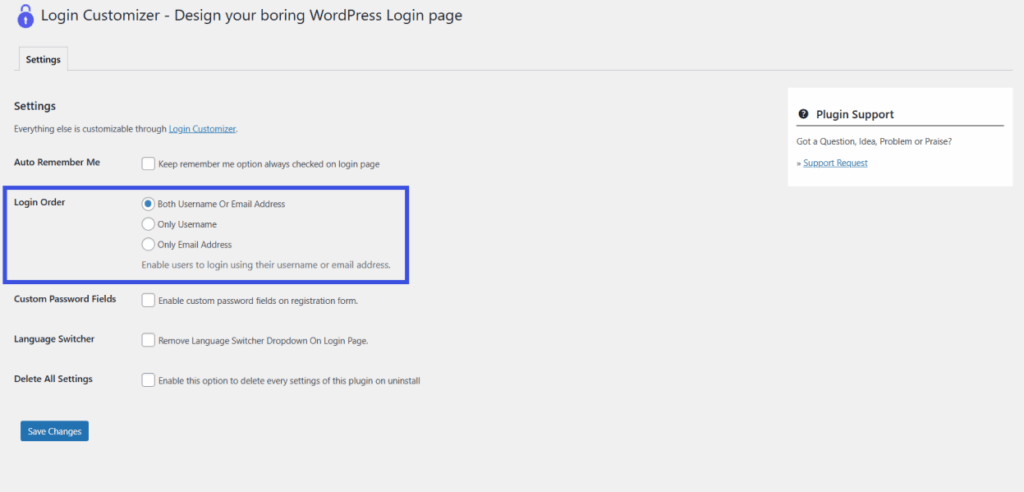
Recommendation: Keep the default option so users can log in with either their username or email, which is more user-friendly.
3. Custom Password Fields #
- Option: Enable custom password fields on the registration form.
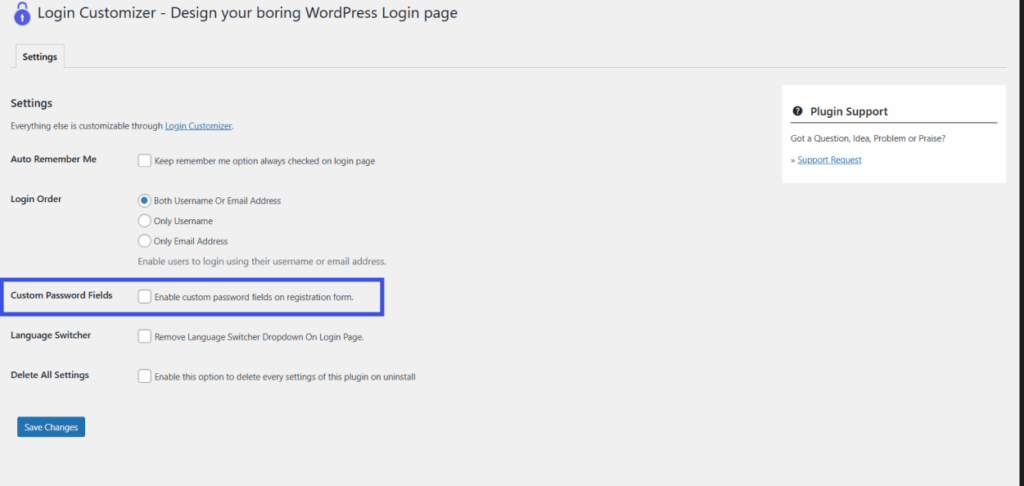
- Description: This option adds custom fields to the user registration form, allowing users to create their own password during registration, instead of receiving an auto-generated password.
- Use Case: Enhances the user experience by eliminating the need to check email for an automatically generated password.
4. Language Switcher #
- Option: Remove the language switcher dropdown on the login page.
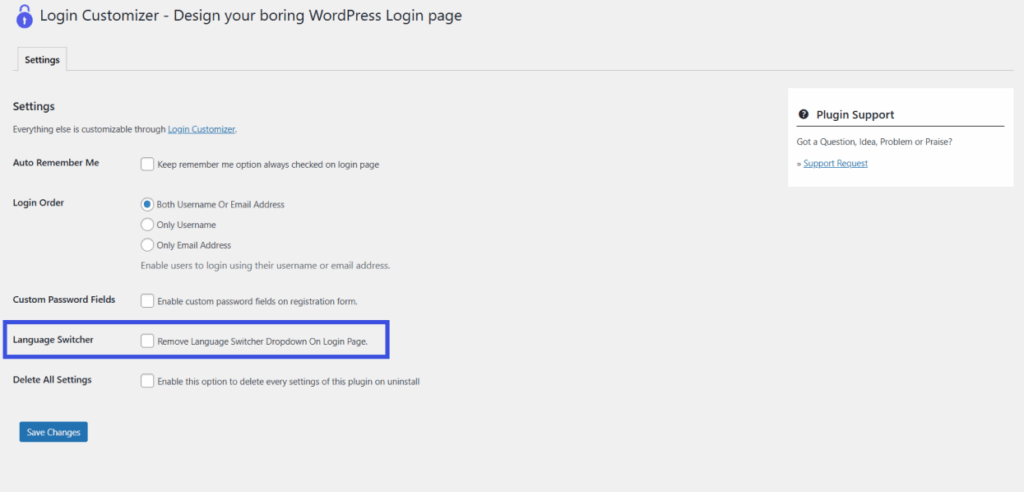
- Description: Hides the language switcher dropdown from the login page, so users cannot switch languages while logging in.
- Use Case: Useful for single-language websites or for those who prefer a cleaner login interface without language selection.
5. Delete All Settings #
- Option: Enable this option to delete all plugin settings when the plugin is uninstalled.
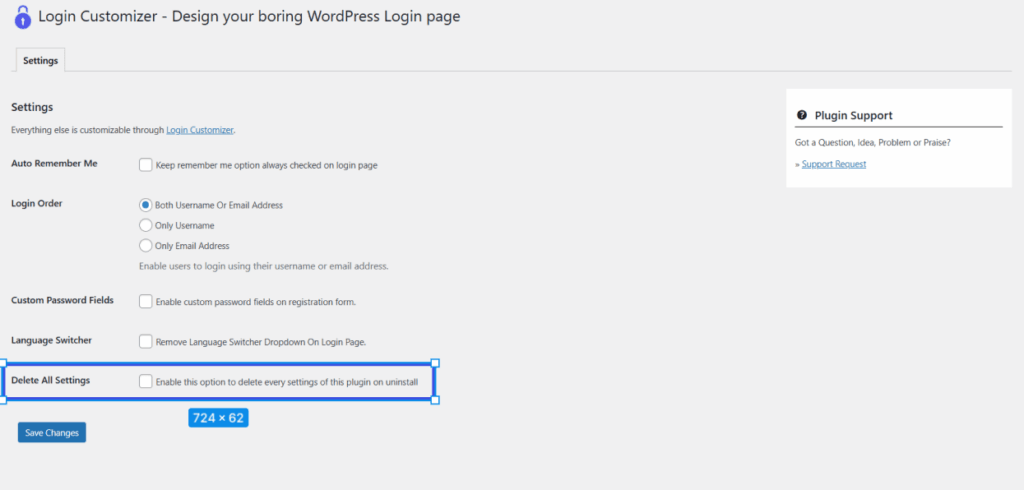
- Description: If you choose this option, all plugin settings will be completely removed from the database when the plugin is uninstalled. This ensures no leftover data remains.
- Use Case: Useful for keeping your database clean, especially if you plan to remove the plugin completely.
6. Saving Changes #
After adjusting your settings:
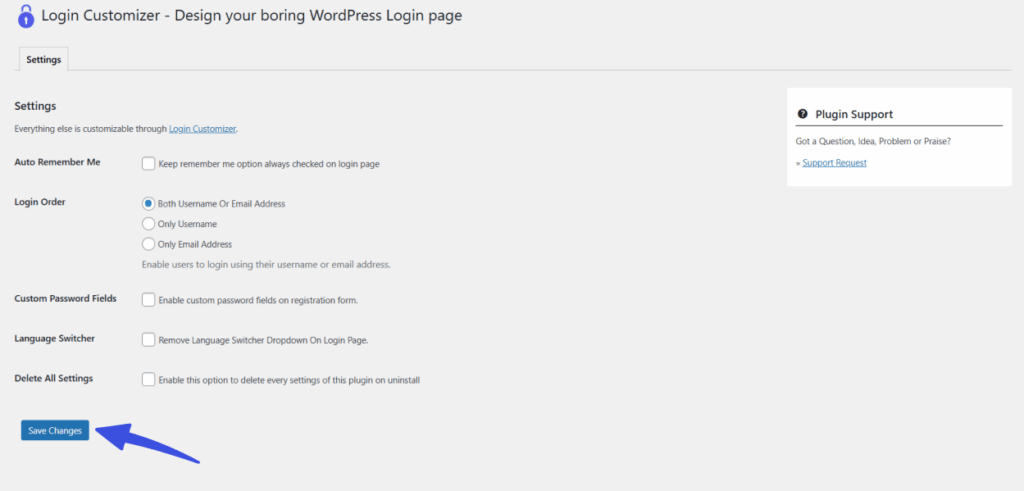
Click the Save Changes button at the bottom of the page. Then you will receive a confirmation message to let you know the changes have been saved successfully. The changes will take effect immediately.
Additional Customization #
For deeper login page customization, such as changing the logo, colors, or background:
- Use the Login Customizer interface, which you can access by clicking the Login Customizer link at the top of the settings panel, or by navigating to Login Customizer >> Customizer in the sidebar settings.
Best Practices #
- Enable Auto Remember Me: This is useful for sites with frequently accessed user dashboards. It saves users from having to log in repeatedly.
- Allow Both Usernames and Email Addresses: This provides a more flexible login experience for users.
- Enable Custom Password Fields: This simplifies the registration process and makes it easier for users to choose their own passwords.
- Use Delete All Settings Before Uninstalling: This ensures clean removal of the plugin and its settings from your site.
Final Words #
The Custom Login Page Customizer plugin provides a range of simple yet effective settings to help you personalize the login and registration experience on your WordPress site.
From customizing login fields to improving the user experience with options like Auto Remember Custom Password Fields and Me, this plugin lets you create a more tailored, efficient login process for your users.
By using these settings, you can ensure your login page aligns with your site’s branding, simplifies the registration process, and improves the overall user experience.
Additionally, with options for language settings and clean removal, you can maintain a neat and user-friendly interface.
Always remember to save your settings, and explore deeper customization options using the Login Customizer for a truly personalized login page.
Feel free to reach out to our dedicated support team if you have any further questions!