
The WordPress Login Customizer Plugin enables site administrators to easily edit and style the WordPress login page in real time through the Customizer interface.
This plugin offers a simple, intuitive way to tailor the appearance and functionality of your login page to match your site’s design and branding.
In this documentation, we will guide you through each section and option within the Login Customizer plugin, helping you customize the login page to perfectly align with your website’s unique look and feel.
Accessing the Login Customizer #
To begin customizing your login page:
From the Admin Dashboard, navigate to Login Customizer >> Customize in the WordPress dashboard. Then, click on Login Customizer. Here you will find tabs for modifying the login page’s appearance and behavior.
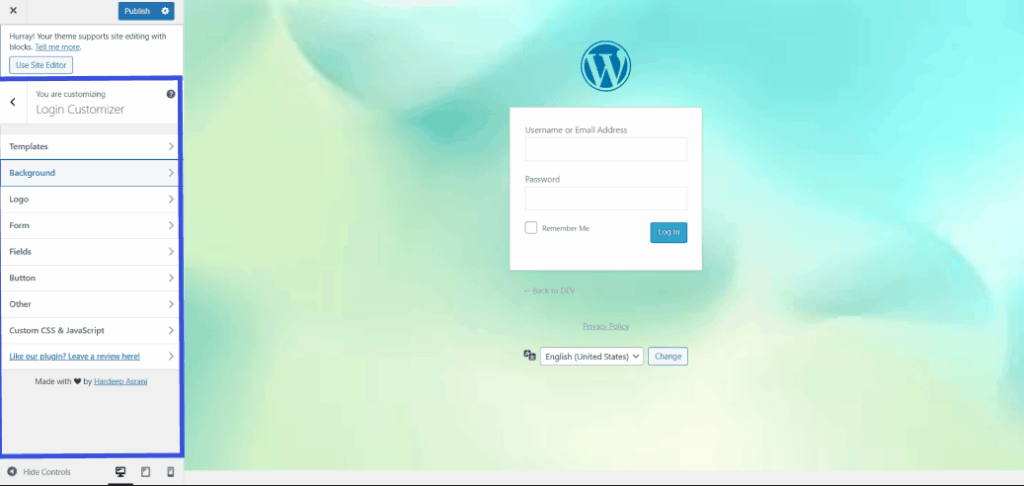
Customizer Panel Options Overview #
Here’s an overview of the options available to customize your login page:
1. Templates #
This section provides pre-designed layouts for the login page.
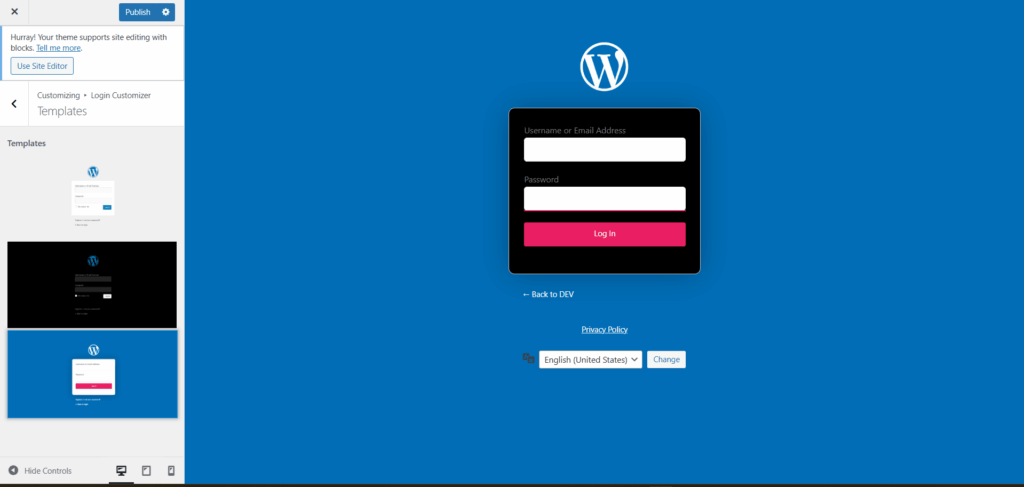
You can choose from the following templates:
- Light Theme: Default WordPress-style with a white form on a light gray background.
- Dark Theme: Dark background with light-colored form elements.
- Modern Theme: A sleek, colorful login form with bold background options.
Tip: Selecting a template instantly changes the visual appearance. All design options remain customizable even after selection.
2. Background #
You can customize the background of the entire login page.
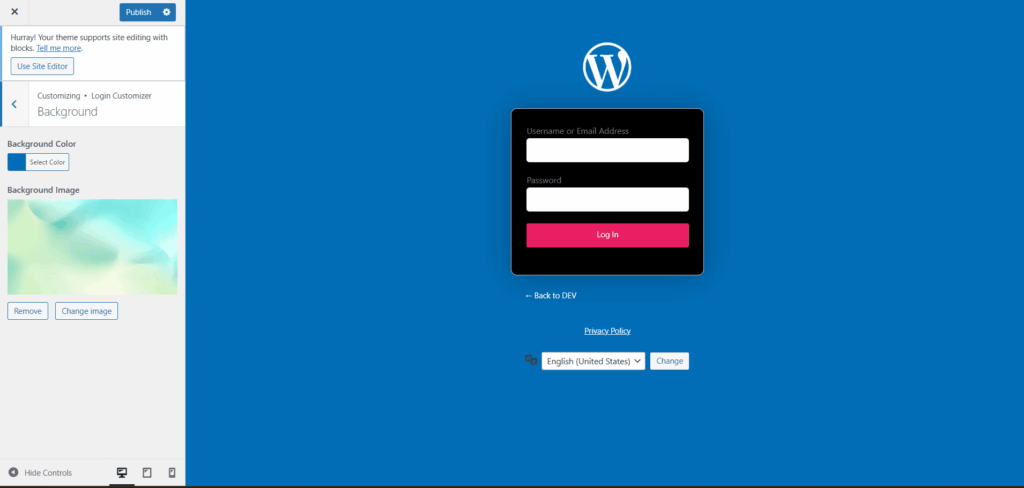
- Background Color: Choose a solid color for the background.
- Background Image: Upload or select a background image to appear behind the login form.
Tip: Use high-resolution images for a professional look. Avoid text-heavy backgrounds that may make the login form harder to read.
3. Logo #
This section lets you configure the WordPress login logo.
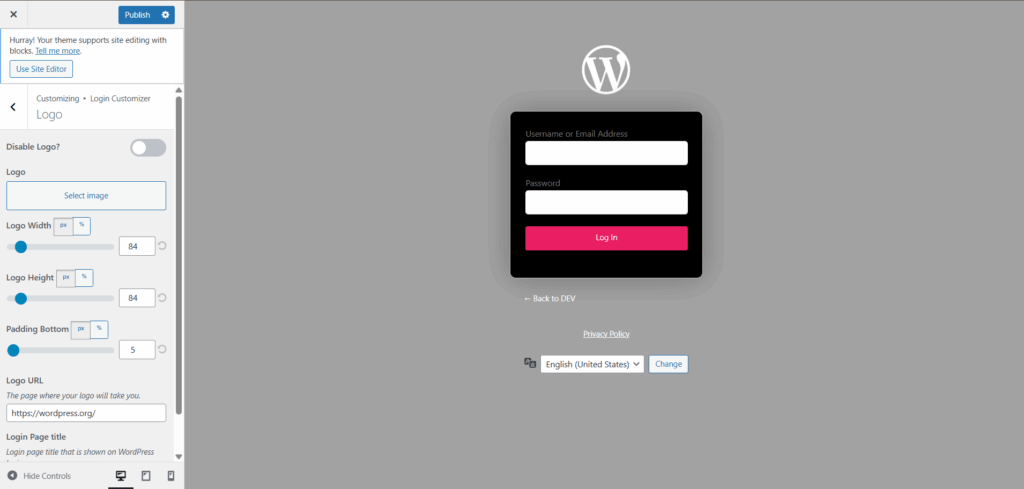
- Disable Logo: Toggle this option to hide the default WordPress login logo.
- Logo: Upload a custom logo image.
- Logo Width / Height: Adjust the size using sliders (in pixels or percentage).
- Padding Bottom: Set the space between the logo and the form.
- Logo URL: Define the destination URL when the logo is clicked.
- Login Page Title: Customize the browser tab title on the login page.
Tip: Use a transparent PNG logo for the best visual results.
4. Form #
Style the login form container itself.
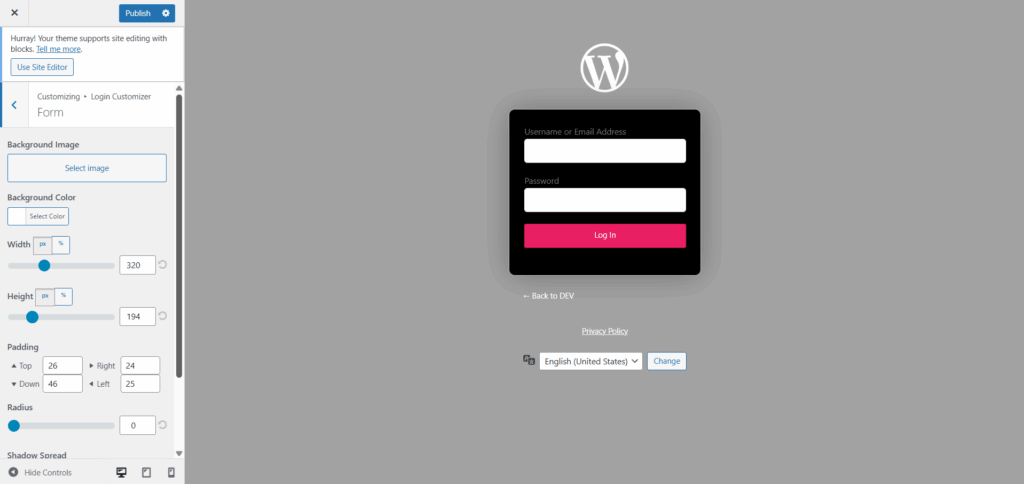
- Background Image: Add a custom background image to the form area.
- Background Color: Set a solid background color for the form area.
- Width / Height: Resize the form box.
- Padding: Define spacing inside the form (Top, Right, Down, Left)
- Radius: Add rounded corners to the form.
- Shadow Spread: Add a shadow blur around the form.
- Box Shadow Color: Customize the shadow color.
Tip: Use shadow and radius together for a soft, modern, card-like design.
5. Fields #
Modify the input fields (username, password, etc.) to personalize the user experience.
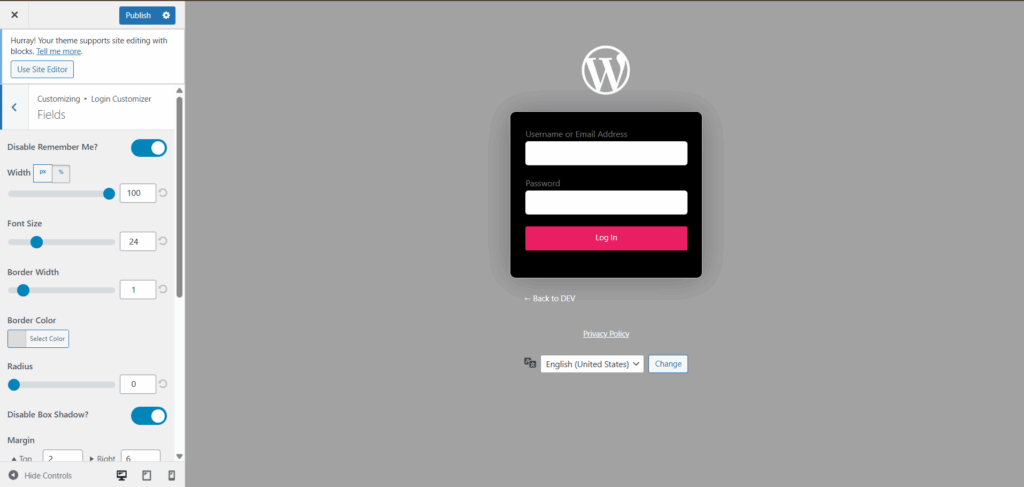
- Disable “Remember Me”: Hide the “Remember Me” checkbox.
- Width: Adjust the width of the input fields.
- Font Size: Set the size of the text inside the input fields.
- Border Width / Color / Radius: Style the input fields’ borders.
- Disable Box Shadow: Remove inner/outer shadow effects on the inputs.
- Margin & Padding: Adjust spacing around and inside the fields.
- Background / Text / Label Color: Fully customize the field color scheme.
- Label Font Size: Change the font size of the input field labels.
Tip: Ensure good contrast between the background and text for accessibility.
6. Button #
Customize the login button to match your site’s design.
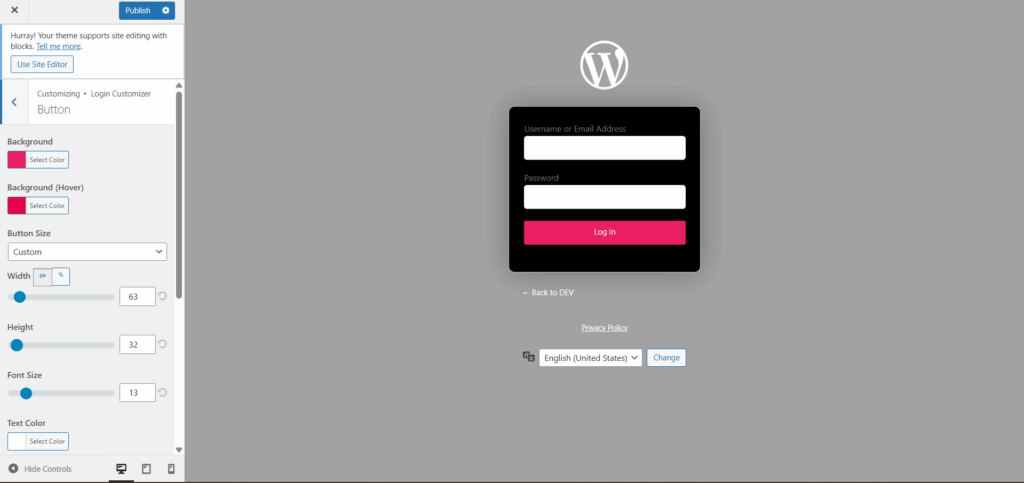
- Background / Hover Background: Set default and hover colors for the button.
- Button Size: Choose from predefined or custom sizes.
- Font Size: Adjust the button’s text size.
- Text Color: Customize the color of the text inside the button.
- Padding: Define space inside the button (Top, Right, Bottom, Left).
- Border Width / Color / Hover Color: Style the button’s borders
- Shadow Spread / Box Shadow / Text Shadow: Apply effects for depth.
Tip: A visible hover effect improves user interaction cues.
7. Control Footer Text #
Control the visibility of default WordPress links and footer text.
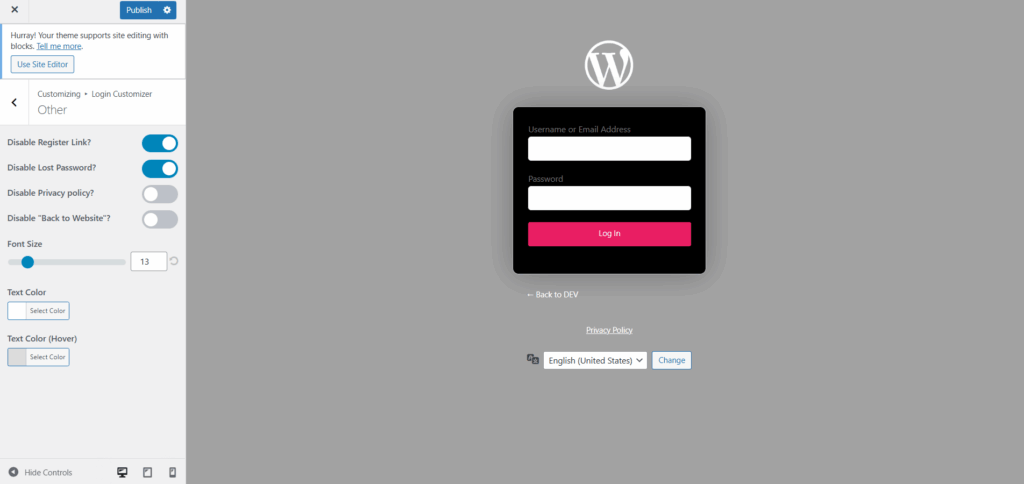
- Disable Register Link: Hide the register link.
- Disable Lost Password: Hide the forgot password link.
- Disable Privacy Policy: Hide the privacy policy footer link.
- Disable “Back to Website”: Hide the link that returns users to the main site.
- Font Size: Adjust the font size for the footer and link text.
- Text Color / Hover Color: Customize link colors.
Tip: Use this section to remove unnecessary links for a cleaner, more professional login interface.
8. Custom CSS & JavaScript #
Advanced users can inject custom styles or scripts into the login page.
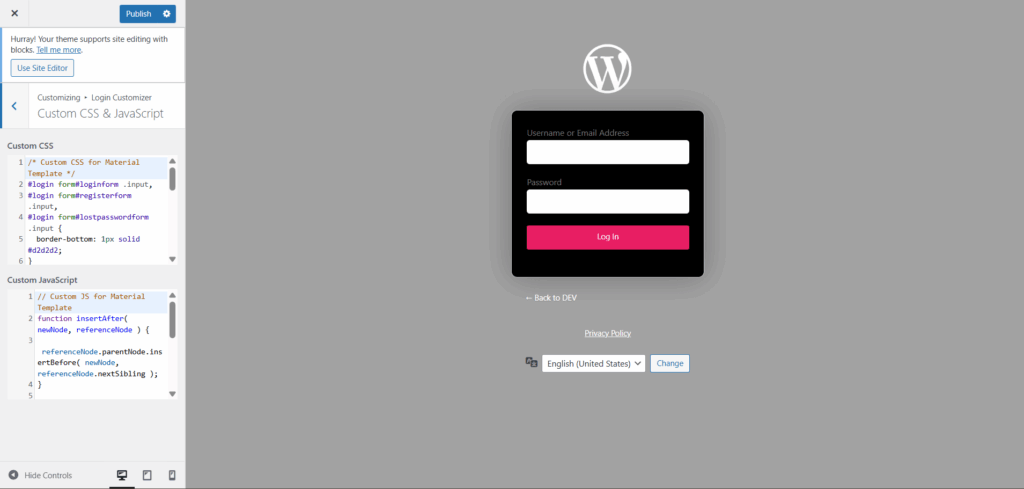
- Custom CSS: Write or paste custom CSS code to override plugin styles.
- Custom JavaScript: Add JavaScript to enable interactivity, animations, and analytics.
Warning: Use custom code with caution. An invalid code may break the login page and cause issues.
Saving Changes #
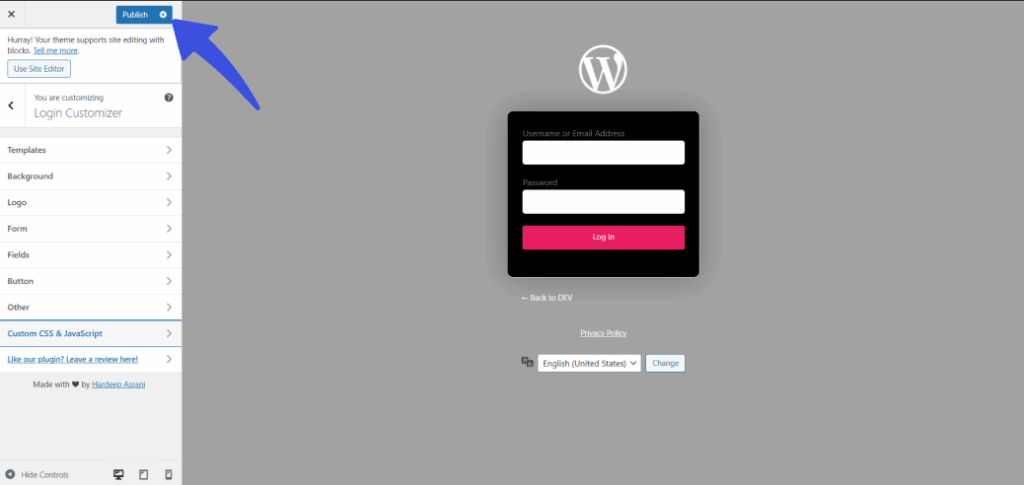
Once you’ve finished customizing your login page, you can click the Publish button at the top of the customizer panel to apply the changes live.
Best Practices for Customizing the Login Page #
- Keep branding consistent with your main website for a cohesive user experience.
- Use accessible color contrasts and legible font sizes to ensure your login page is easy to use for everyone.
- Test your login page on both desktop and mobile devices to ensure it’s responsive and looks great across all screen sizes.
- Avoid overly complex JavaScript in the login area to maintain security and fast loading times.
Final Thoughts #
The WordPress Login Customizer plugin enables easy, intuitive login page customization through the Customizer interface, allowing real-time design changes.
While customizing, it’s essential to focus on accessibility by ensuring good contrast and legible font sizes, and security by avoiding overly complex JavaScript that could create vulnerabilities.
Always test the login page across different devices to ensure responsiveness, and stay up to date with plugin updates for new features and security improvements.
For any issues, contact our support team for assistance to ensure your login page remains functional, secure, and aligned with your site’s branding.