
Would you like to customize the appearance of your pages? The Custom CSS feature in our plugin allows you to add your own styles to the under-construction or maintenance page.
This feature provides full control over the page’s appearance, enabling you to customize fonts, colors, spacing, animations, and more.
In this guide, we’ll show you how to use the Custom CSS feature in the Under Construction Maintenance Mode Plugin to create a unique, branded experience for your visitors while your site is under maintenance or development.
Adding Custom CSS to Under Construction Pages #
To add your own custom styling to your page, start by logging in to your WordPress Admin Dashboard.
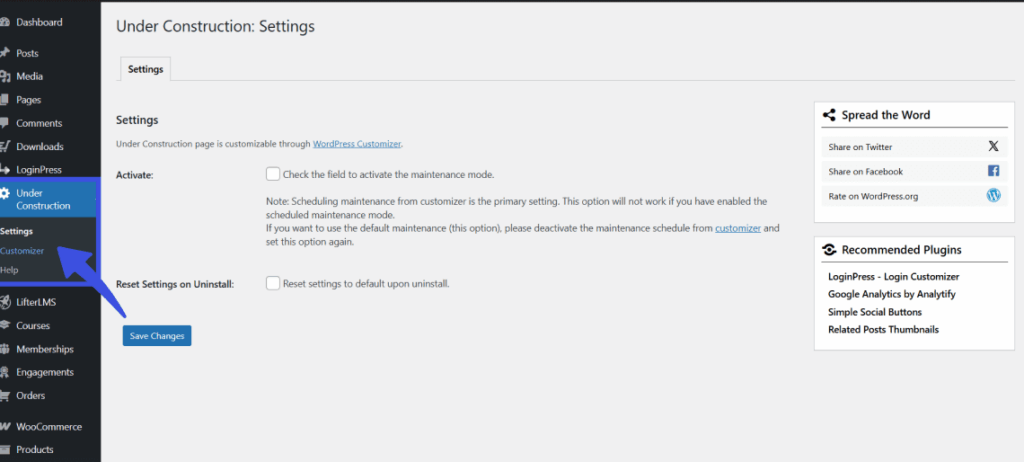
Next, find Under Construction in the left-hand menu and click on Customizer.
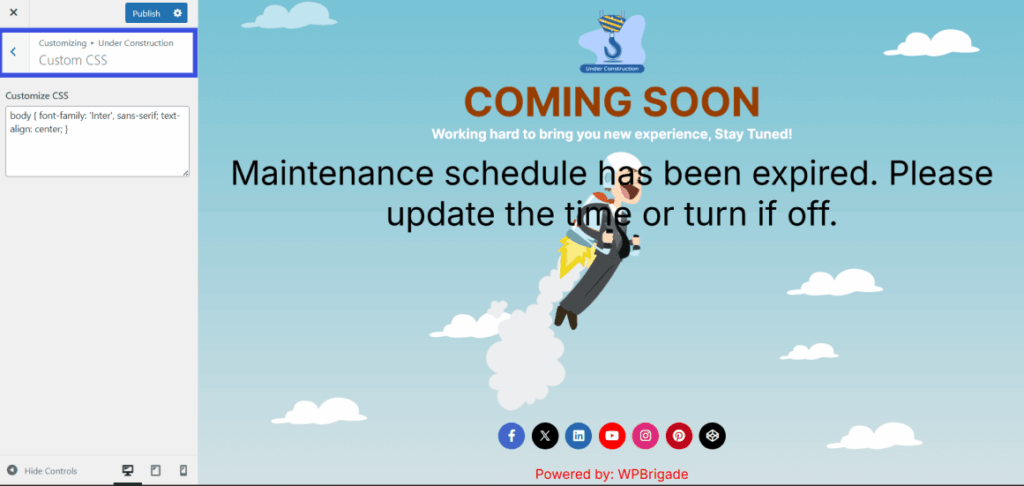
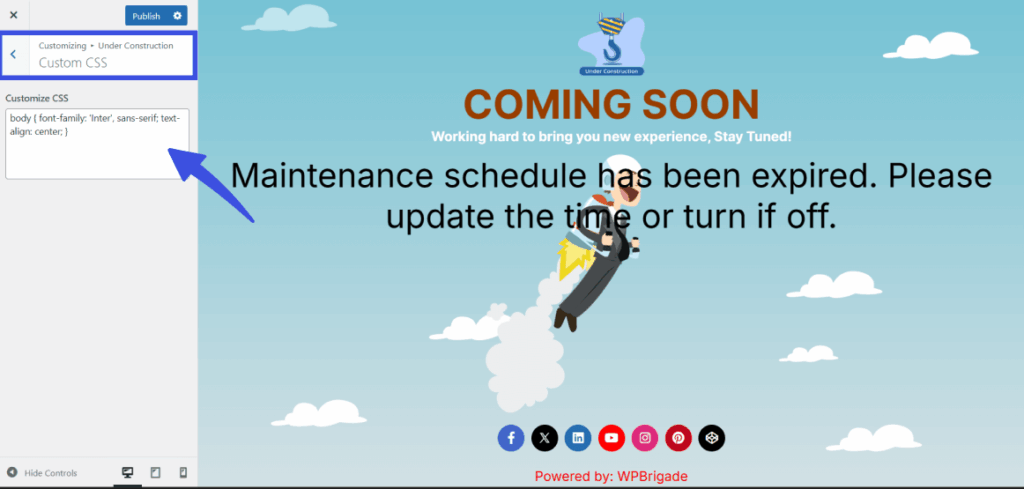
Once the settings screen opens, click the Custom CSS section in the left menu. You will see a large text box where you can type or paste your own CSS code to change things like font sizes, specific colors, or spacing.
When you are happy with your code, simply click the Save Changes button at the bottom to apply your new design to the page.
What Happens Next? #
Once saved, your custom CSS will be applied to the under-construction or coming soon page. The changes will take effect immediately, allowing you to customize the page’s design to fit your brand’s look.
Tips for Custom CSS #
- Target Specific Elements: Use CSS selectors to target specific elements on the page (e.g., logo, text, background).
- Test Your Styles: Always preview the page after adding custom CSS to ensure everything looks as expected.
- Use Clear, Simple CSS: If you’re not familiar with CSS, start with simple adjustments, like changing text color or font size, before trying more advanced customizations.
The Custom CSS feature gives you complete control over the appearance of your maintenance page, ensuring it aligns with your website’s branding.
Whether you’re making minor tweaks or performing advanced customizations, this feature lets you personalize your page as needed.
For further technical assistance or questions related to this matter, please contact our support team at your convenience.
Check out our step-by-step guide on How to Customize the Text Section to update headlines, body copy, and text alignments before applying custom styles.