
The Related Post Thumbnails Plugin allows you to enhance content discovery by displaying related posts with thumbnail images.
Customizing how related posts are determined and displayed ensures your visitors see the most relevant content.
In this guide, we will provide a detailed overview of the settings in the Relation Builders tab.
This section allows you to customize how related posts are determined and displayed, with options to base the relationship on categories, tags, post formats, or custom taxonomies, depending on your WordPress setup and installed plugins.
Relation Builders Settings #
Let’s explore in detail how you can use the Relation Builders settings to customize how related posts are displayed on your site.
With the Relation Builders section, you have the flexibility to define how posts are related to one another.
This means you can base the relationship between posts on categories, tags, post formats, or even custom taxonomies, depending on the plugins and setups you have.
Now, let’s take a closer look at each setting available under this tab:
Base Relation On #
This setting allows you to define how the plugin identifies and displays related posts. You can choose one of the following options to determine how related posts are linked:
- Categories:
- Show related posts based on the post categories. This is useful if you want related posts to share similar topics or themes.
- Tags:
- Show related posts based on the tags. Tags are usually used to describe specific topics or keywords, and related posts will be selected based on shared tags.
- Both:
- Combine both categories and tags to determine relatedness. This means related posts must match either the category or the tag, broadening the selection.
- No:
- Disable related posts from being shown entirely. This option will remove the related posts section from your pages or posts.
- Custom:
- Choose custom taxonomies or post attributes to build relationships between posts. Custom taxonomies allow you to define relationships that go beyond just categories and tags, depending on the plugins and custom post types you have set up.
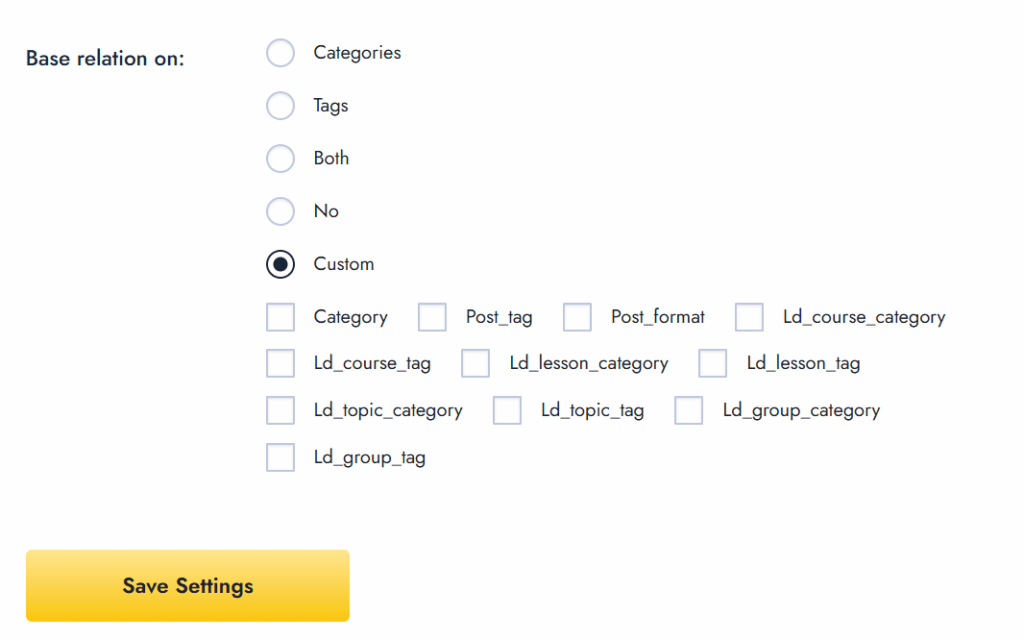
Custom Taxonomy Options #
When you select the Custom option for determining related posts, you are given additional options to fine-tune how posts are related.
These options allow you to select one or more criteria to determine related posts, making the relationships more specific.
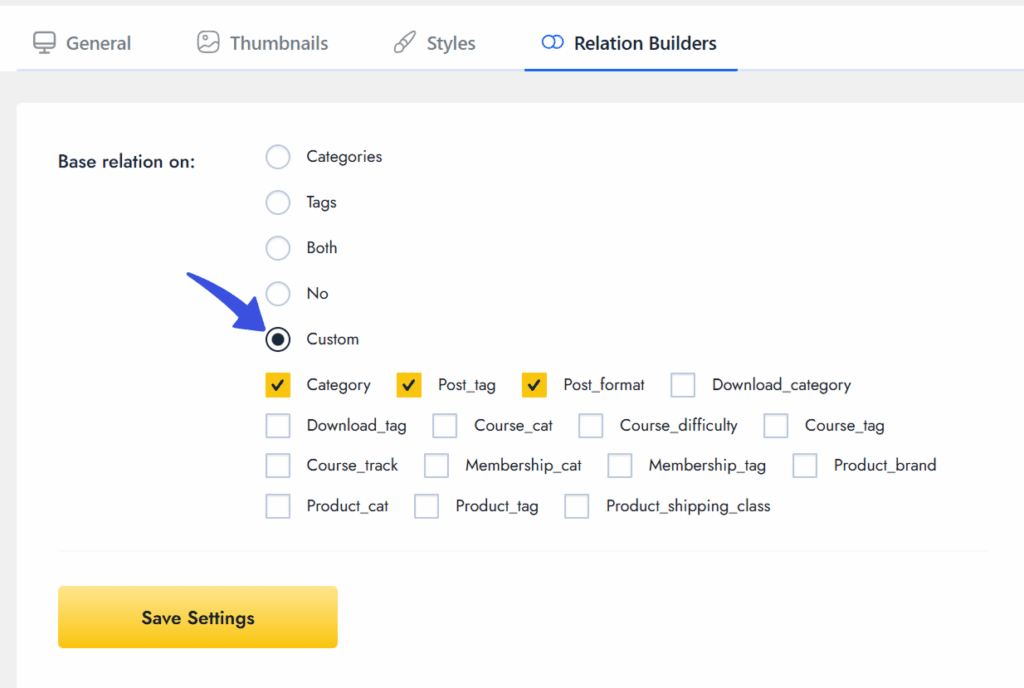
Here are the options available when Custom is selected:
- Category:
- This option uses the default post categories to define relatedness. For example, posts within the same category (e.g., “Health” or “Technology”) will be considered related.
- Post_tag:
- This option uses the default post tags to identify related posts. If posts share the same tags (e.g., “fitness,” “wellness”), they will be linked as related.
- Post_format:
- This option uses the post format (e.g., standard, image, video) to determine relatedness. Posts with similar formats will be shown as related, helping to group similar content types.
- This option uses the post format (e.g., standard, image, video) to determine relatedness. Posts with similar formats will be shown as related, helping to group similar content types.
- Note: You may also see additional taxonomies, such as Ld_course_category, Ld_lesson_category, etc., if you have plugins like LearnDash LMS installed, which provide custom taxonomies for courses or lessons.
Final Thoughts #
The Relation Builders settings provide a simple yet powerful way to define how related posts are shown on your site.
By choosing categories, tags, or custom taxonomies, you can control how related content is displayed to your visitors.
This makes it easy to organize and enhance your content for better engagement.
After adjusting the settings, be sure to save your changes to apply them to your site. Feel free to reach out to our dedicated support team for any queries related to relation builders.